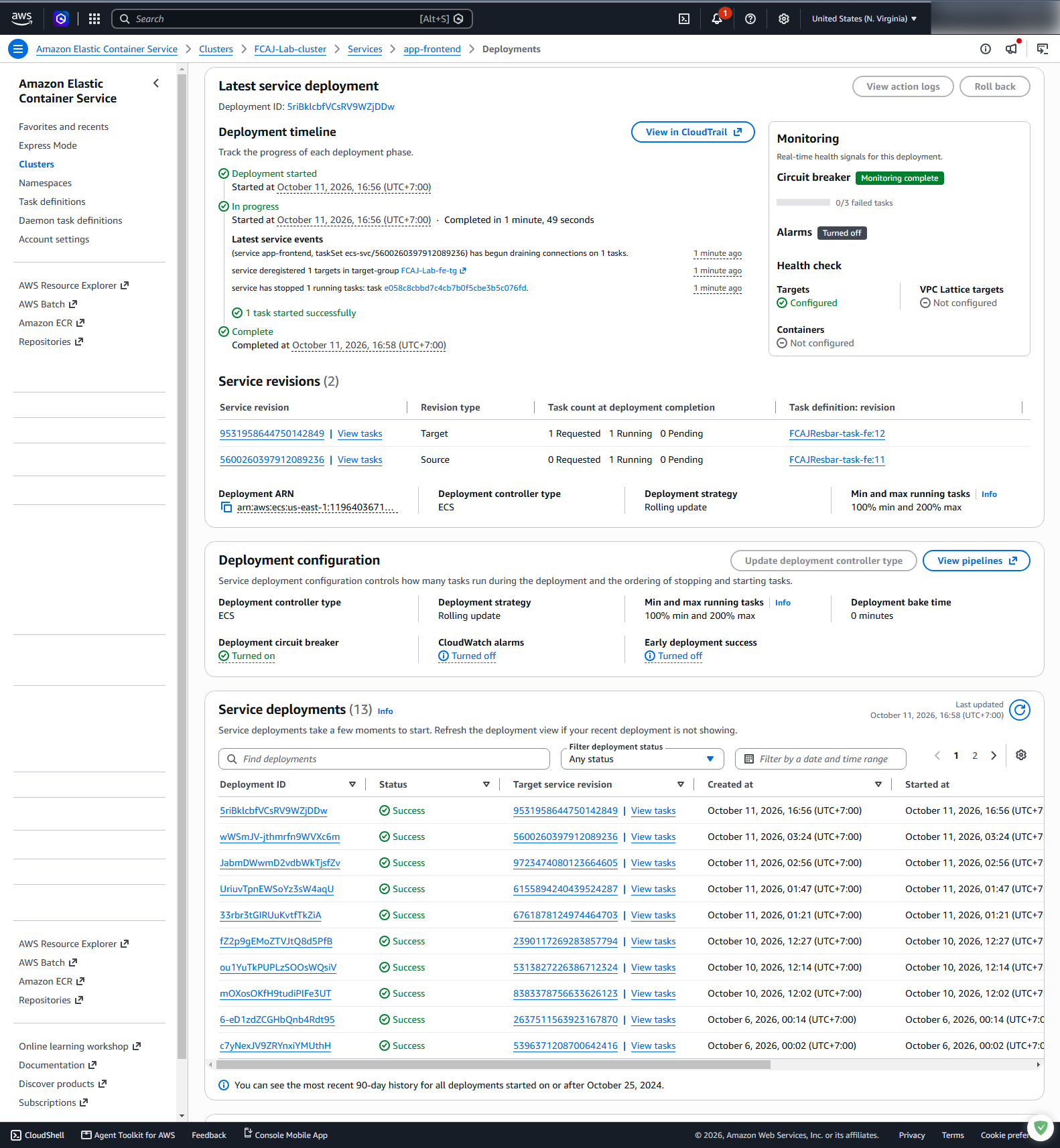
Update ECS Service
AWS FireLens enables Amazon ECS to route container logs directly to storage systems and analytics tools without modifying application code. By enabling FireLens, Amazon ECS injects an AWS for Fluent Bit sidecar container into your task definition. Application container standard output (stdout) and standard error (stderr) streams are automatically routed to the Fluent Bit sidecar container via a local socket using the Fluentd forward protocol. Fluent Bit then buffers the log events, compresses them, and writes them to your Amazon S3 bucket.
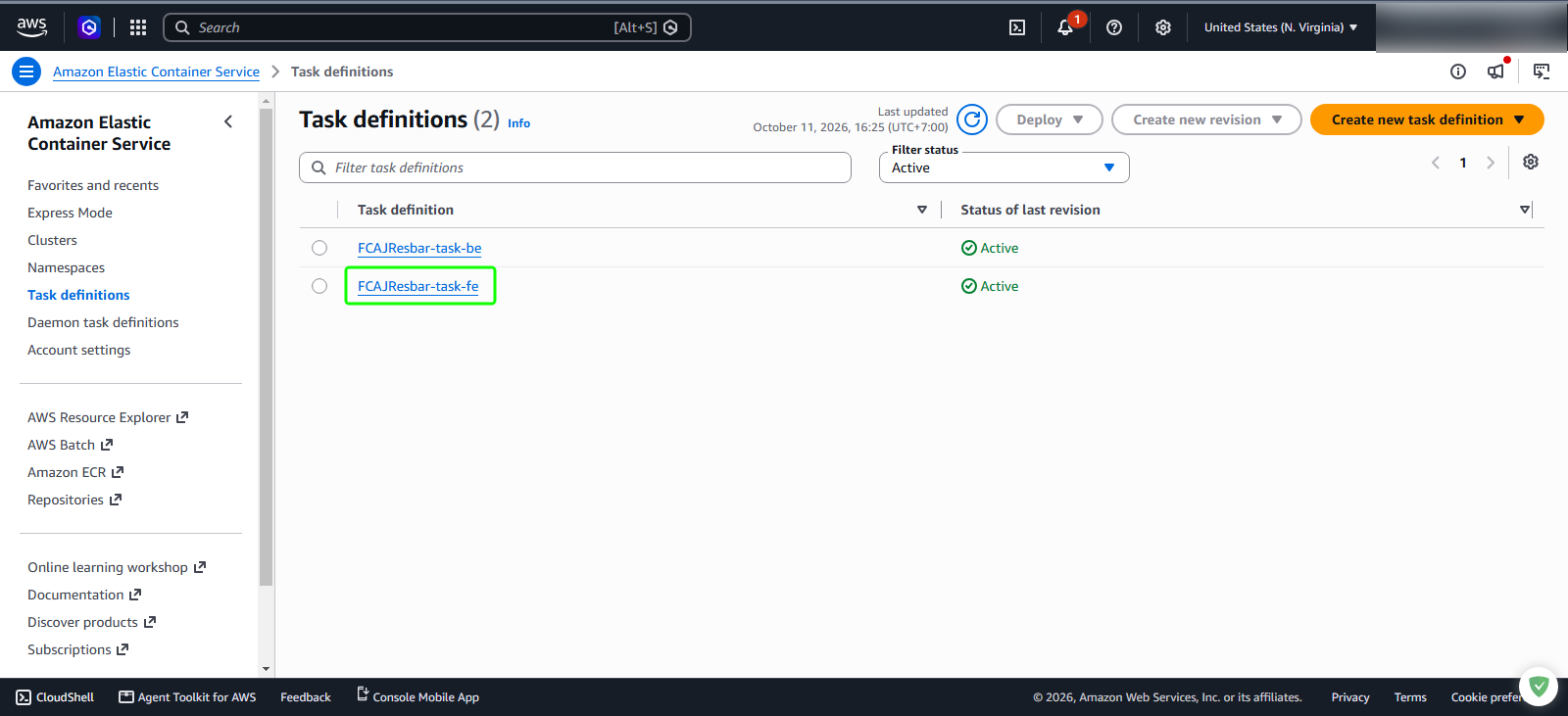
Step 1: Select the frontend task definition
Open the Amazon Elastic Container Service console.
In the left navigation menu, click Task definitions.
In the task definitions list, click FCAJResbar-task-fe.
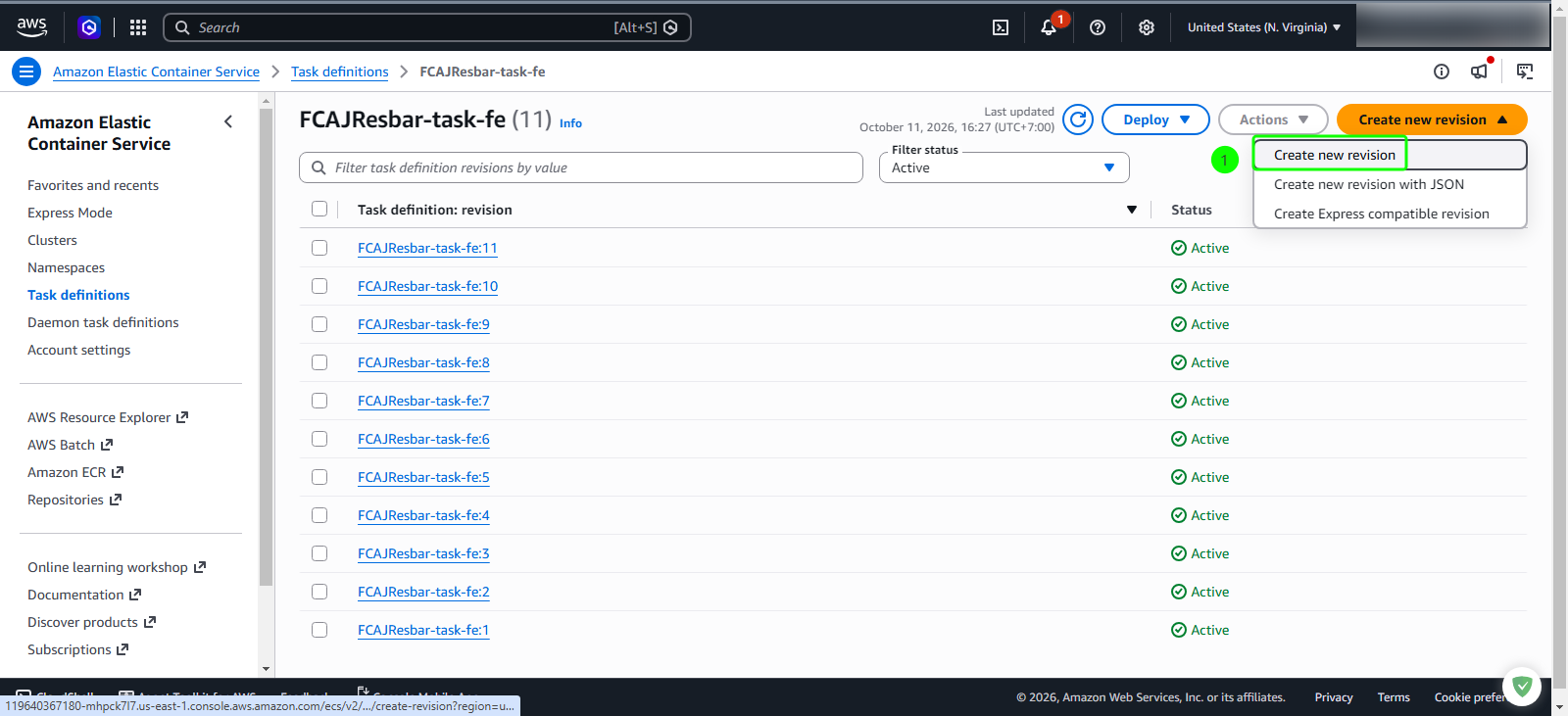
Step 2: Create a new task definition revision
Click the Create new revision split button and select Create new revision
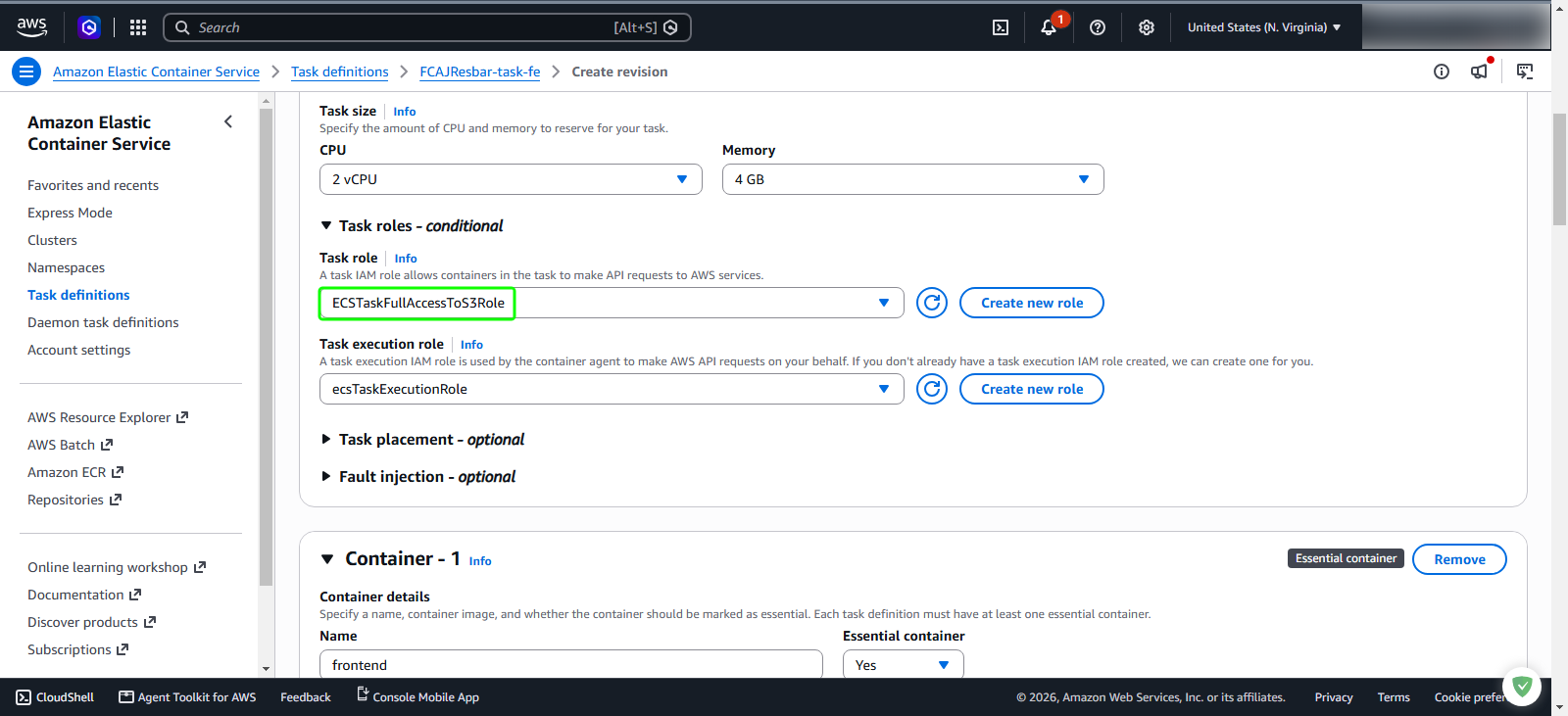
Step 3: Assign the IAM task role
On the Create revision page, locate the Task roles - conditional section:
- In the Task role dropdown menu, select
ECSTaskFullAccessToS3Role(the role created in module 7.2). - Verify that Task execution role remains set to
ecsTaskExecutionRole.
- In the Task role dropdown menu, select
Setting the Task role grants the running Fluent Bit sidecar container temporary AWS STS credentials required to upload log objects directly into your Amazon S3 bucket via the AWS SDK.
Step 4: Configure FireLens log collection on the application container
Scroll down to the Container - 1 section (representing the application container named
frontend).Expand the Log collection panel:
- Ensure the checkbox Use log collection is checked.
- In the Destination dropdown menu, select Export logs to S3 via AWS FireLens.
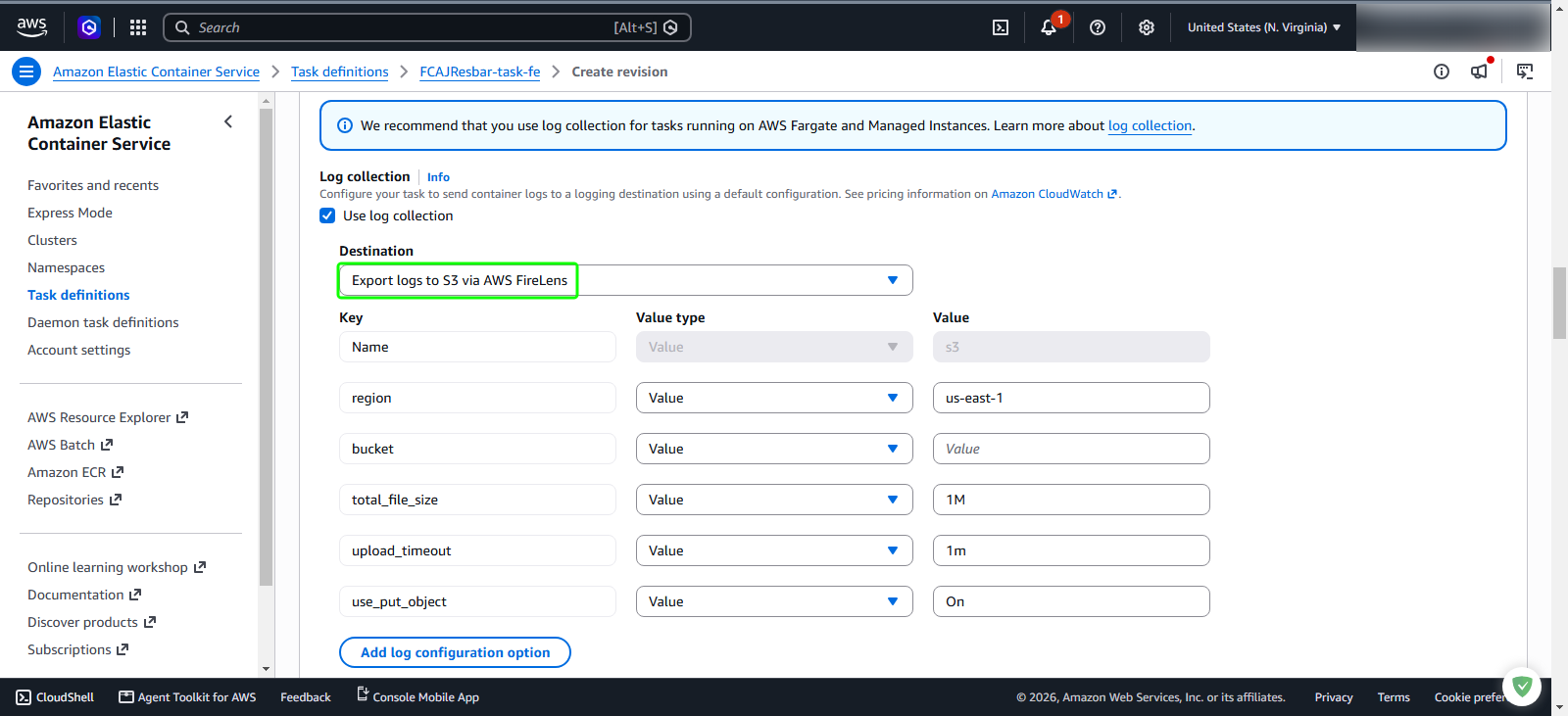
Step 5: Specify S3 bucket destination and retry limit
- In the log collection key-value options table:
- Locate the row where Key is
bucket: in the Value field, enterfirelens-logs-7180
- Locate the row where Key is
- Below the options table, click the Add log configuration option button.
- In the newly generated row:
- In the Key field: enter
retry_limit - In the Value field: enter
2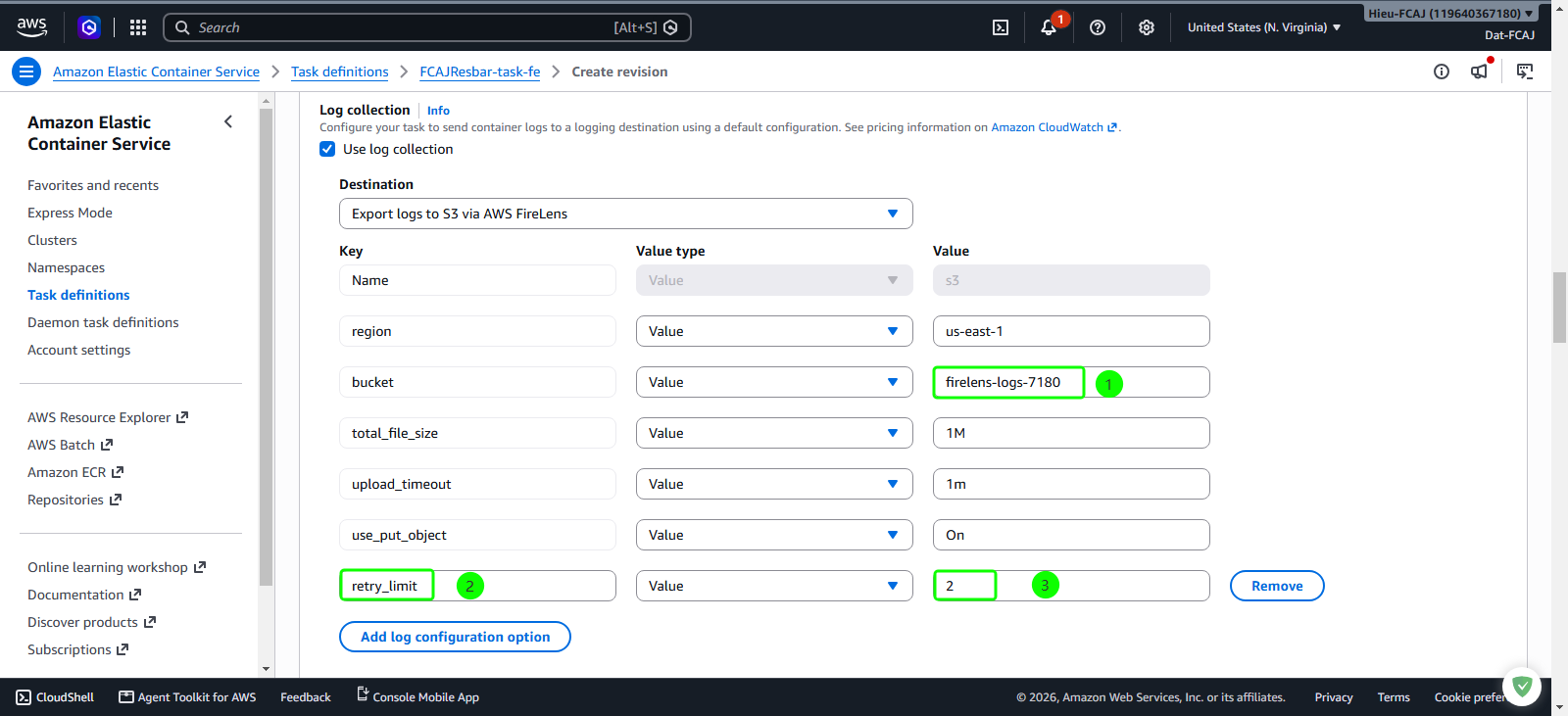
- In the Key field: enter
Step 6: Configure the FireLens sidecar container
Scroll down to the second container automatically injected by the console:
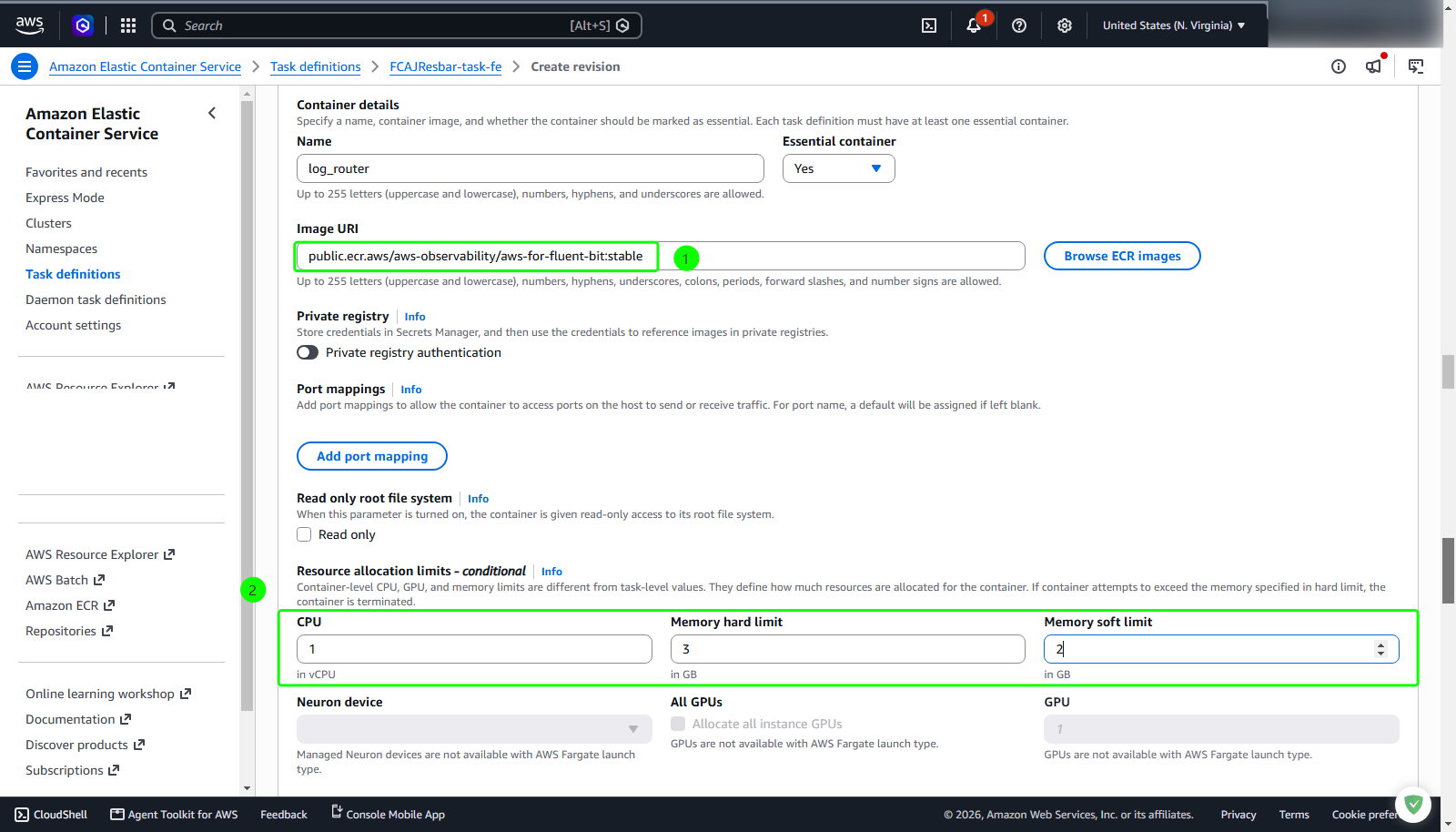
- Name:
log_router - Essential container: Ensure Yes is selected.
- Image URI: Confirm that the image URI is set to
public.ecr.aws/aws-observability/aws-for-fluent-bit:stable
- Name:
Under Resource allocation limits - conditional
- In the CPU field: enter
1(1 vCPU). - In the Memory hard limit field: enter
3(3 GB). - In the Memory soft limit field: enter
2(2 GB).
- In the CPU field: enter
Step 7: Create the task definition revision
In the lower-right corner, click the orange Create button.
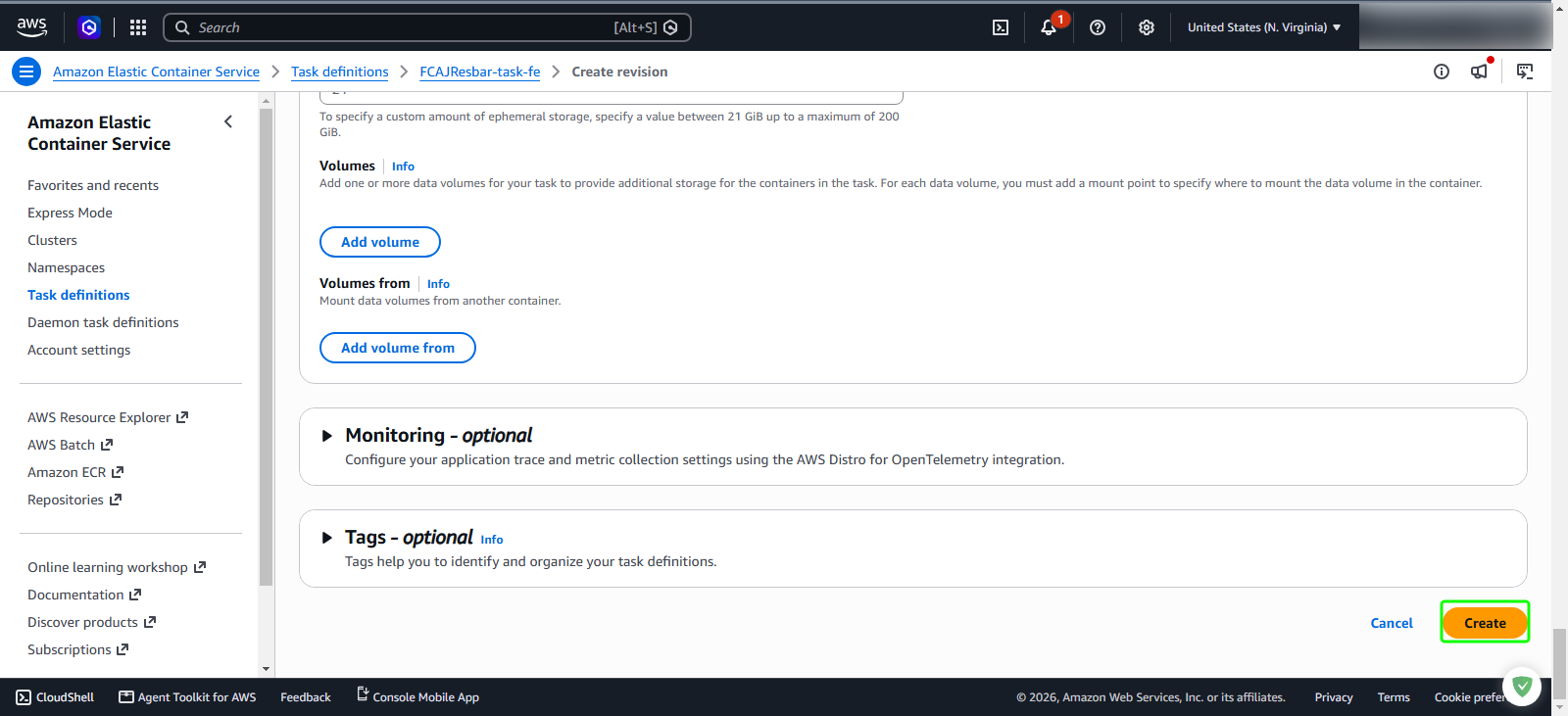
Step 8: Verify revision creation
- Verify that the console displays the green success banner:
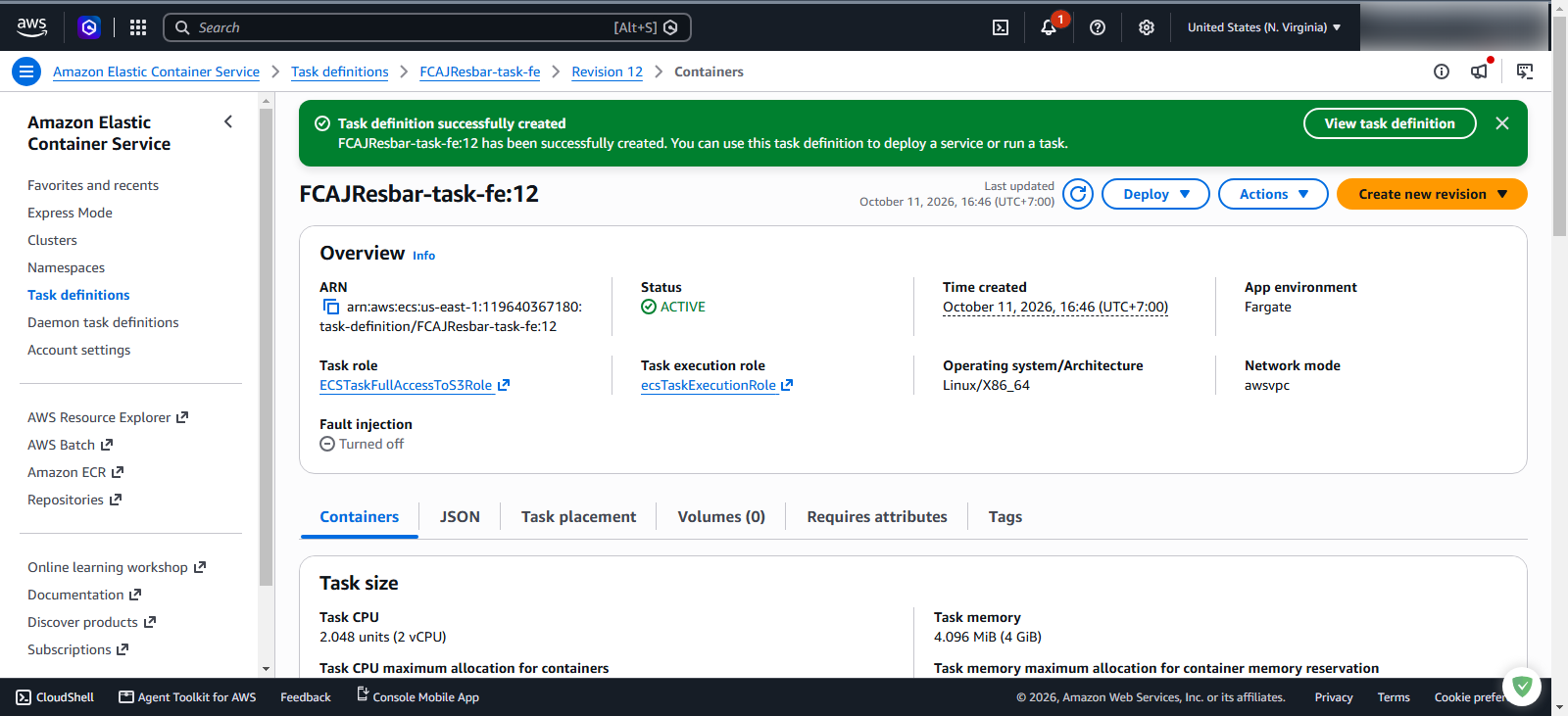
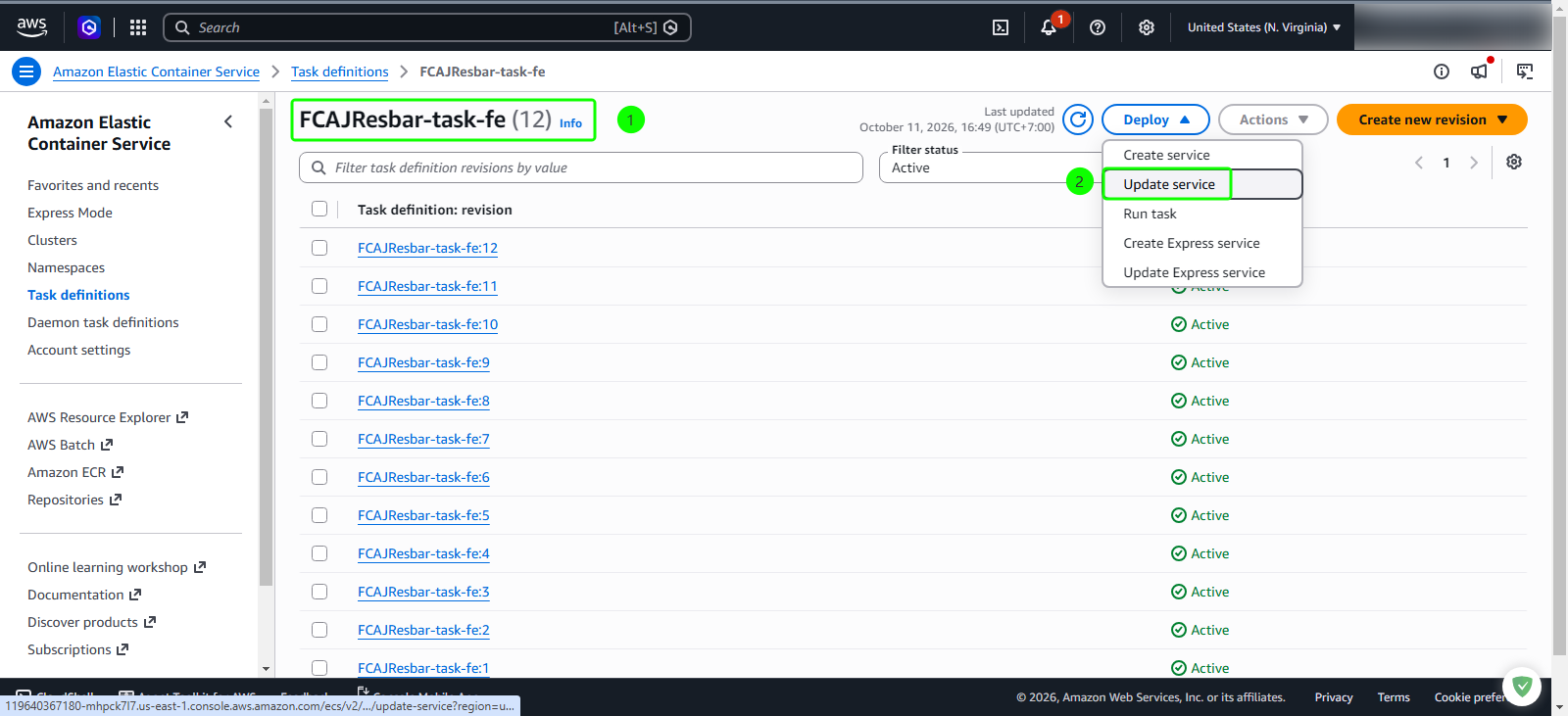
Step 9: Initiate service update
Click the Deploy dropdown button and select Update service.
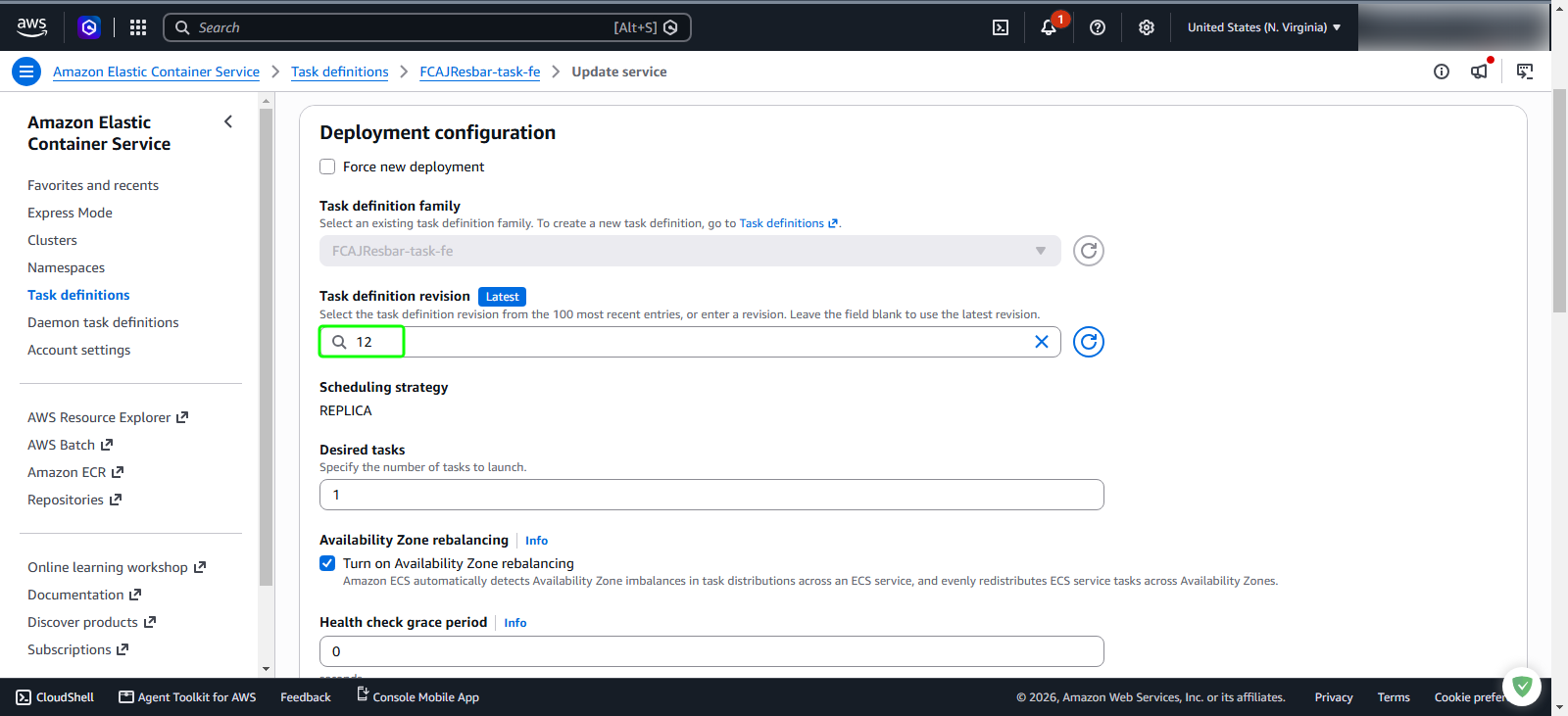
Step 10: Configure deployment revision
On the Update service page, locate the Deployment configuration section:
- In the Task definition revision field, select the latest revision.
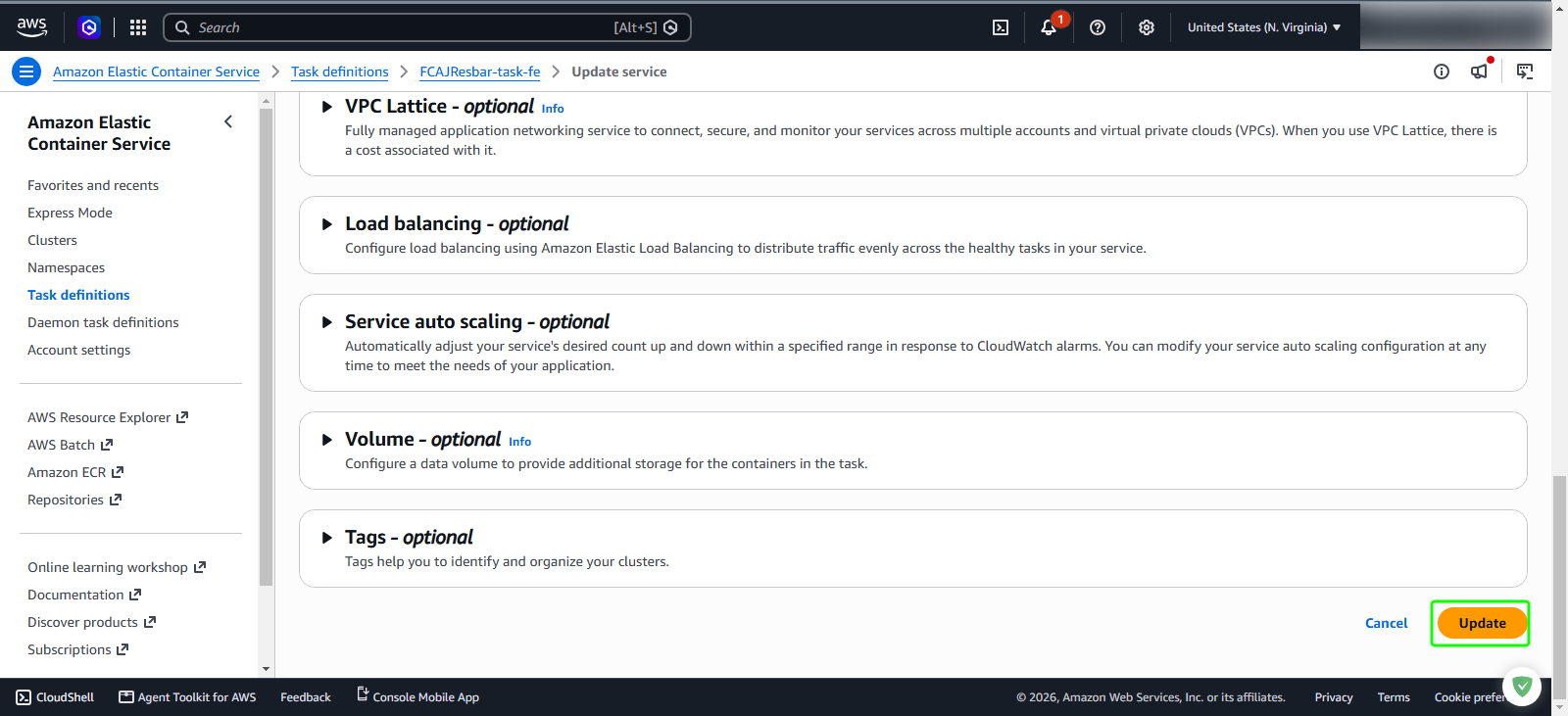
Step 11: Apply the service update
Click the orange Update button.
Step 12: Verify deployment completion
In the Amazon ECS console, navigate to Clusters > FCAJ-Lab-cluster > Services > app-frontend > Deployments.
Monitor the Latest service deployment timeline: