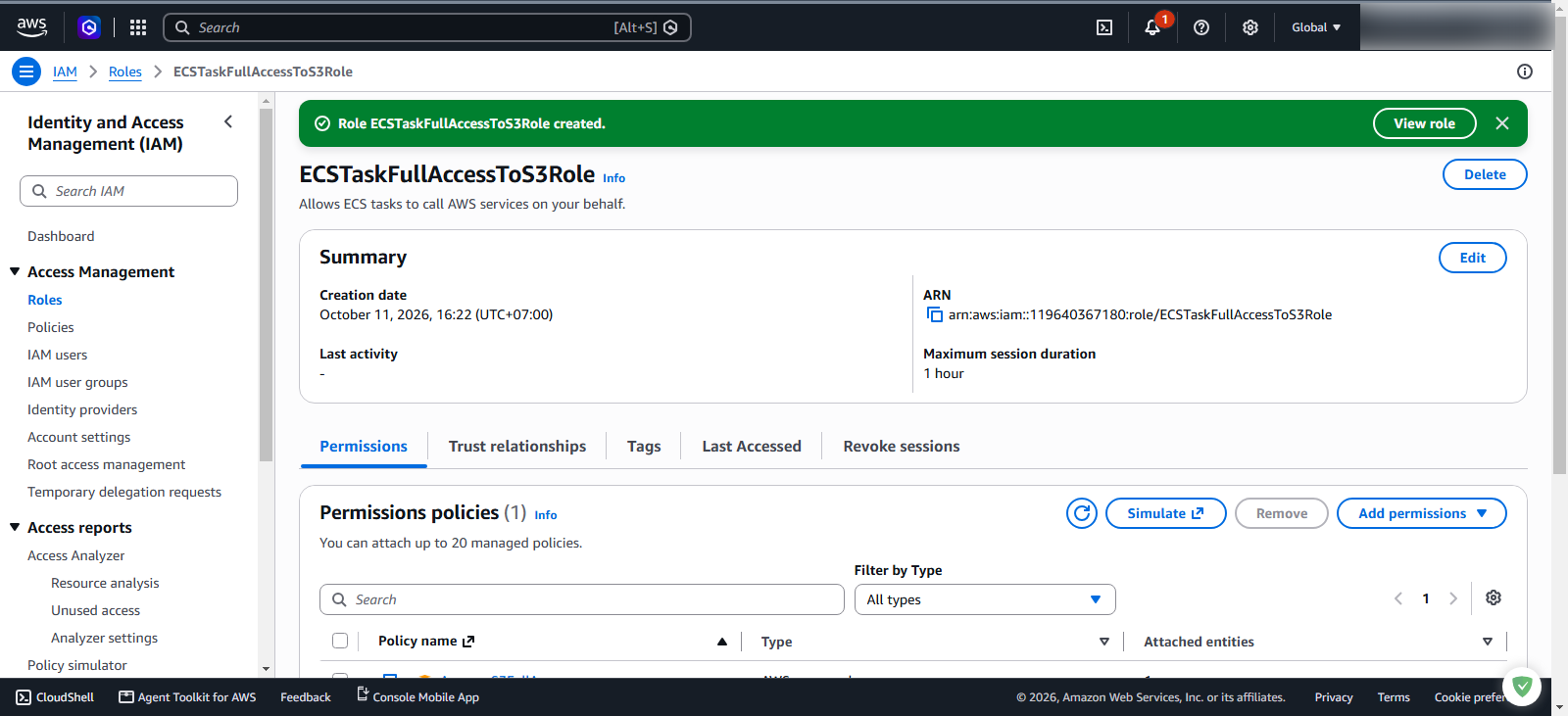
Create IAM Role for ECS Task
Amazon ECS distinguishes between two key IAM roles assigned to tasks:
- Task execution role (
ecsTaskExecutionRole): Utilized by the Amazon ECS container agent and Fargate infrastructure to pull private container images from Amazon ECR and send system logs to Amazon CloudWatch Logs. - Task role (
ECSTaskFullAccessToS3Role): Assumed directly by the application and sidecar containers running inside the task. When AWS FireLens is configured, the Fluent Bit sidecar container requires AWS credentials provided by the task role to performs3:PutObjectAPI operations against your Amazon S3 bucket.
Step 1: Navigate to IAM in the AWS Management Console
Log in to the AWS Management Console.
In the top search bar, enter
IAMUnder the Services category, click IAM (Manage access to AWS resources)
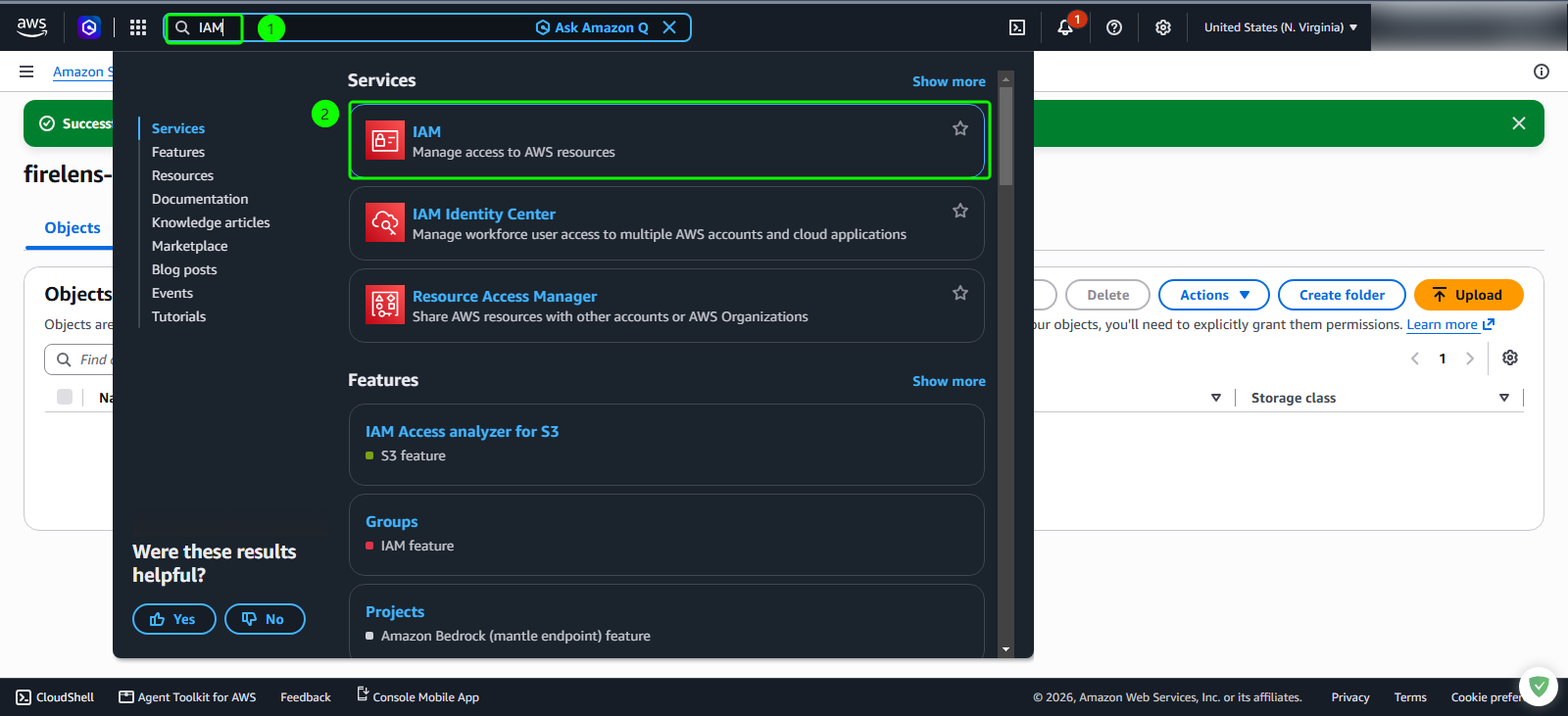
Step 2: Open the role creation wizard
In the left navigation pane under Access Management, click Roles
On the Roles dashboard, click the orange Create role button
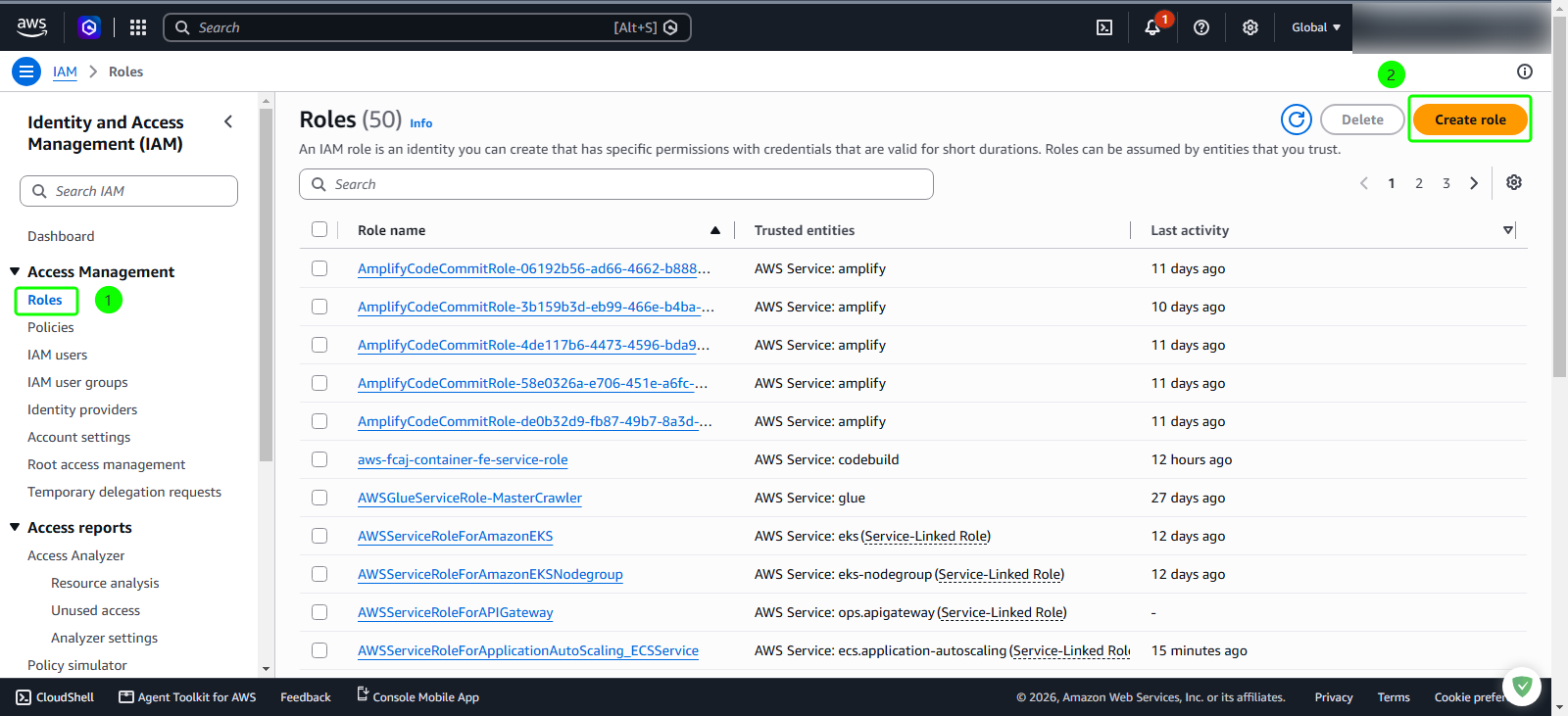
Step 3: Select trusted entity and service use case
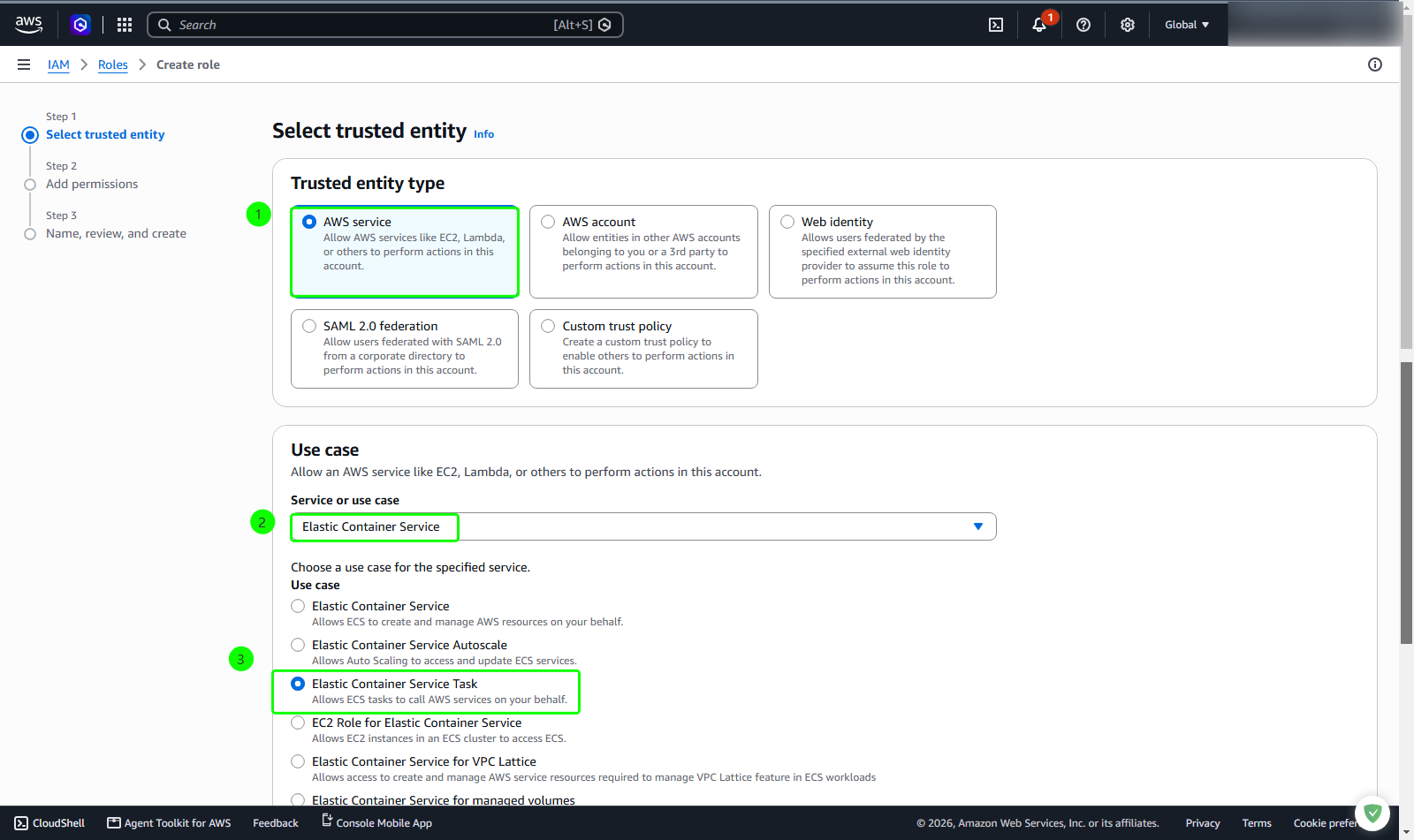
On the Select trusted entity page, configure the principal authority:
- In the Trusted entity type panel, select AWS service
In the Use case section:
- In the Service or use case dropdown menu, select Elastic Container Service
- Select the radio button Elastic Container Service Task
Click the orange Next button.
Step 4: Attach permissions policy
On the Add permissions page, search for the Amazon S3 managed policy:
- In the Permissions policies filter search box, enter
AmazonS3FullAccess
- In the Permissions policies filter search box, enter
In the filtered policy results table:
- Select the checkbox next to the policy name AmazonS3FullAccess
Click the orange Next button
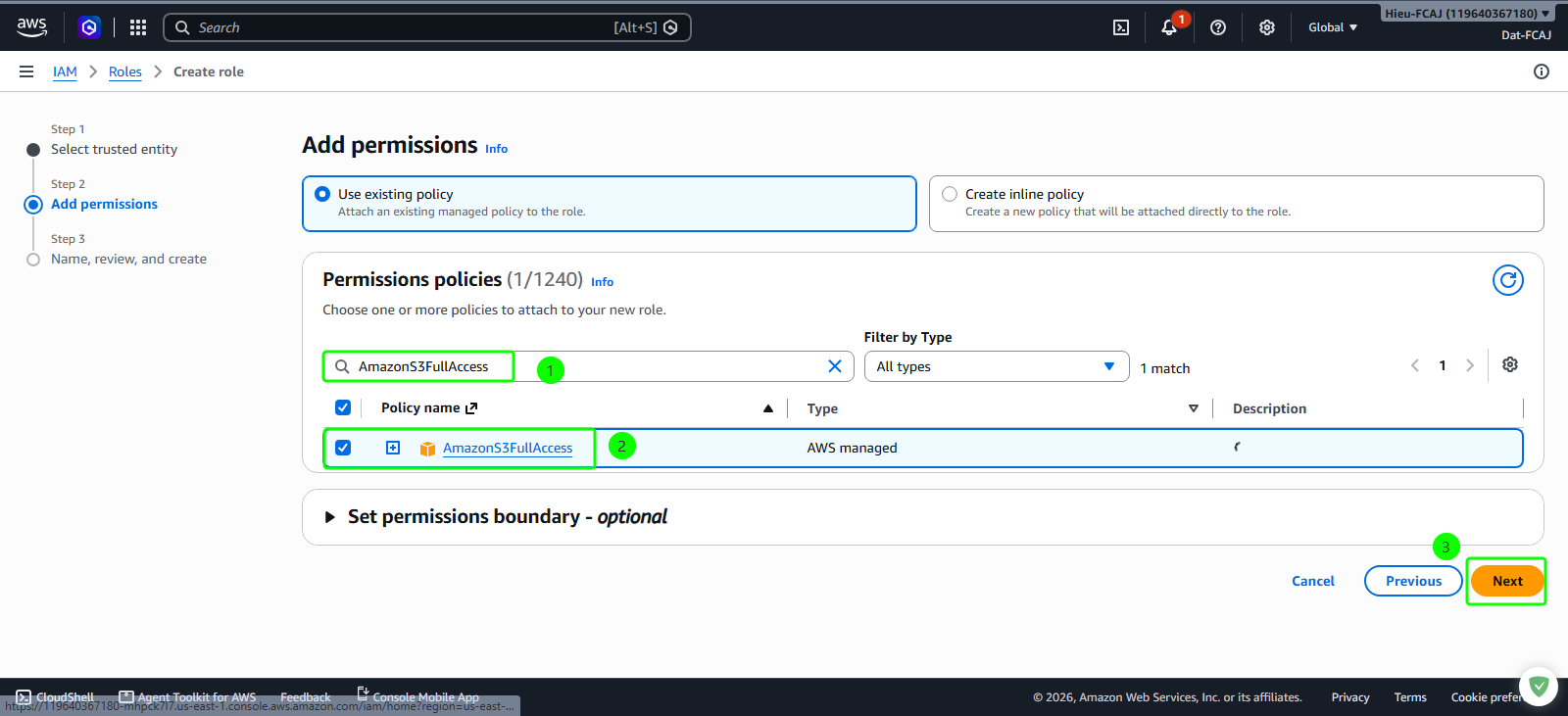
While attaching AmazonS3FullAccess accelerates lab setup, production security standards require applying least privilege. For an enterprise deployment, author a customer-managed IAM policy restricted exclusively to actions like s3:PutObject and s3:PutObjectAcl, scoped directly to the target bucket ARN: arn:aws:s3:::firelens-logs-7180/*.
Step 5: Name and review the IAM role
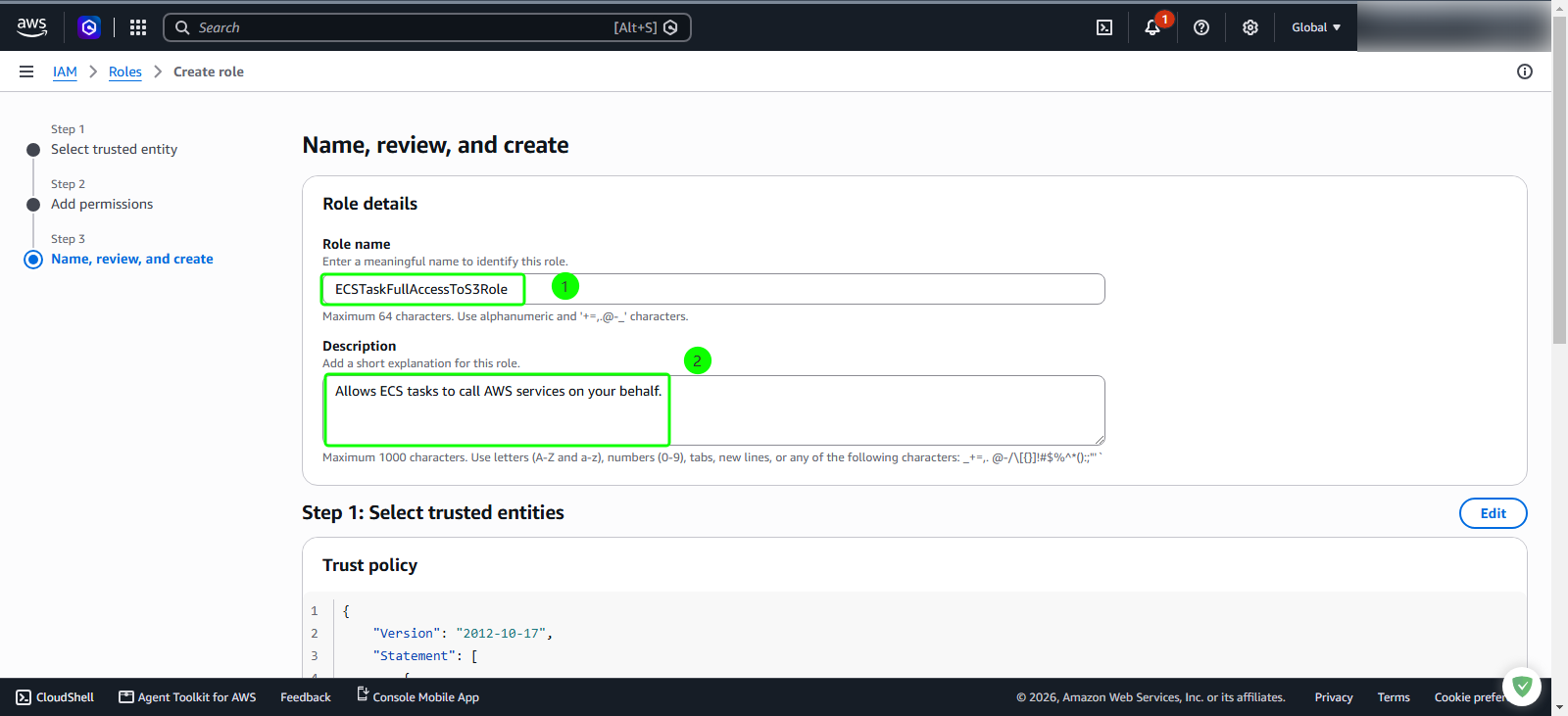
On the Name, review, and create page, enter the role metadata:
- Role name: Enter
ECSTaskFullAccessToS3Role - Description: Enter
Allows ECS tasks to call AWS services on your behalf.
- Role name: Enter
Scroll to the bottom of the page and click the orange Create role button.
Step 6: Verify IAM role creation
- Once the role is provisioned, the console displays a green notification banner.