Create S3 Bucket to Store Logs
In this section, you will create an Amazon S3 bucket designated as the centralized storage destination for container logs routed by AWS FireLens. AWS FireLens utilizes an AWS for Fluent Bit sidecar container running inside your Amazon ECS task to intercept standard output (stdout) and standard error (stderr) streams from your application container, buffer them, and stream them into Amazon S3 objects organized by timestamp prefixes.
Step 1: Navigate to Amazon S3 in the AWS Management Console
Log in to the AWS Management Console.
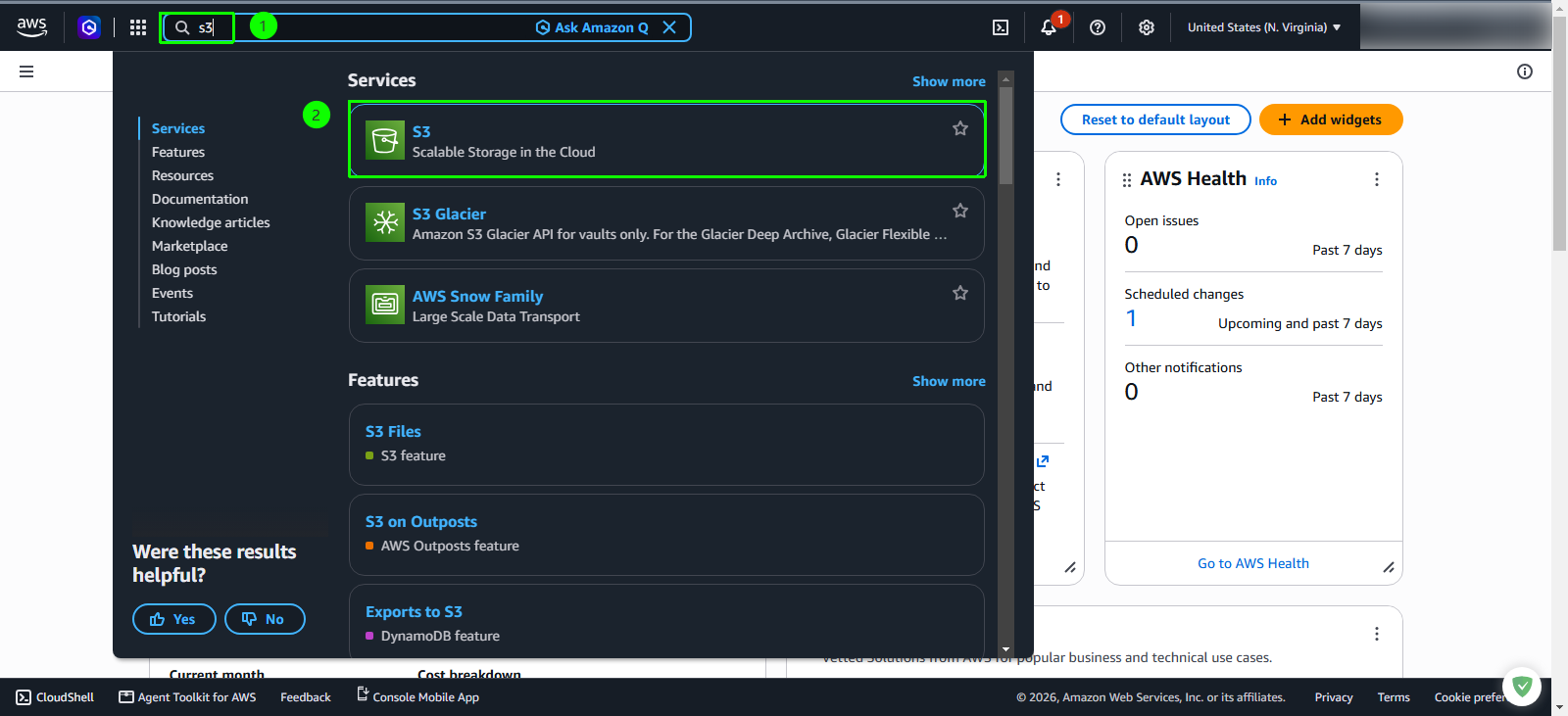
In the top search bar, enter
s3Under the Services category, click S3
Step 2: Open the bucket creation wizard
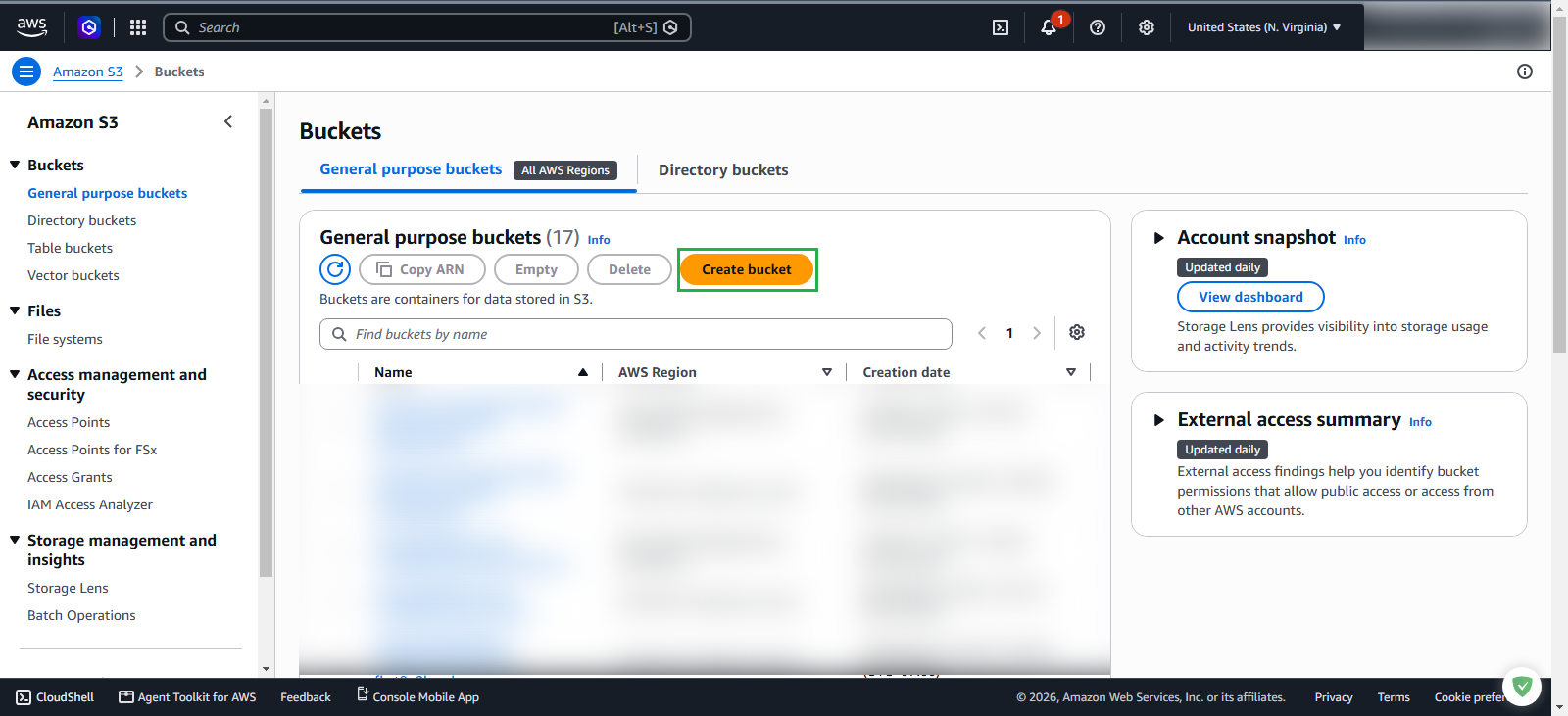
In the Amazon S3 console, ensure the Buckets tab is selected in the left navigation menu.
In the General purpose buckets dashboard, click the orange Create bucket button.
Step 3: Configure general settings and object ownership
In the General configuration section, review and configure the bucket properties:
- AWS Region: Ensure your target region is selected, such as
US East (N. Virginia) us-east-1. - Bucket type: Ensure General purpose is selected.
- Bucket namespace: Ensure Global namespace is selected.
- Bucket name: Enter
firelens-logs-7180
- AWS Region: Ensure your target region is selected, such as
In the Object Ownership section:
- Select the radio button ACLs disabled (recommended)
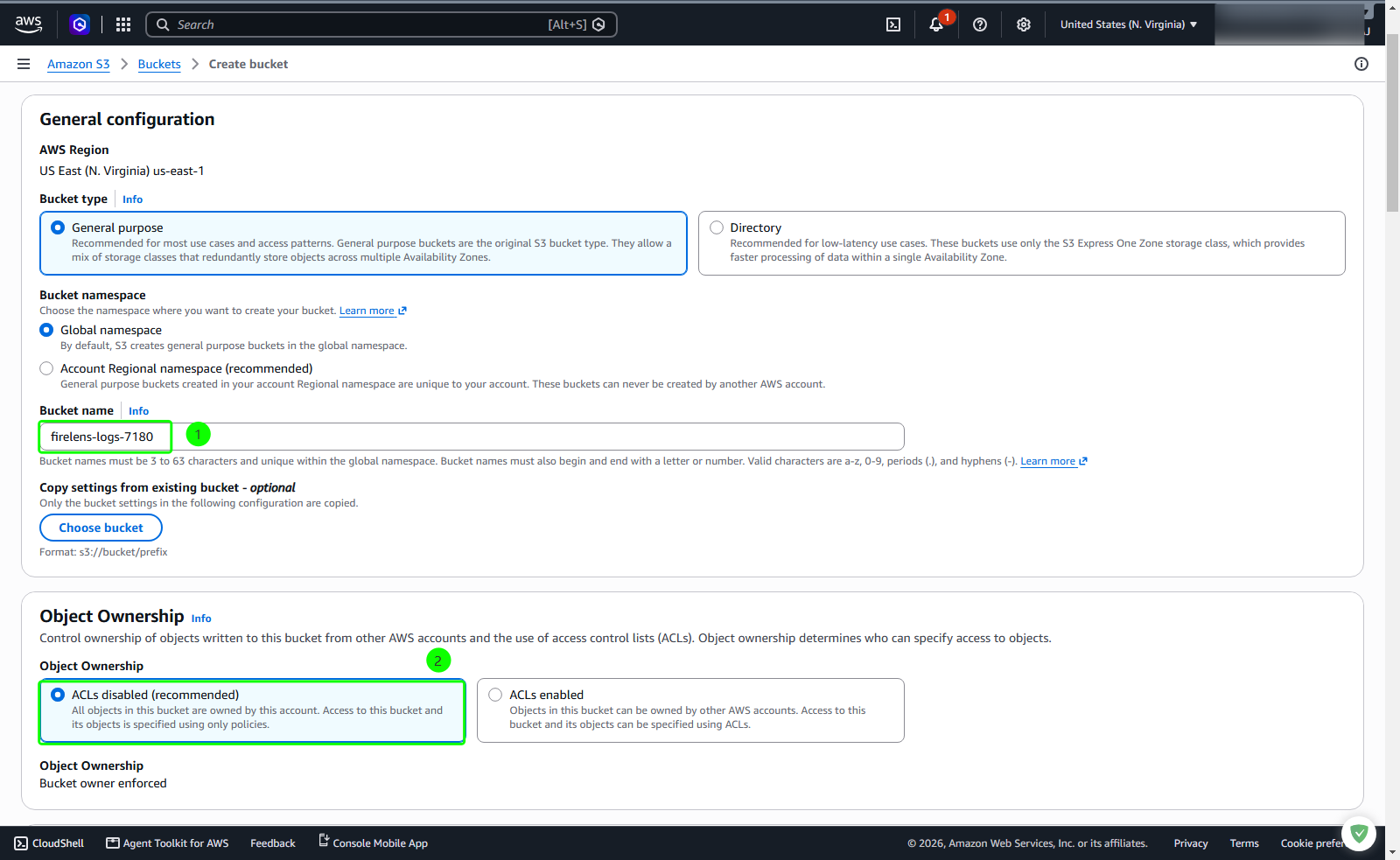
Amazon S3 bucket names must be globally unique across all AWS accounts. If firelens-logs-7180 is unavailable in your partition, append your AWS account ID or a random 4-digit number (for example, firelens-logs-<account-id>) and use that name consistently across subsequent configuration steps.
Step 4: Configure public access settings
In the Block Public Access settings for this bucket section:
- Uncheck the Block all public access checkbox. This action unchecks all four subordinate block public access rules.
Check the acknowledgment checkbox: I acknowledge that the current settings might result in this bucket and the objects within becoming public.
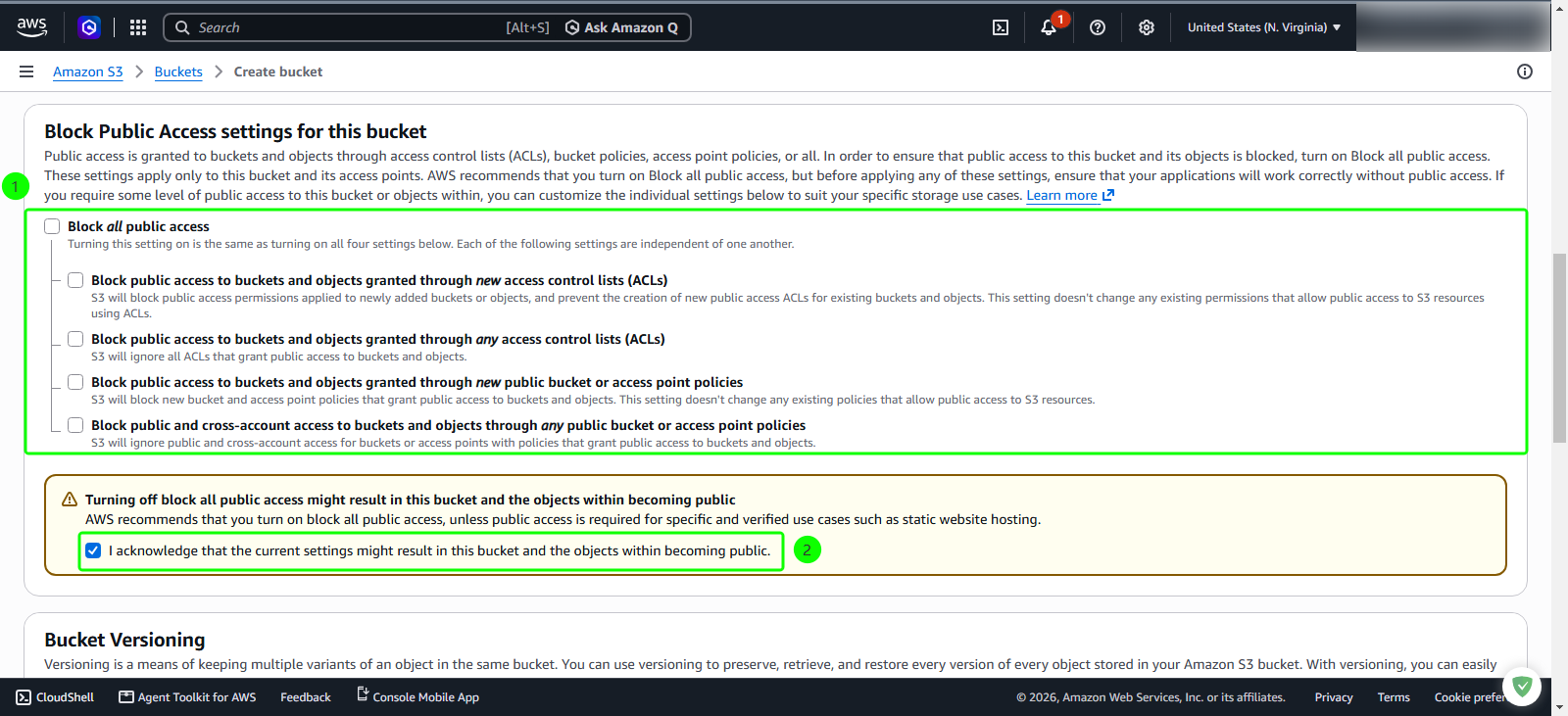
Step 5: Configure versioning and default encryption
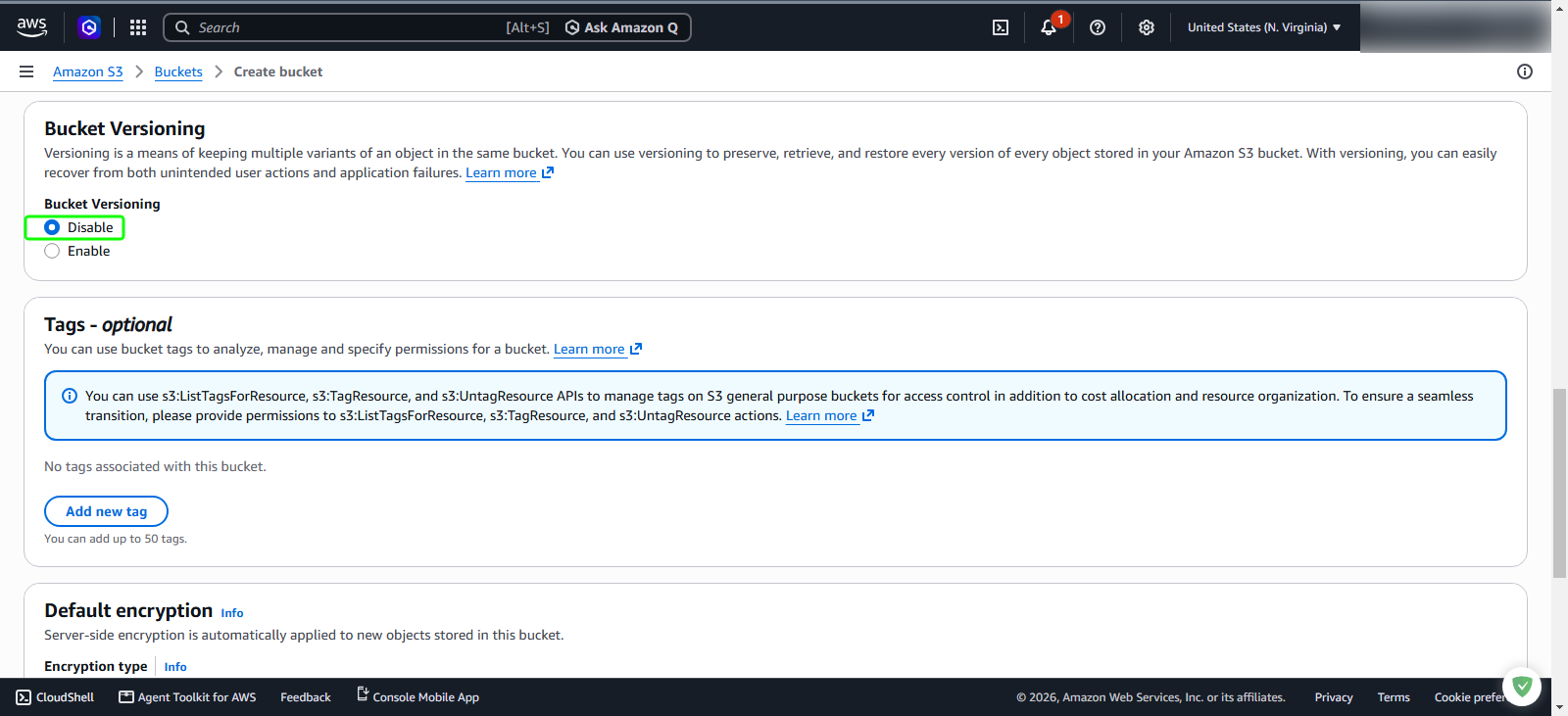
In the Bucket Versioning section:
- Select the radio button Disable.
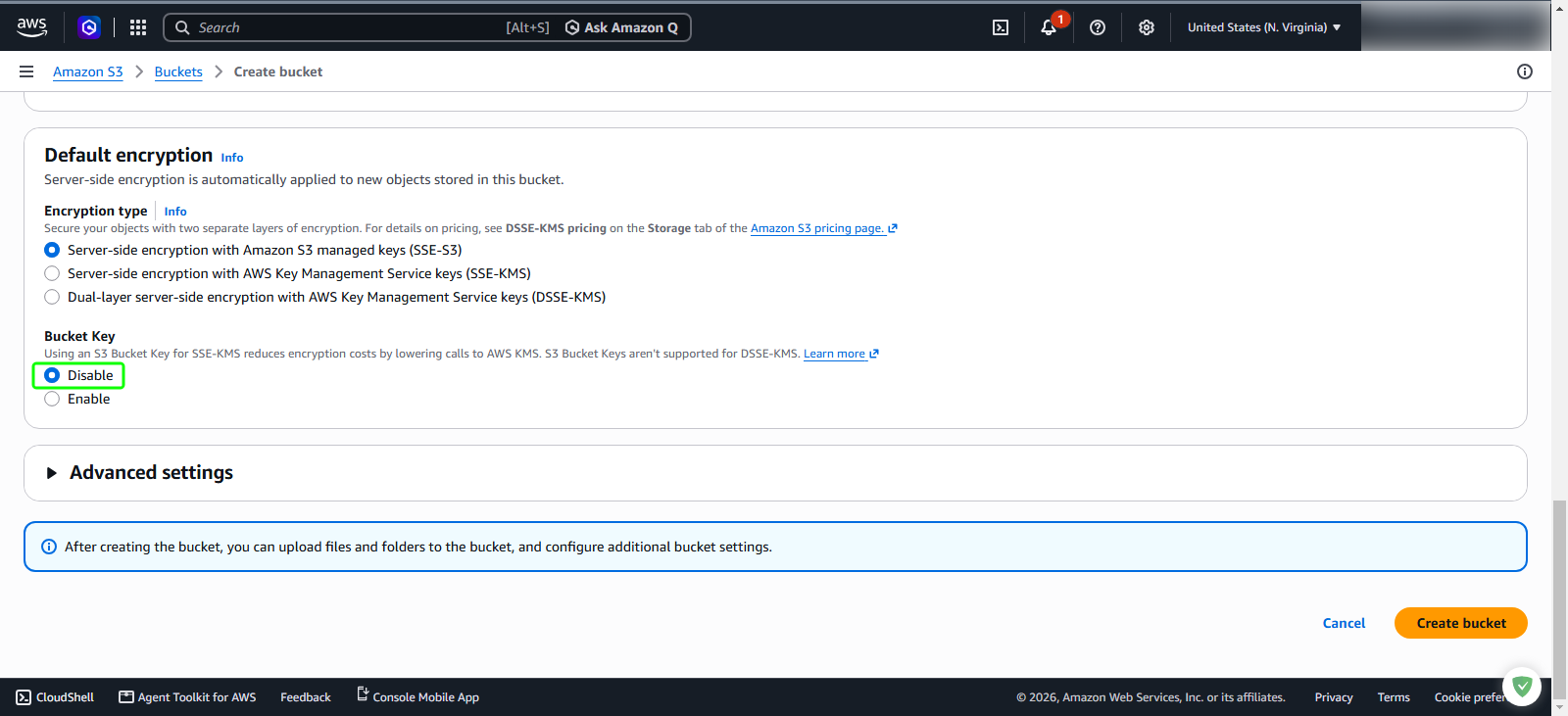
In the Default encryption section:
- Encryption type: Keep the default selection Server-side encryption with Amazon S3 managed keys (SSE-S3).
- Bucket Key: Select the radio button Disable.
Scroll to the bottom of the page and click the orange Create bucket button.
Step 6: Verify S3 bucket creation
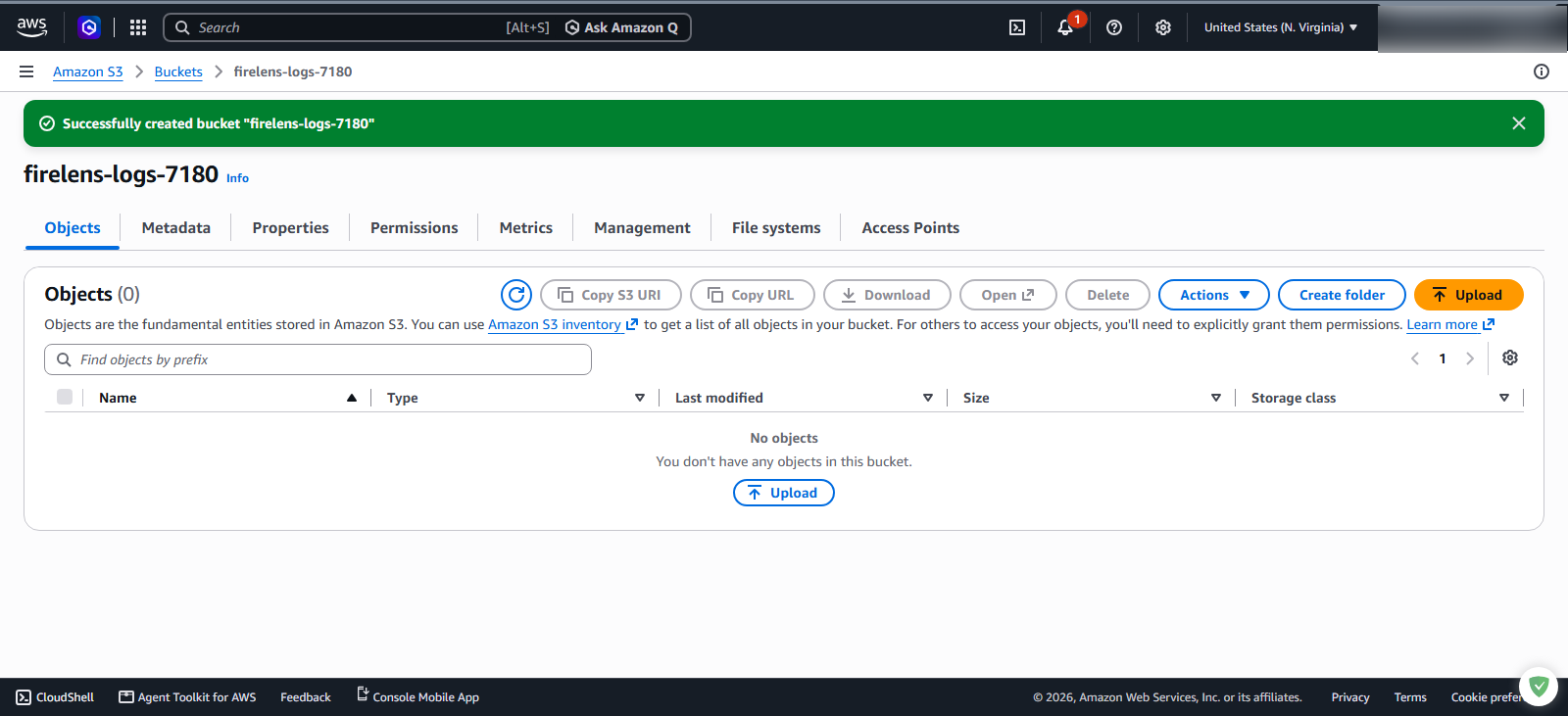
After creation completes, the console displays a green notification banner.
Verify that you are redirected to the bucket overview page for
firelens-logs-7180, displaying an initial object count of Objects (0).