Create Tag
In this section, you will create and publish a Git release tag in your GitHub repository. In the previous modules, you configured AWS CodeBuild webhook filter rules listening for Git reference pushes matching ^refs/tags/. Publishing a versioned release tag (such as v1.0.2) automatically emits a GitHub webhook event that triggers both frontend (aws-fcaj-container-fe) and backend (aws-fcaj-container-be) CodeBuild projects concurrently. Each project packages a new container image, updates Amazon ECR, registers an Amazon ECS task definition revision, and initiates a rolling service deployment.
Step 1: Navigate to repository releases
Open your web browser and navigate to your GitHub repository:
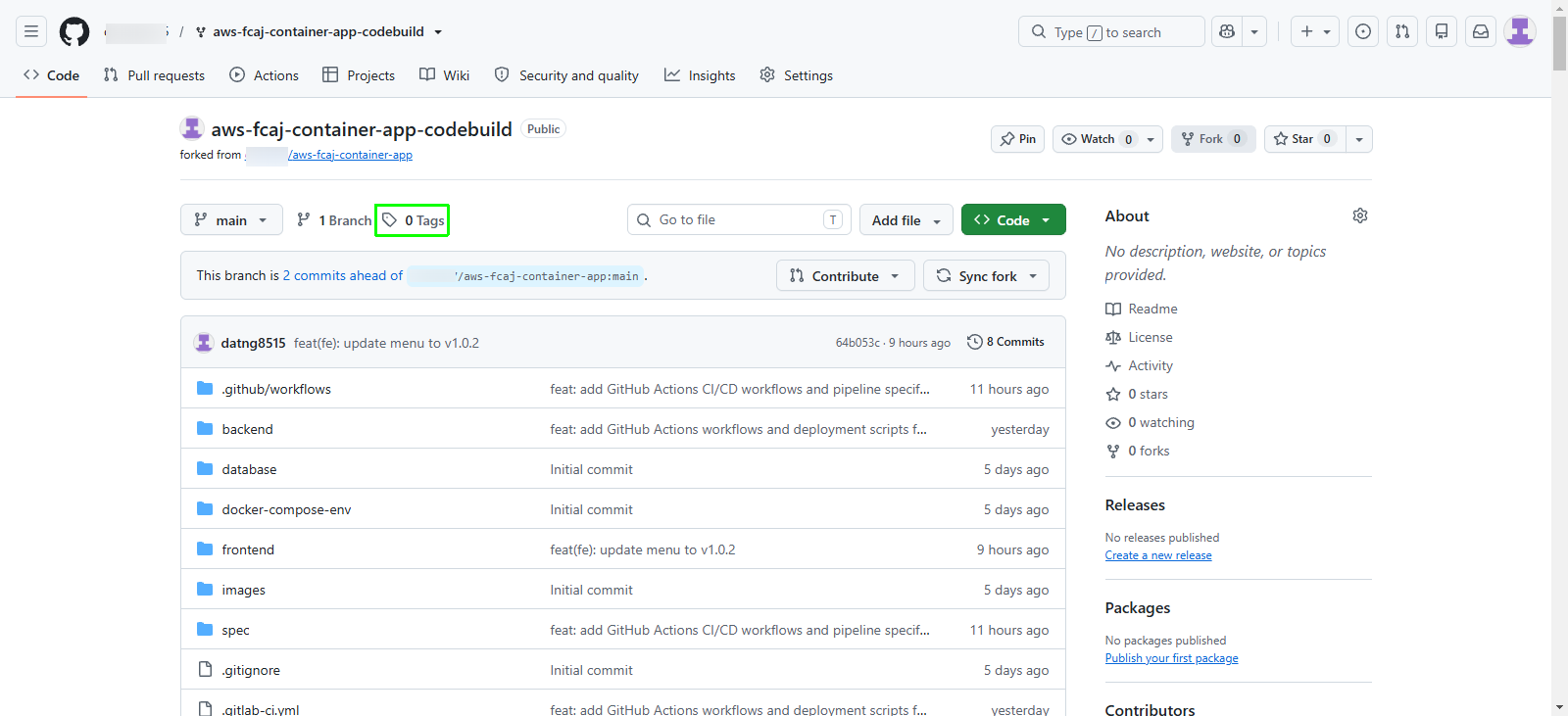
https://github.com/<your-username>/aws-fcaj-container-app-codebuildOn the main repository code page, review the repository summary bar:
- Notice the tag counter displaying 0 Tags.
- Alternatively, locate the Releases section in the right sidebar.
Click the 0 Tags link (or click Create a new release in the right sidebar).
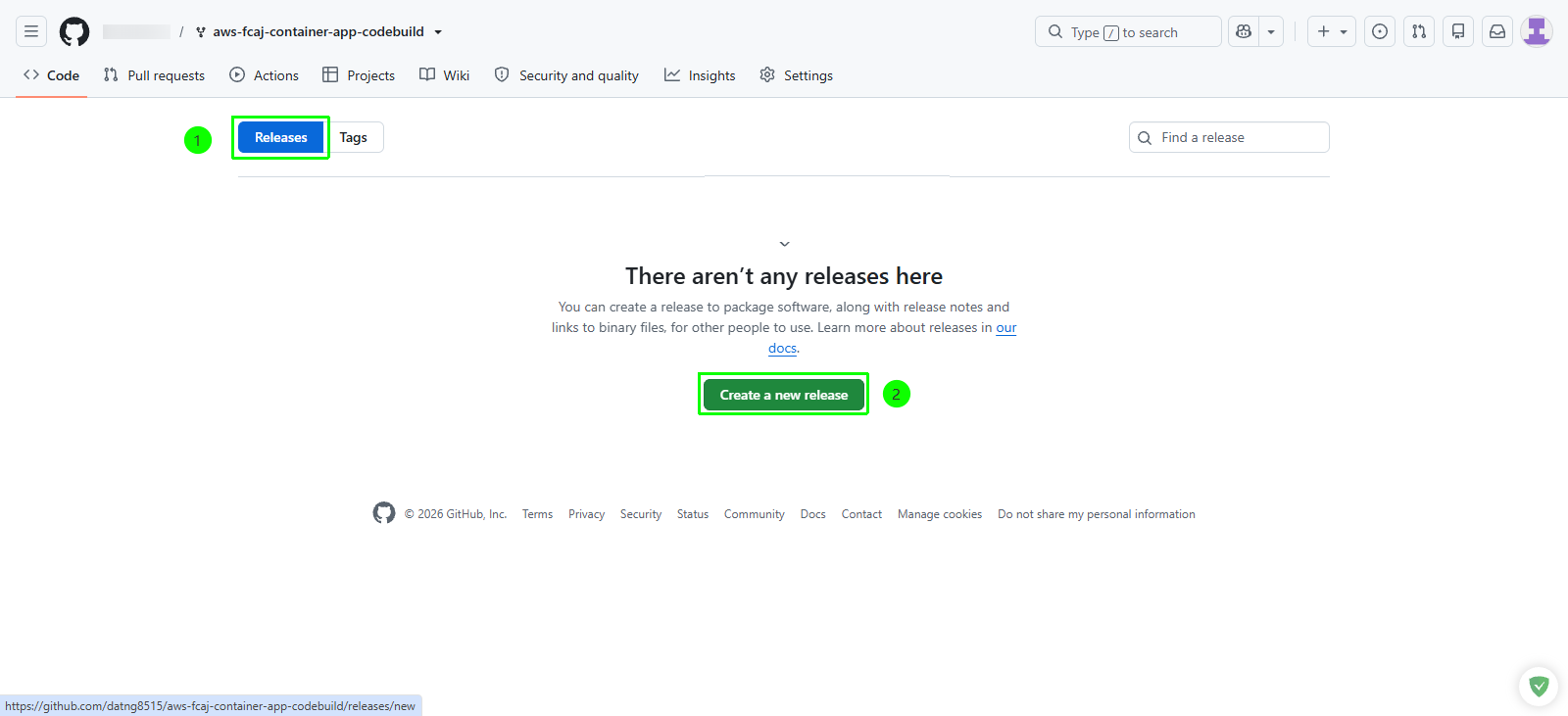
On the releases management page, ensure the Releases tab is active.
Click the green Create a new release button.
Step 2: Configure the release tag
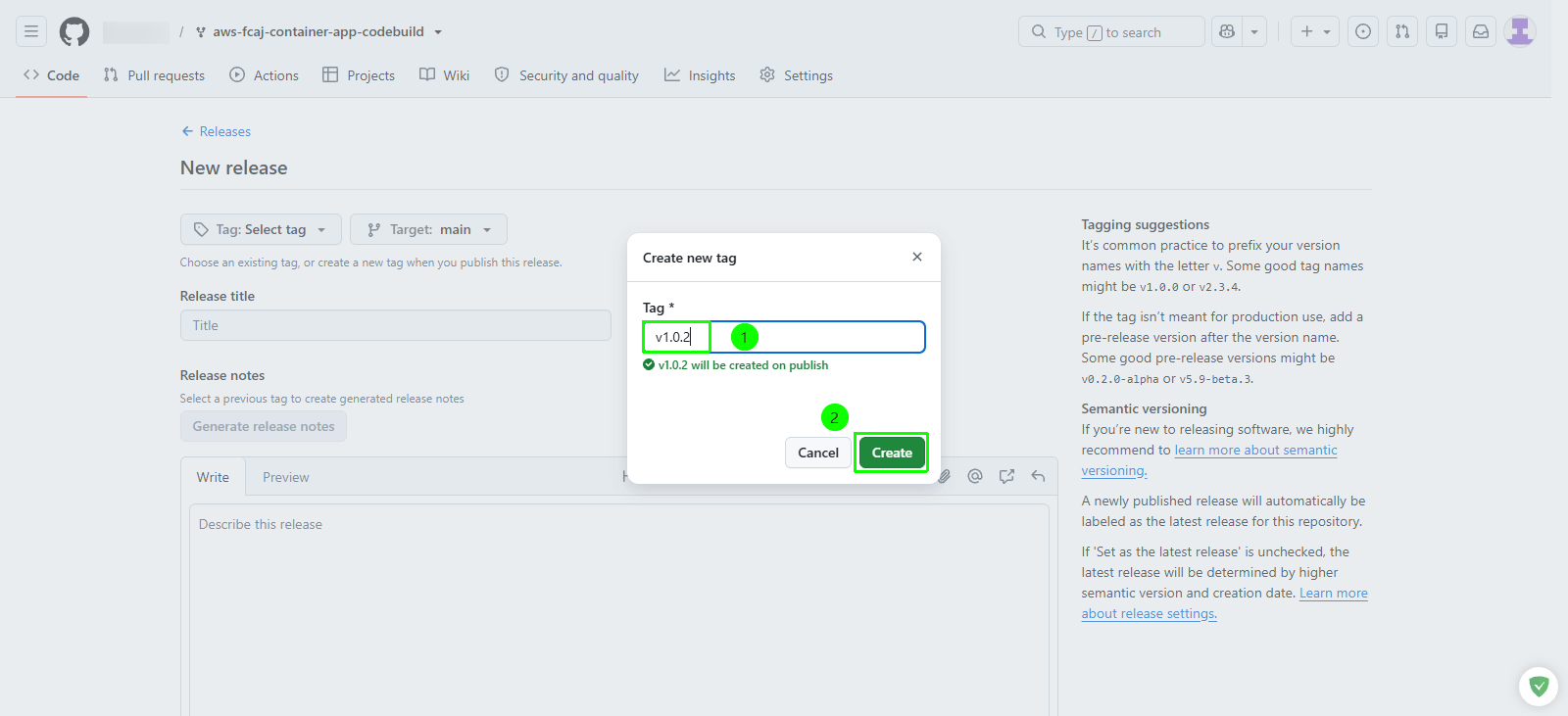
On the New release page, click the Choose a tag dropdown button.
In the tag search and creation input field:
- Enter tag name:
v1.0.2
- Enter tag name:
Following semantic versioning principles (v<MAJOR>.<MINOR>.<PATCH>), tagging this release as v1.0.2 increments the patch version for our application, indicating a minor bug fix or UI enhancement without breaking API backwards compatibility.
Step 3: Publish the release
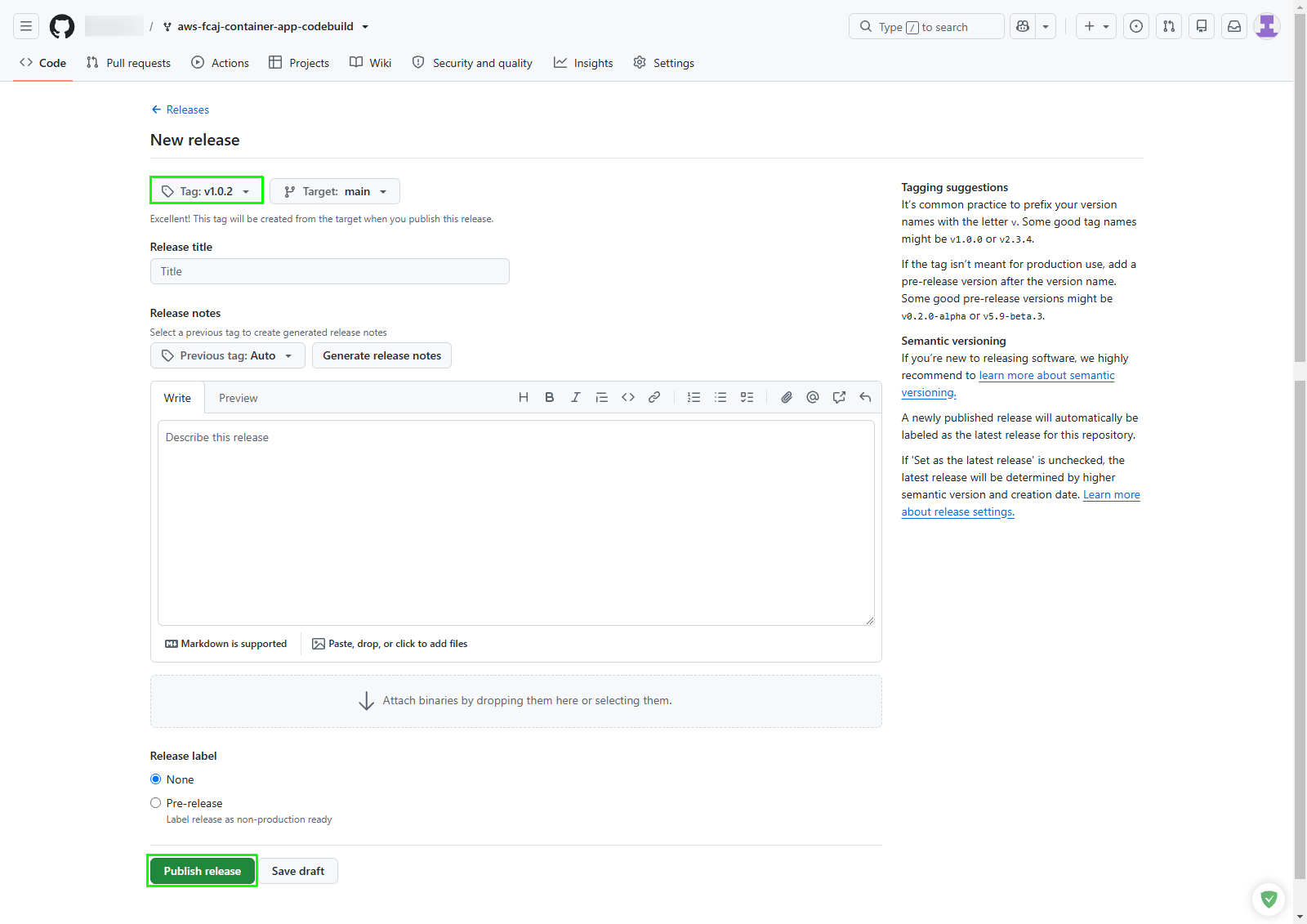
Confirm the release configuration details:
- Tag:
v1.0.2is selected. - Target: Ensure
mainis selected as the target branch.
- Tag:
Scroll to the bottom of the form and click the green Publish release button.
Step 4: Verify release publication
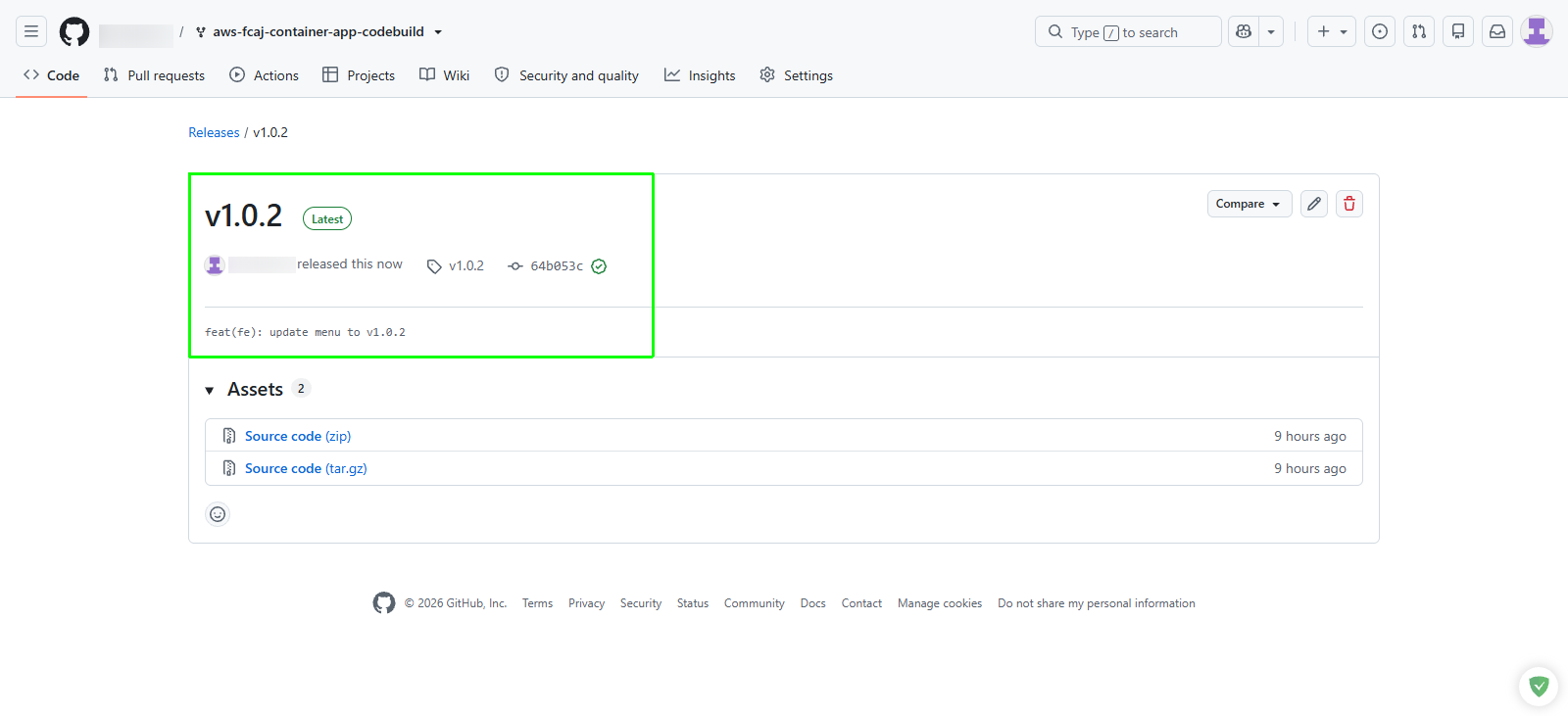
After publishing, GitHub redirects you to the release overview page.
Confirm the release details:
- The tag name displays v1.0.2 with a green Latest badge.
- The release references the latest commit hash with the commit message feat(fe): update menu to v1.0.2.
You can also create and push release tags directly from your local terminal using the Git command line:
git tag -a v1.0.2 -m "feat(fe): update menu to v1.0.2"
git push origin v1.0.2
This CLI push action triggers the identical GitHub webhook payload delivered to AWS CodeBuild.