Create Frontend CodeBuild
In this section, you will configure an AWS CodeBuild project for the frontend service (aws-fcaj-container-fe). This build project connects to your forked GitHub repository using a personal access token, triggers builds via webhook events filtered by release tags (^refs/tags/), executes container build instructions defined in buildspec-frontend.yml on an Ubuntu container runtime (aws/codebuild/standard:8.0), pushes images to Amazon ECR, and orchestrates rolling updates to Amazon ECS. Finally, you will grant the required IAM permissions to the CodeBuild service role.
Step 1: Open CodeBuild in the AWS Management Console
Log in to the AWS Management Console.
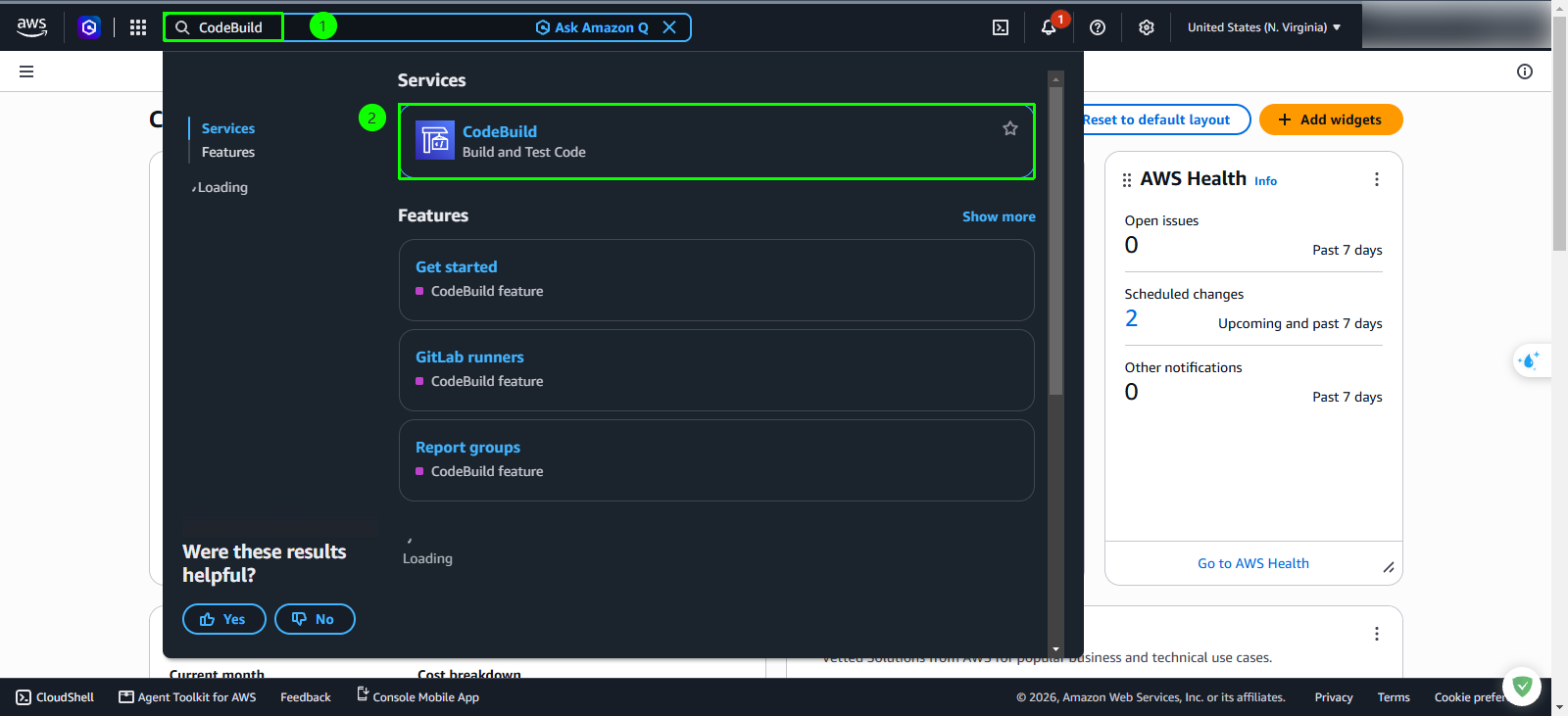
In the top search bar, enter
CodeBuild.Under the Services category, click CodeBuild (Build and Test Code). Ensure your active AWS Region is us-east-1 (US East (N. Virginia)).
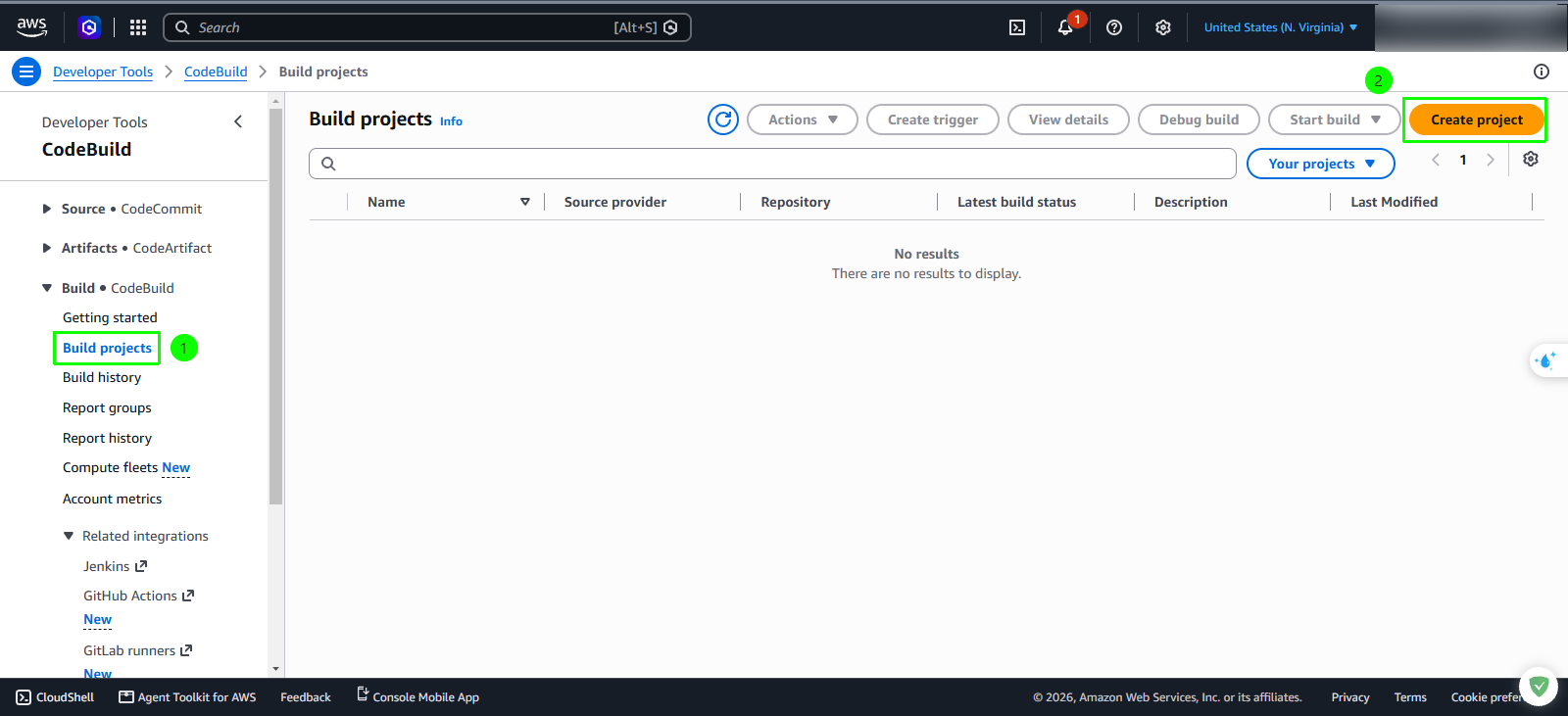
In the left navigation menu, expand Build and select Build projects.
In the top-right corner of the Build projects dashboard, click the orange Create project button.
Step 2: Configure project details
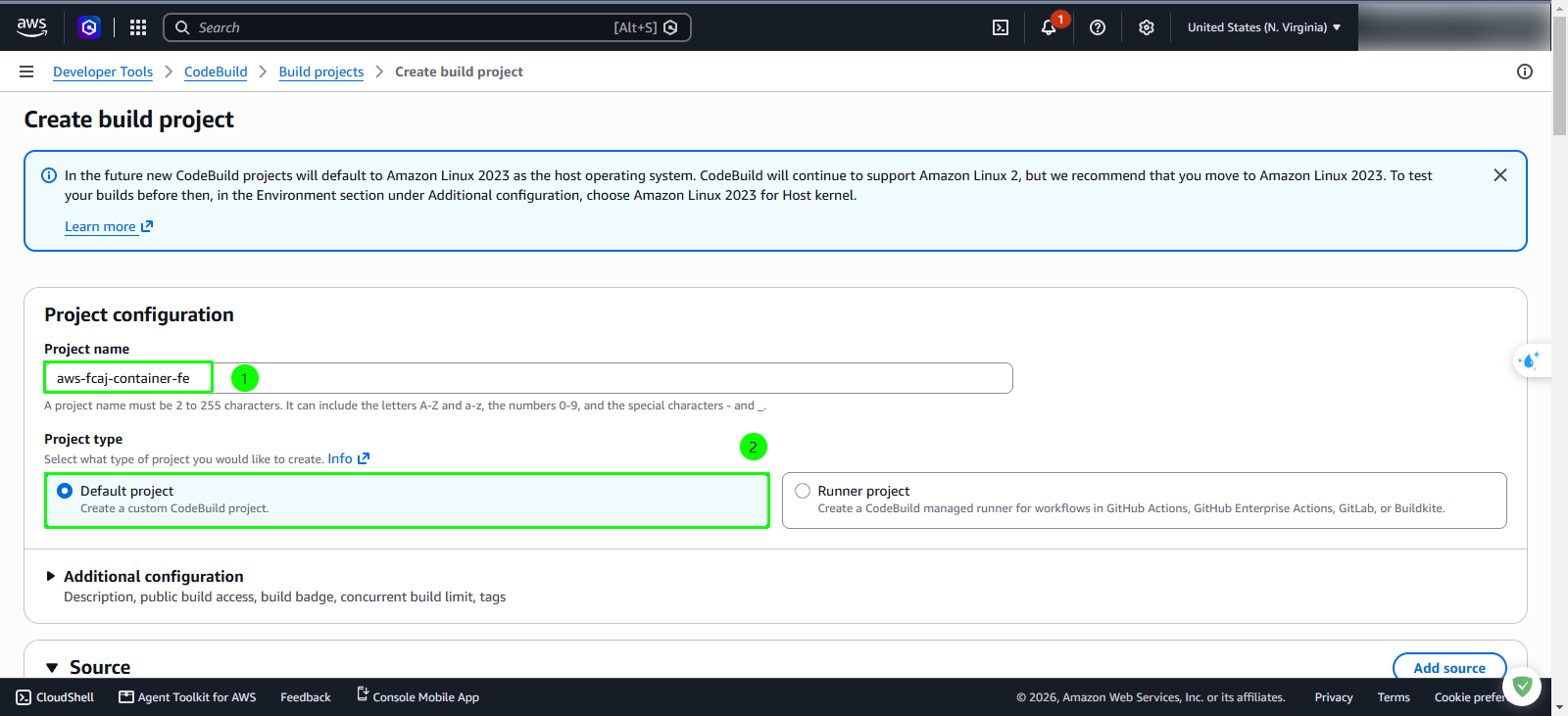
In the Project configuration panel, configure the general project settings:
- Project name: Enter
aws-fcaj-container-fe - Project type: Select Default project (Create a custom CodeBuild project)
- Project name: Enter
Step 3: Configure source provider and authenticate with GitHub
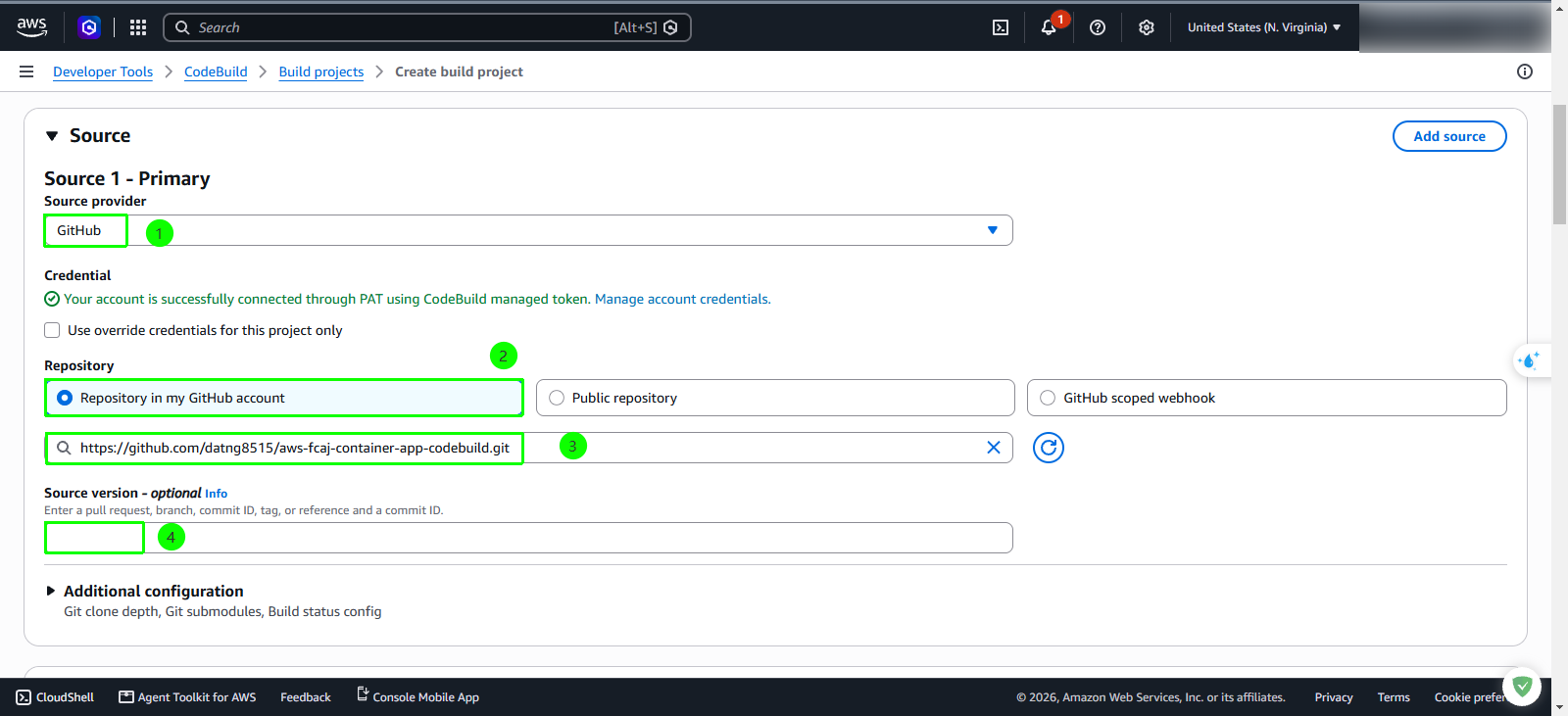
Scroll to the Source section and configure the primary source:
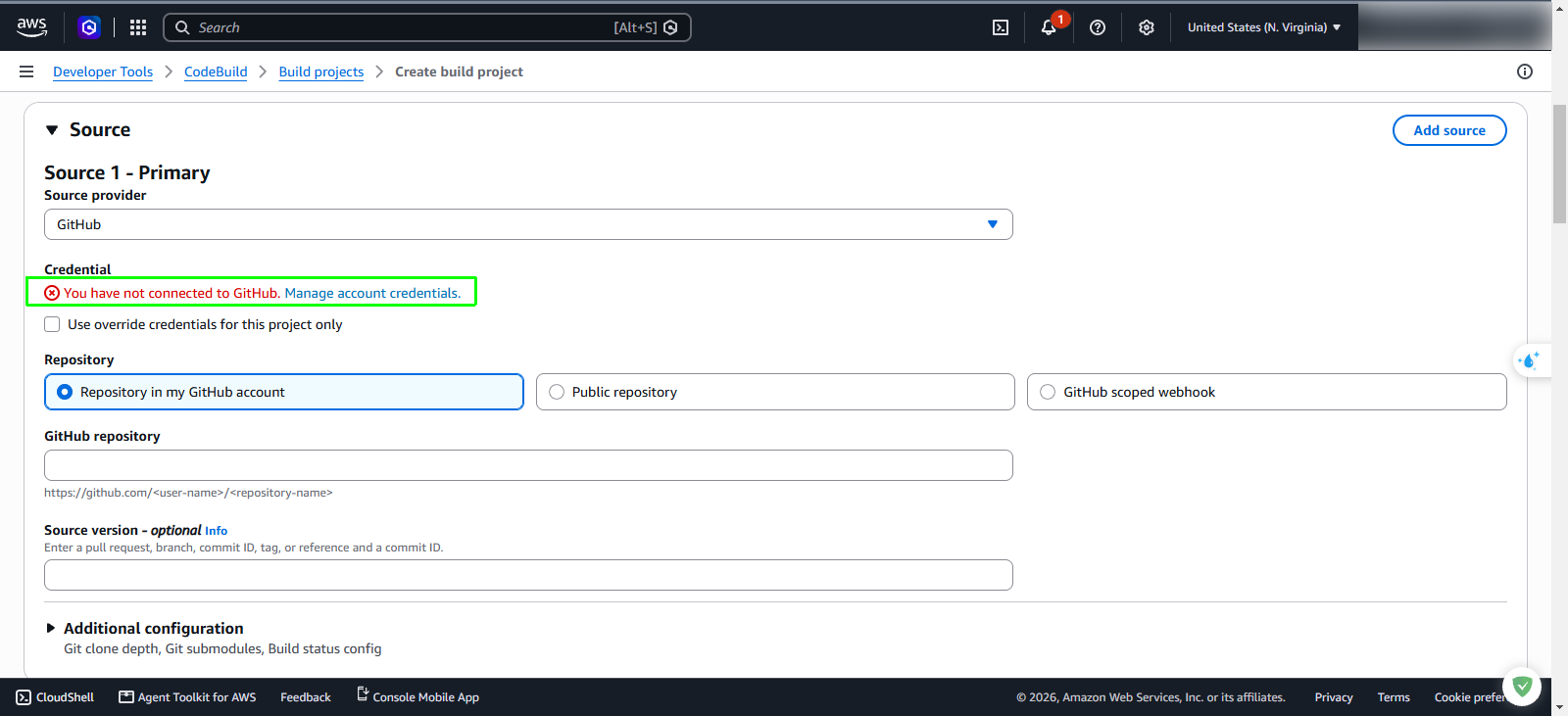
- Source provider: Select GitHub from the dropdown menu.
If your AWS account has not yet linked a GitHub credential, a red status message appears: “You have not connected to GitHub. Manage account credentials.” Click the Manage account credentials link.
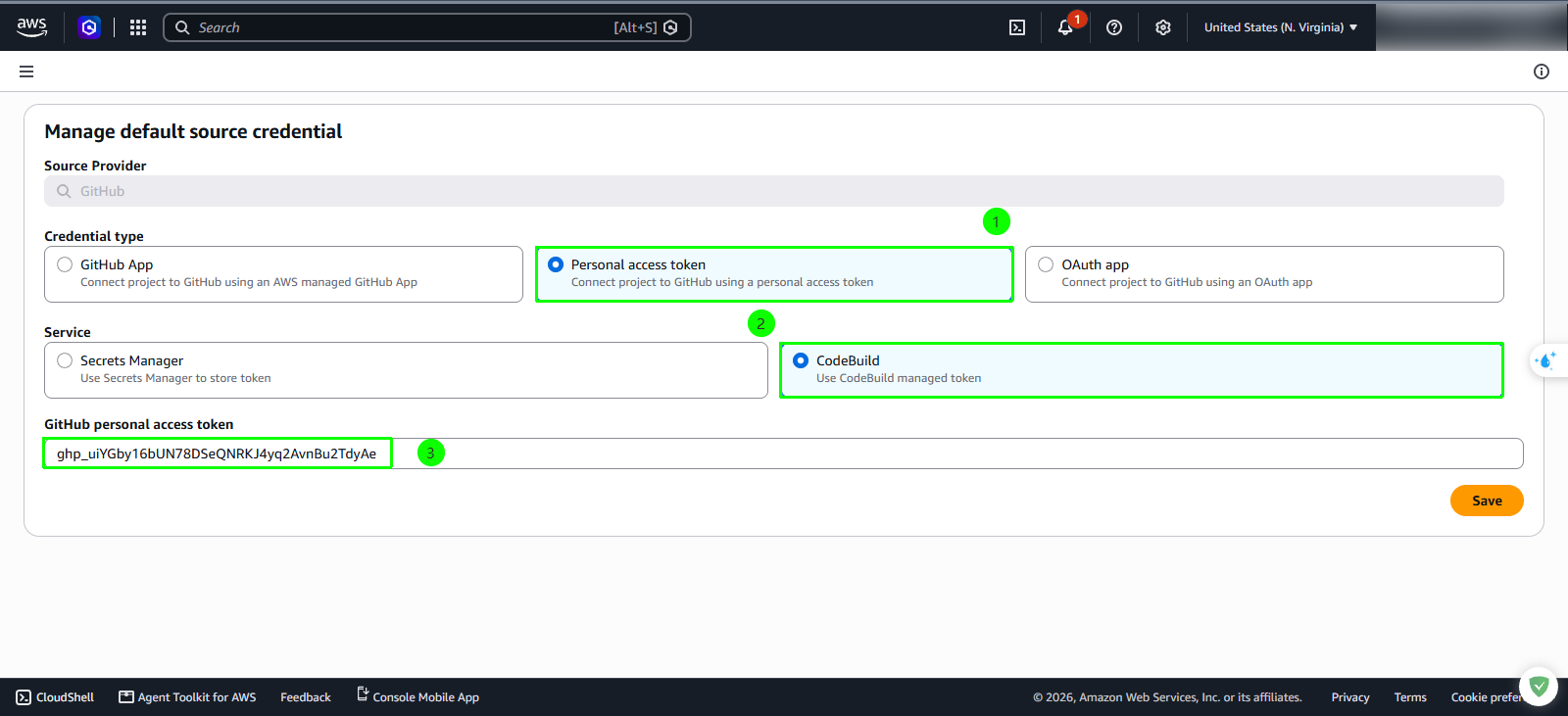
In the Manage default source credential modal dialog, configure the following:
- Source Provider: GitHub
- Credential type: Select Personal access token (Connect project to GitHub using a personal access token).
- Service: Select CodeBuild (Use CodeBuild managed token).
- GitHub personal access token: Paste your personal access token generated in earlier lab steps (starting with
ghp_).
Click the orange Save button.
Return to the Source 1 - Primary configuration section and verify the connected status:
- Credential: Confirms that your account is successfully connected through PAT using CodeBuild managed token.
- Repository: Select Repository in my GitHub account.
- GitHub repository: Enter the HTTPS clone URL of your forked repository:
https://github.com/<your-username>/aws-fcaj-container-app-codebuild.git - Source version - optional: Leave blank.
Step 4: Configure primary source webhook events
Configure webhooks so that AWS CodeBuild automatically initiates a build only when a release tag is pushed to GitHub.
In the Primary source webhook events section, configure the trigger parameters:
- Check the checkbox Rebuild every time a code change is pushed to this repository.
- Build type: Select Single build (Triggers single build).
- Comment approval: Select DISABLED.
Under Webhook event filter groups, configure Filter group 1:
- Event type - optional: Select PUSH.
- In the filter rule row, set:
- Condition: Select START_BUILD.
- Type: Select HEAD_REF.
- Pattern (regex): Enter
^refs/tags/
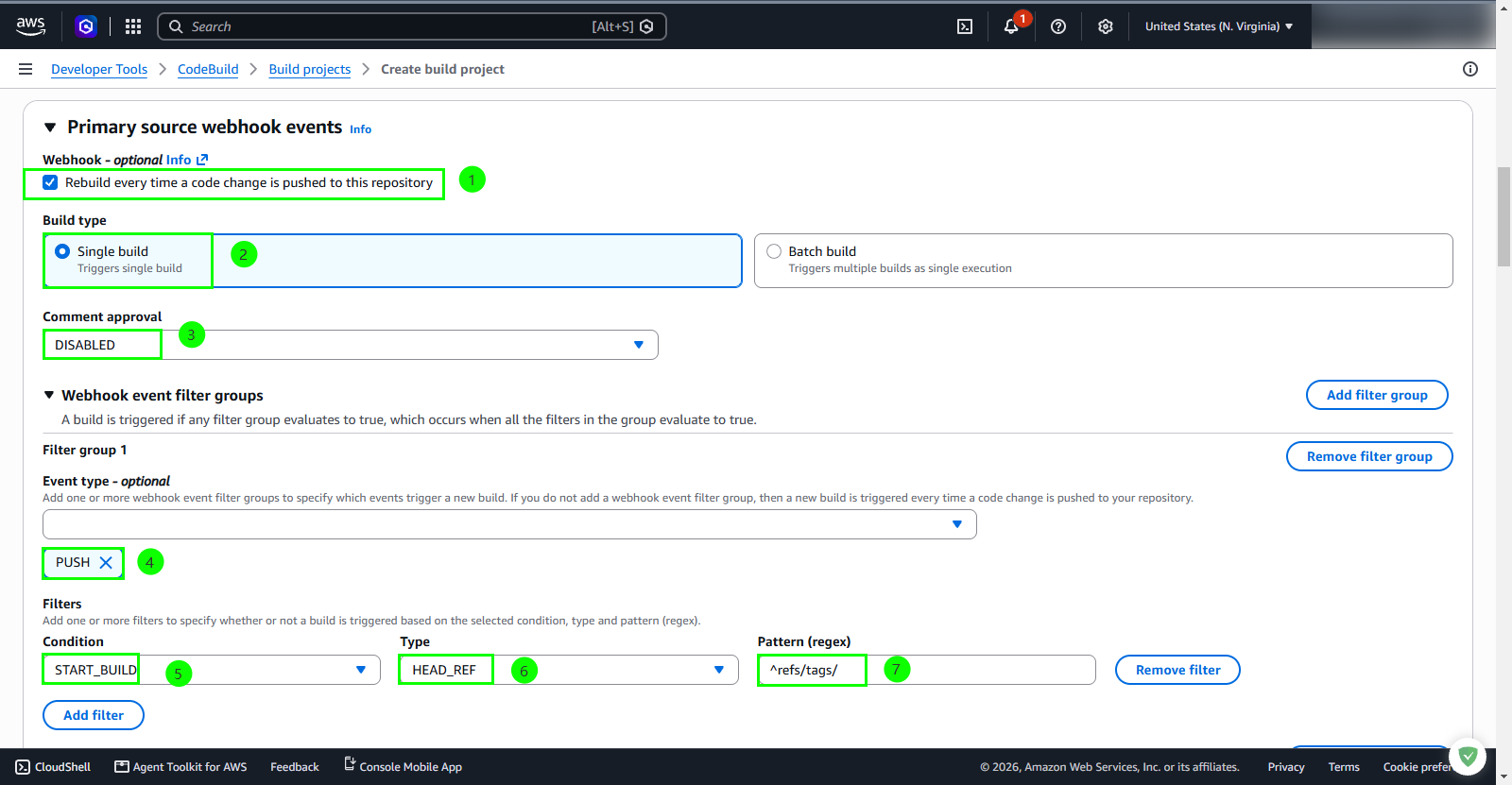
The regular expression ^refs/tags/ strictly restricts automatic pipeline executions to Git tag events (such as v1.0.2). Standard branch pushes to main or feature branches will not trigger the build, preventing unnecessary build charges and unintended deployments.
Step 5: Configure build environment
Specify the managed container runtime image and service role used to execute the frontend build tasks.
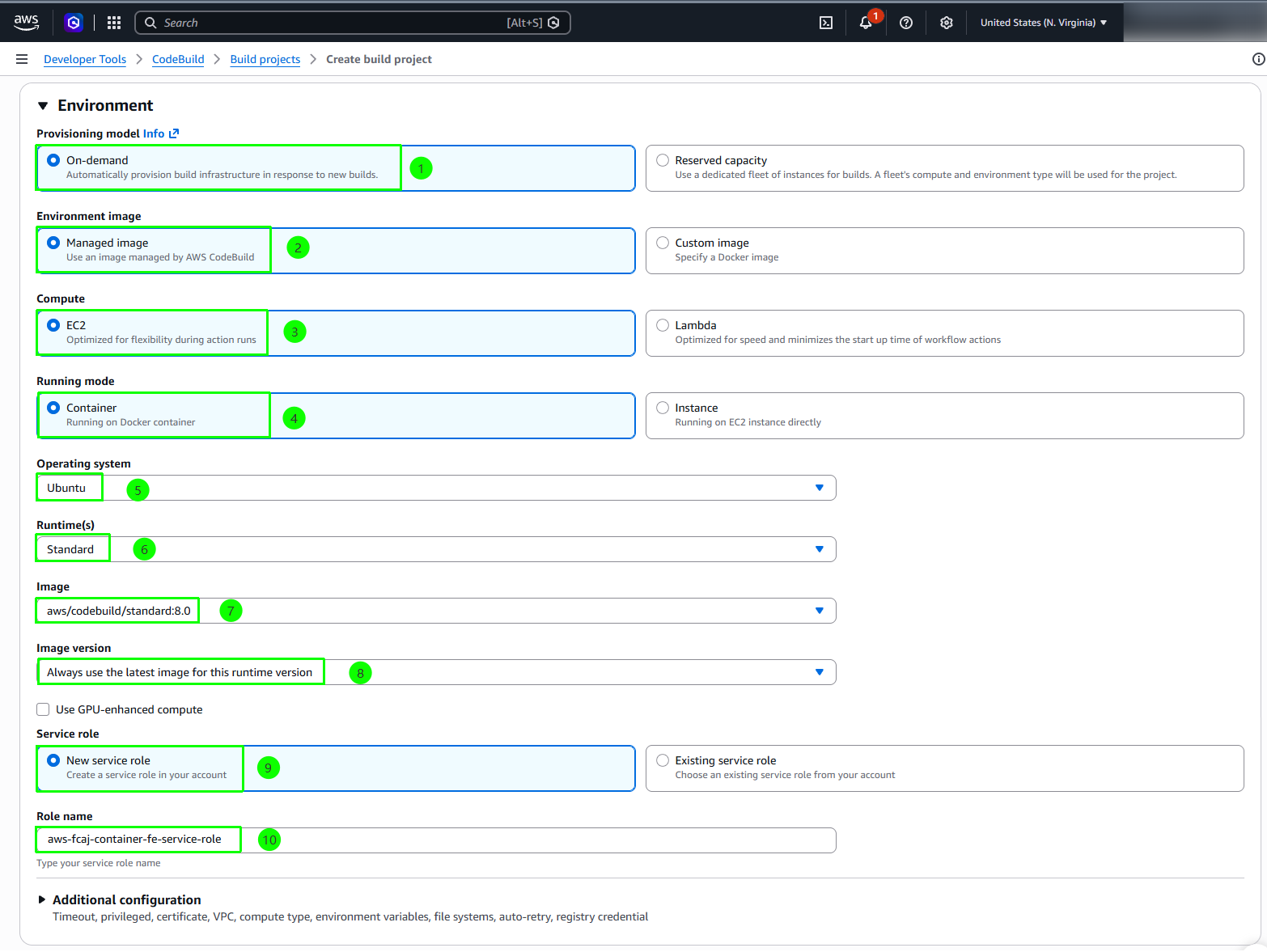
In the Environment section, configure the environment settings:
- Provisioning model: Select On-demand
- Environment image: Select Managed image
- Compute: Select EC2
- Running mode: Select Container
- Operating system: Select Ubuntu.
- Runtime(s): Select Standard.
- Image: Select
aws/codebuild/standard:8.0. - Image version: Select Always use the latest image for this runtime version.
- Service role: Select New service role.
- Role name: Enter
aws-fcaj-container-fe-service-role.
Step 6: Configure environment variables
CodeBuild uses environment variables at runtime to locate target Amazon ECS clusters, Amazon ECR repositories, and AWS authentication credentials specified in buildspec-frontend.yml.
- Expand the Additional configuration section.
- Scroll to the Environment variables subsection.
- Click Add environment variable to insert rows for each of the following 11 variables (ensure Type is set to Plaintext for all entries):
| Name | Value | Type | Description |
|---|---|---|---|
CLUSTER_NAME | FCAJ-Lab-cluster | Plaintext | Amazon ECS cluster name |
SERVICE_NAME_FE | app-frontend | Plaintext | Amazon ECS frontend service name |
SERVICE_NAME_BE | app-backend | Plaintext | Amazon ECS backend service name |
AWS_REGION | us-east-1 | Plaintext | Target AWS Region where lab infrastructure is hosted |
AWS_ACCOUNT_NUMBER | <your-aws-account-id> | Plaintext | 12-digit AWS account ID without hyphens |
AWS_ACCESS_KEY_ID | <your-aws-access-key-id> | Plaintext | IAM access key ID |
AWS_SECRET_ACCESS_KEY | <your-aws-secret-access-key> | Plaintext | IAM secret access key |
CI_PROJECT_BE_NAME | aws-fcaj-container-app-backend | Plaintext | Amazon ECR backend repository name |
CI_PROJECT_FE_NAME | aws-fcaj-container-app-frontend | Plaintext | Amazon ECR frontend repository name |
TASK_NAME_FE | FCAJResbar-task-fe | Plaintext | Amazon ECS frontend task definition name |
TASK_NAME_BE | FCAJResbar-task-be | Plaintext | Amazon ECS backend task definition name |
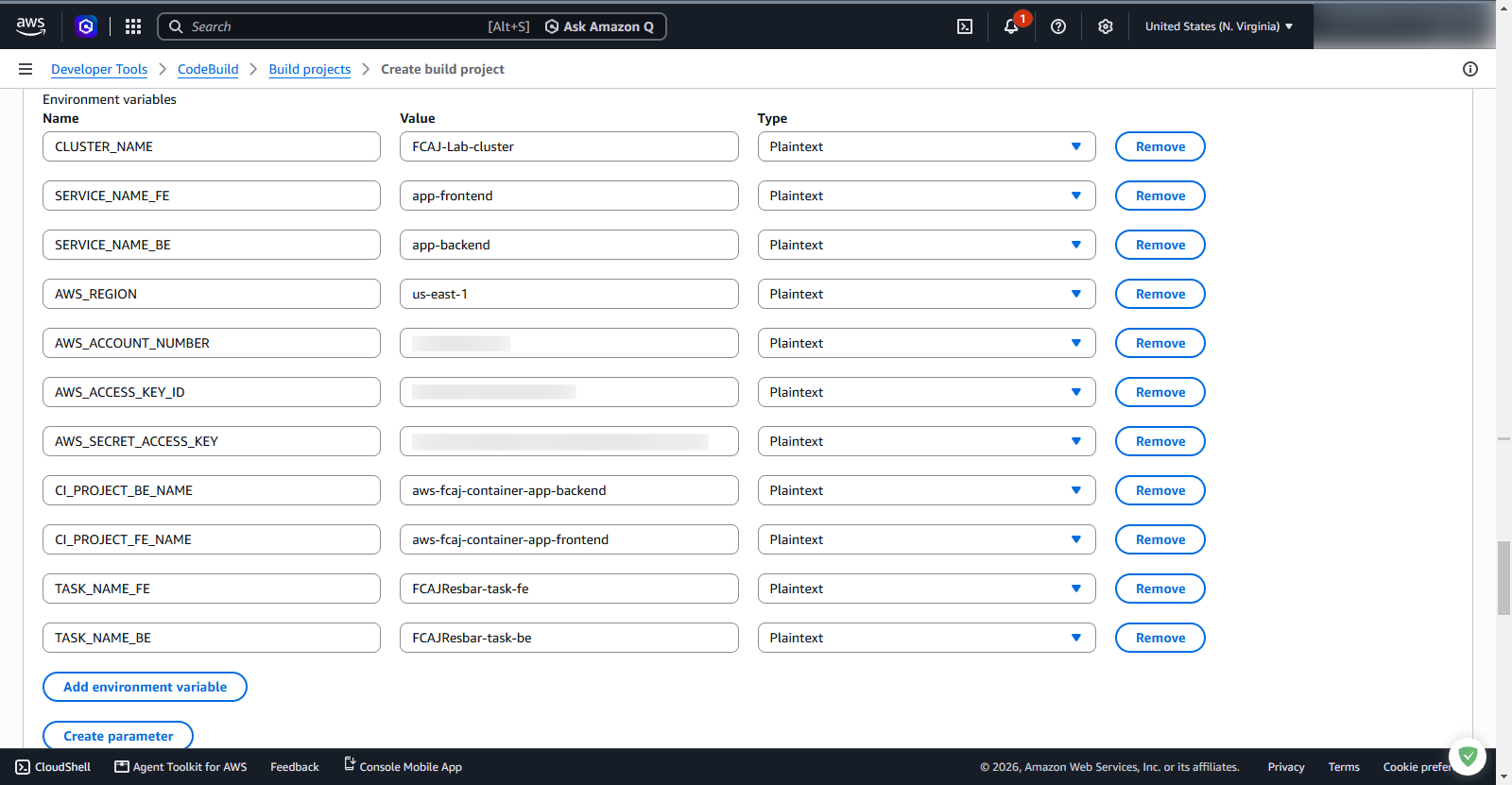
To retrieve your 12-digit AWS account ID from your terminal, execute:
aws sts get-caller-identity --query "Account" --output text
Step 7: Configure Buildspec and Artifacts
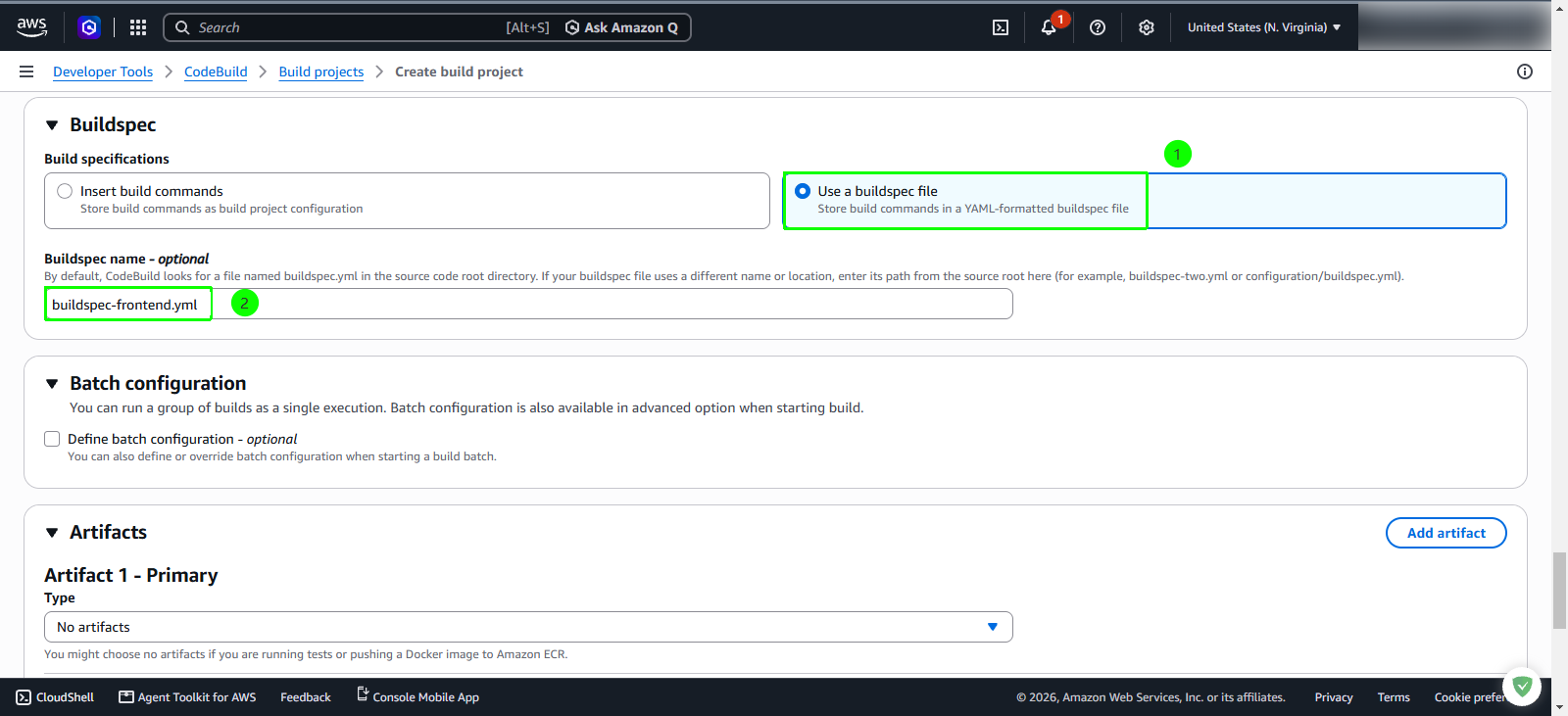
Scroll down to the Buildspec section:
- Under Build specifications: Select Use a buildspec file
- Buildspec name - optional: Enter
buildspec-frontend.yml.
In the Artifacts section:
- Type: Select No artifacts (the Docker image is packaged and pushed directly to Amazon ECR within the build execution).
Step 8: Configure CloudWatch Logs and create build project
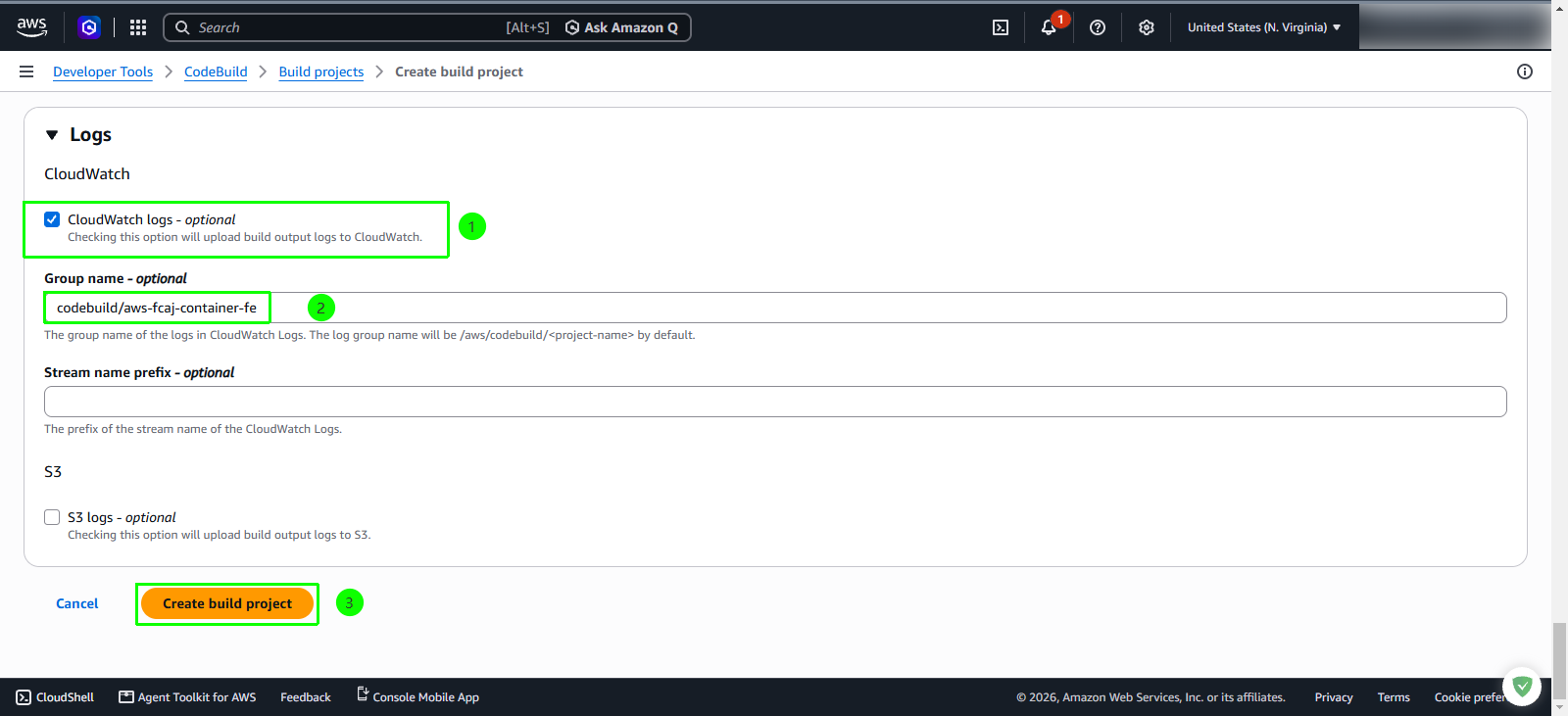
Scroll to the Logs section:
- Under CloudWatch: Check the checkbox CloudWatch logs - optional.
- Group name - optional: Enter
codebuild/aws-fcaj-container-fe. - Stream name prefix - optional: Leave blank.
- Under S3: Leave S3 logs - optional unchecked.
At the bottom of the page, click the orange Create build project button.
Step 9: Attach required IAM permissions to the service role
When CodeBuild created the service role aws-fcaj-container-fe-service-role, it granted baseline logging capabilities. To allow CodeBuild to authenticate with Amazon ECR, register updated task definitions, and trigger Amazon ECS service deployments, attach additional managed policies.
In the AWS Management Console top search bar, search for
IAMand open the IAM service dashboard.In the left navigation pane under Access Management, click Roles.
In the search box, enter
aws-fcaj-container-fe-service-role.In the search results table, click the role name
aws-fcaj-container-fe-service-role.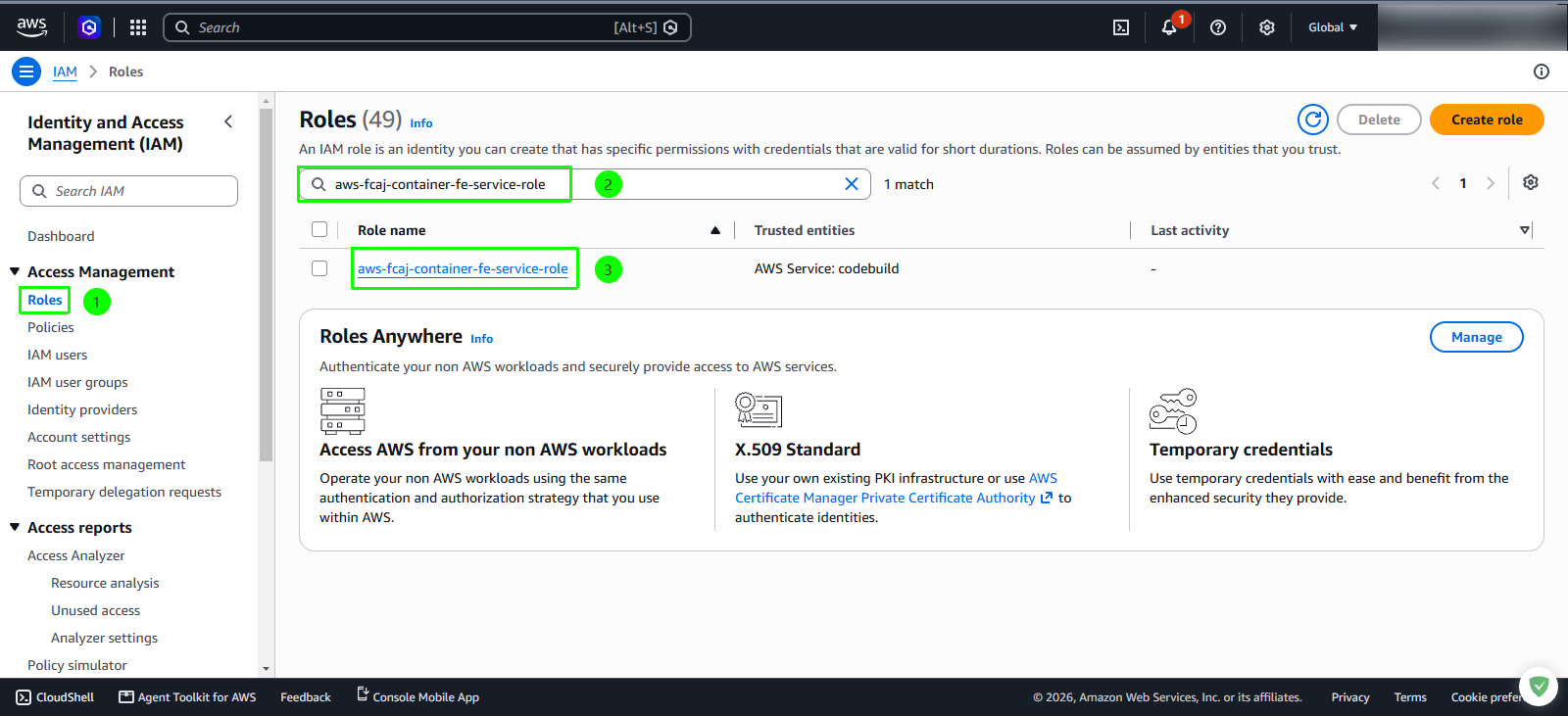
On the role summary page, select the Permissions tab.
Click the Add permissions dropdown button and select Attach policies.
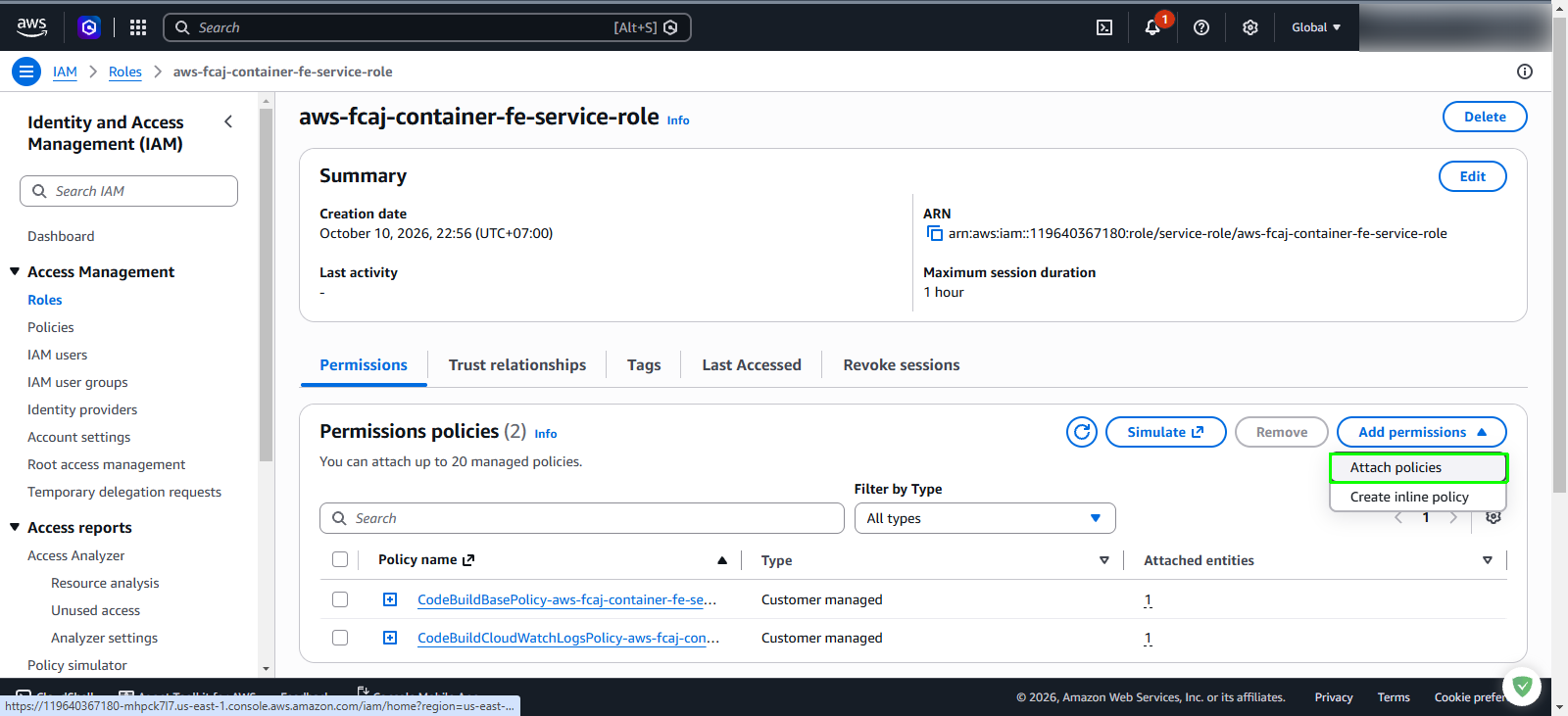
In the policy search field, search for and select the checkboxes for the following policies:
AmazonECS_FullAccess(AWS managed policy)CloudWatchLogsFullAccess(AWS managed policy)WriteECRRepositoryContent(Customer managed policy created in previous lab modules)
Click Add permissions.
A confirmation alert banner appears: “Policies have been successfully attached to role.”
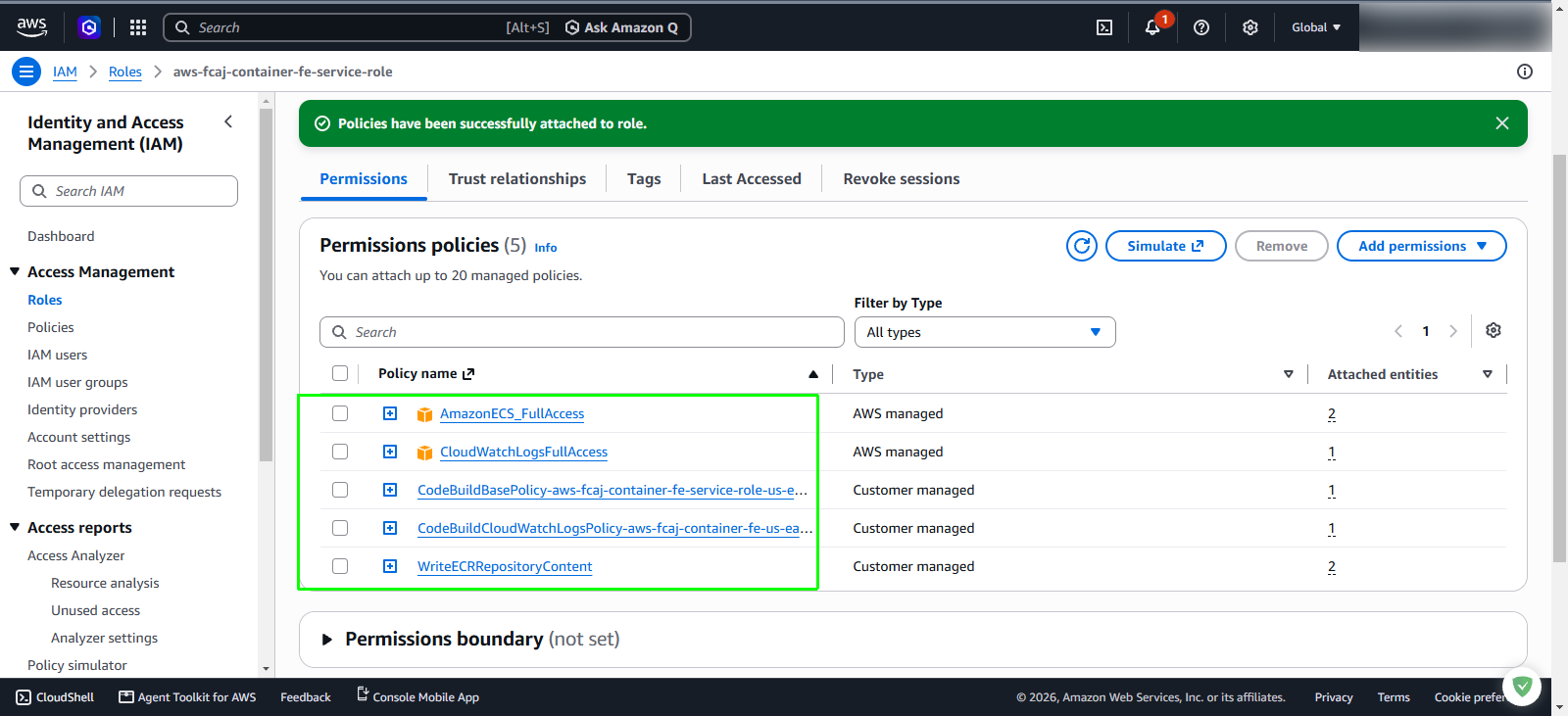
Verification checkpoint
Verify that all required IAM policies are attached to the service role using the AWS CLI or IAM Console:
aws iam list-attached-role-policies --role-name aws-fcaj-container-fe-service-role --output table