Check the Results
In this final section, you will trigger the automated deployment pipeline by creating and publishing a Git release tag (v1.0.1). You will monitor the GitHub Actions workflow execution in real time, inspect the generated container images in Amazon ECR, verify the registered task definitions and rolling deployments in Amazon ECS, and confirm the application update via the Application Load Balancer endpoint in your browser.
Step 1: Trigger deployment by publishing a release tag
The root GitHub Actions dispatcher workflow is configured to trigger automatically whenever a Git tag matching the v* pattern is pushed to the repository.
In your web browser, navigate to your
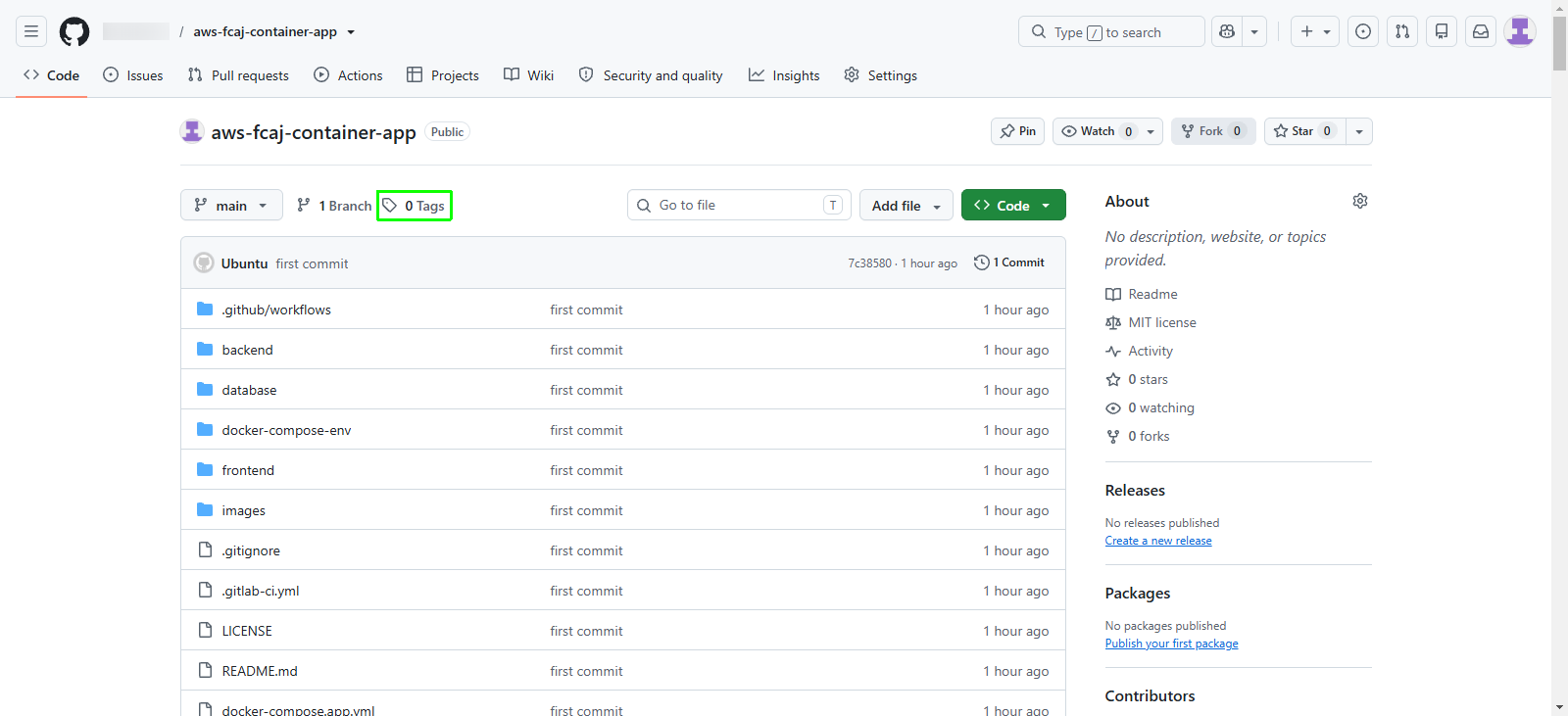
aws-fcaj-container-apprepository on GitHub.In the right-hand sidebar of the repository home page, click Tags.
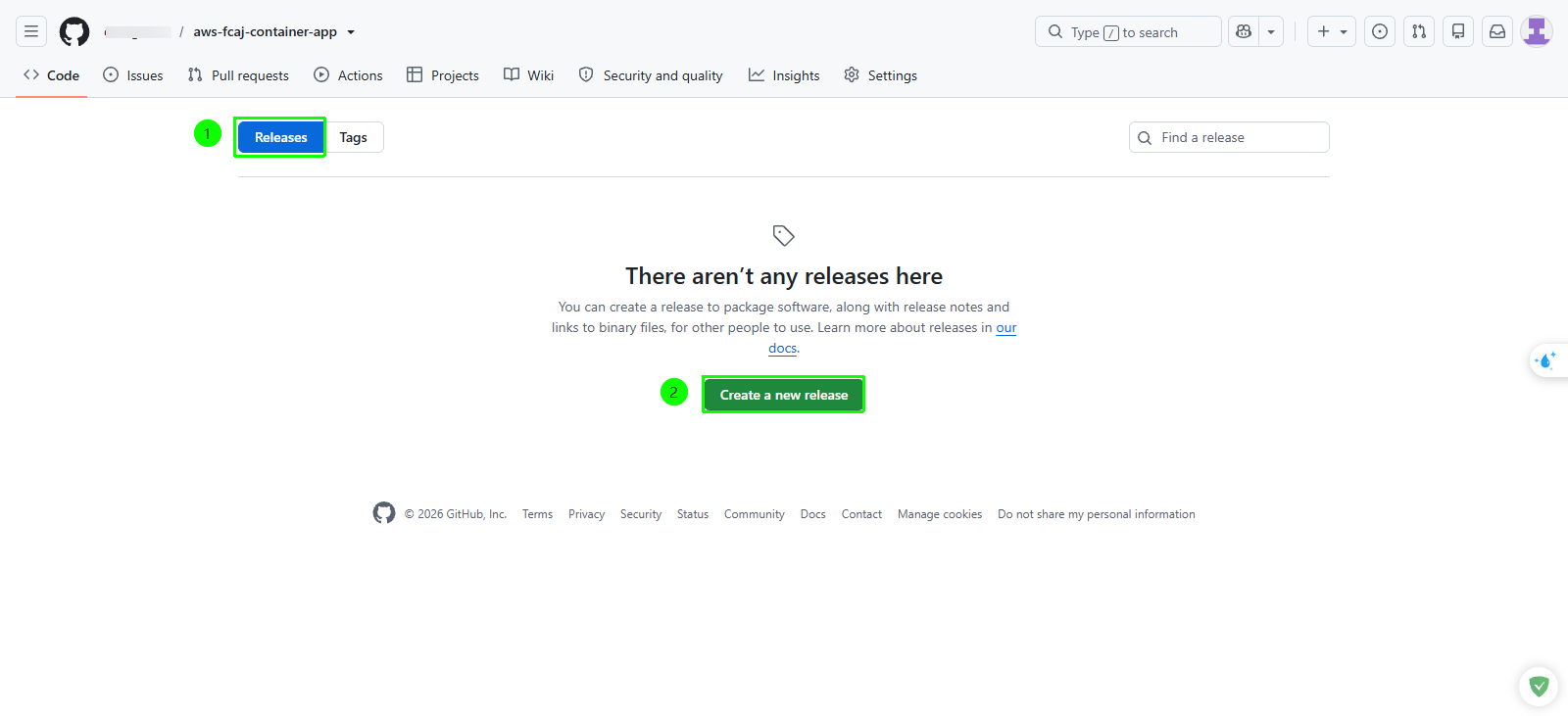
On the releases page, click Create a new release.
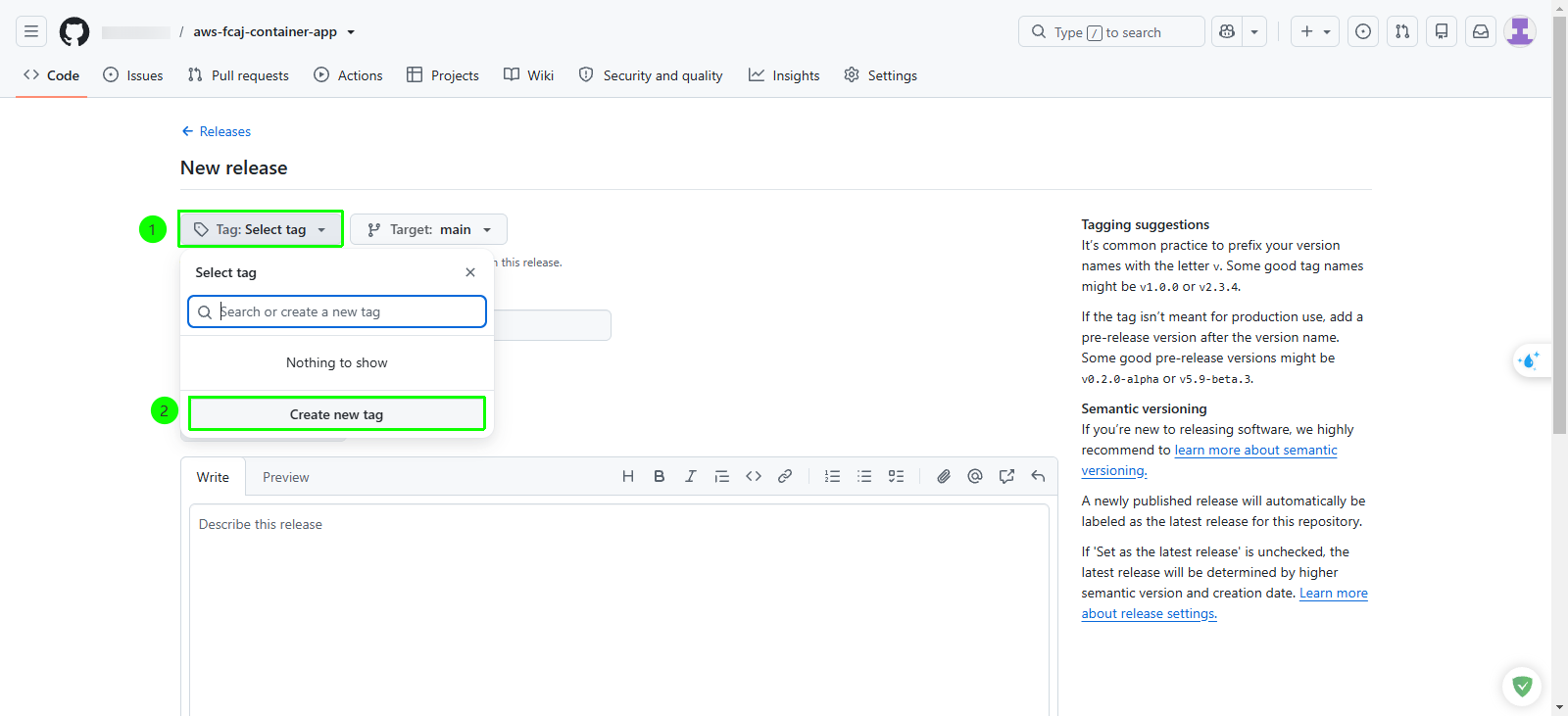
Click the Choose a tag dropdown menu.
In the input field, enter
v1.0.1.Select Create new tag: v1.0.1 on publish.
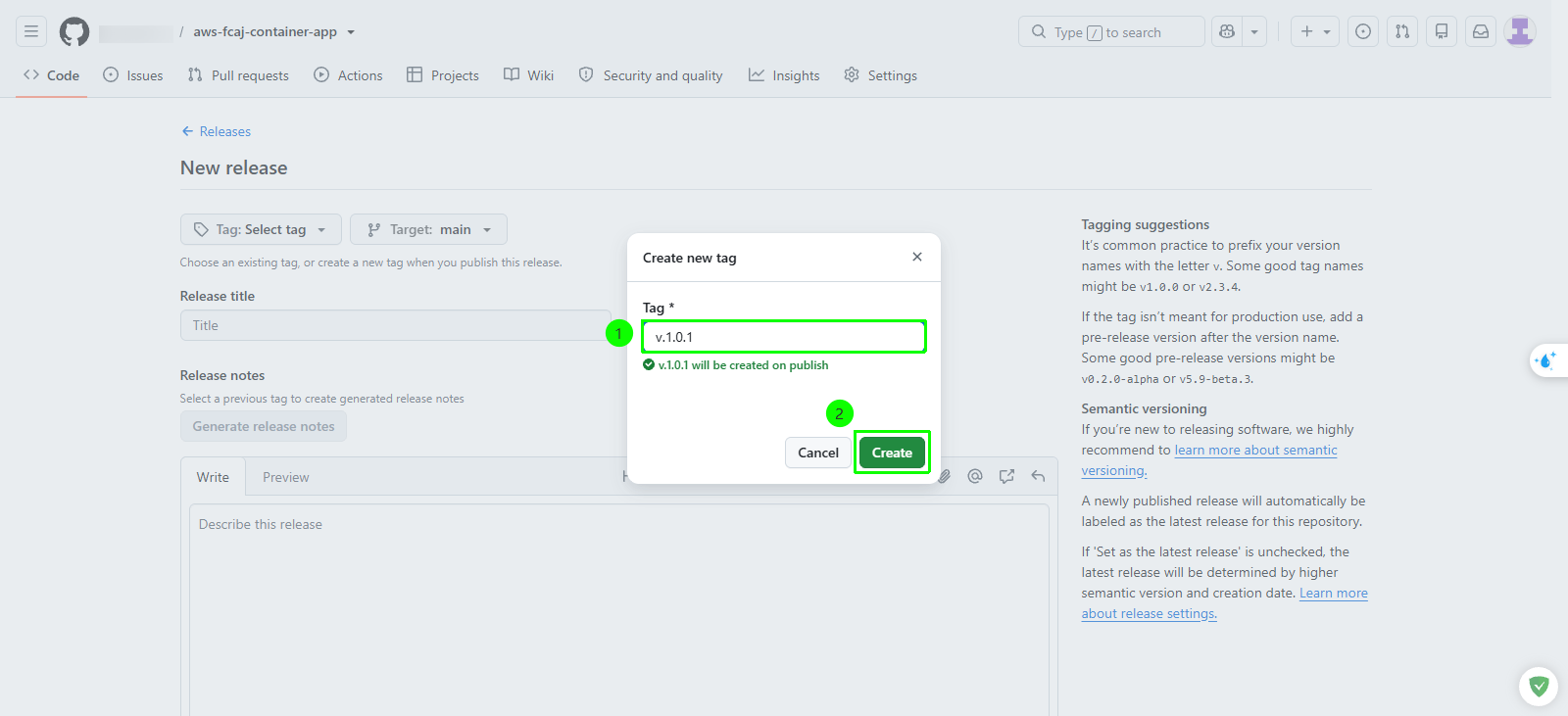
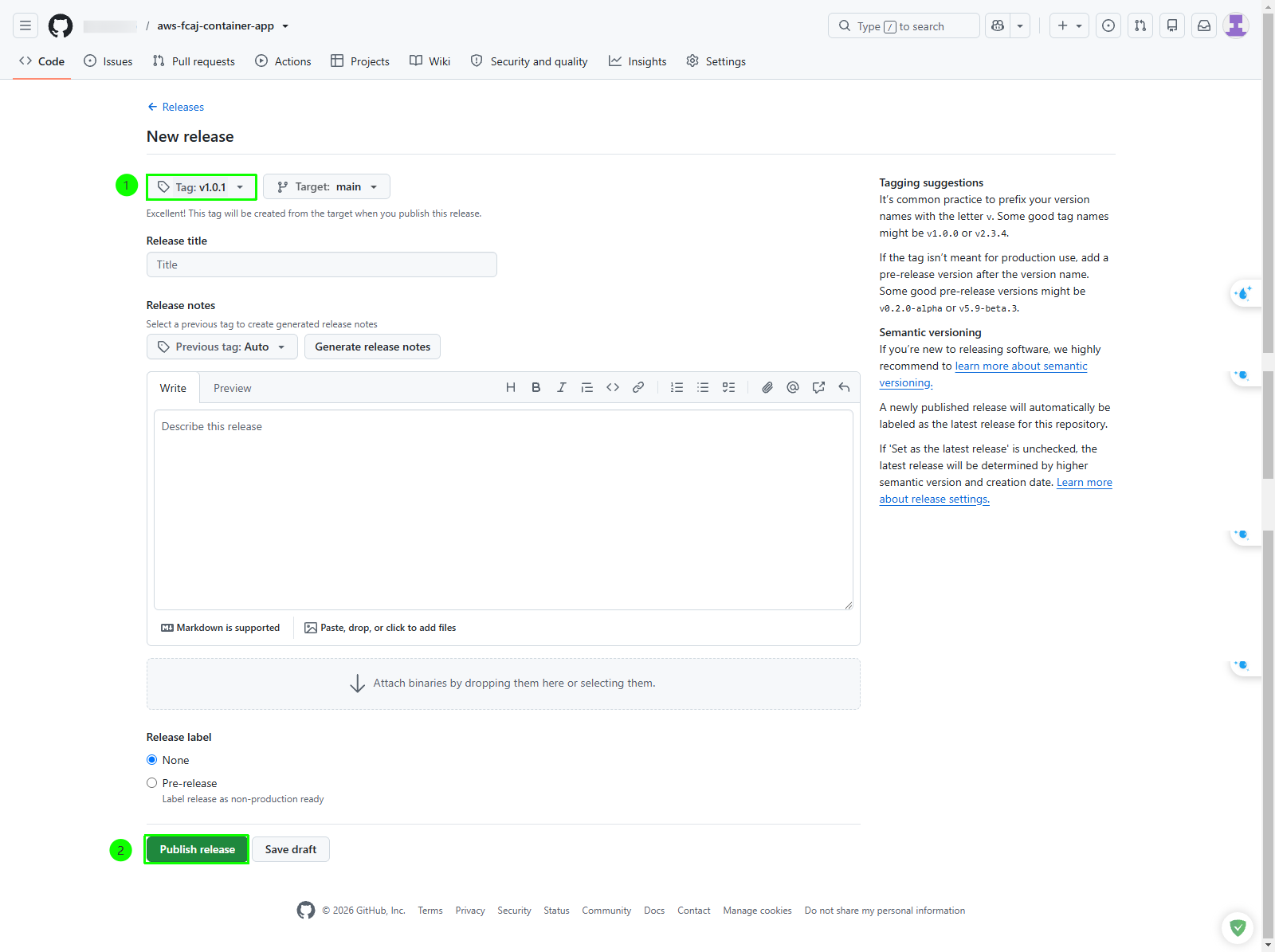
In the Release title field, enter
v1.0.1.Click Publish release.
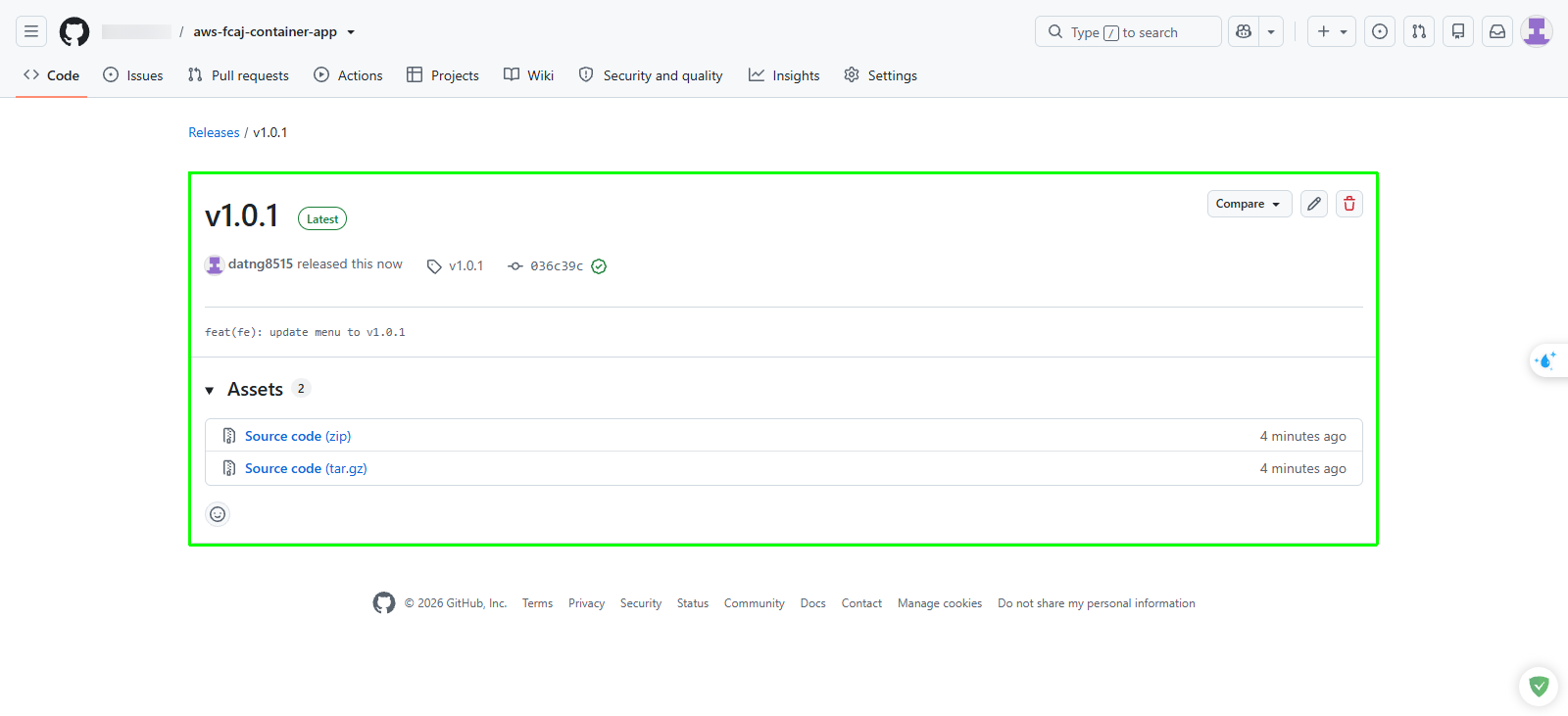
You can also create and push release tags directly from your Amazon EC2 terminal using standard Git commands:
git tag -a v1.0.1 -m "Release v1.0.1"
git push origin v1.0.1
Step 2: Monitor GitHub Actions pipeline execution
In your GitHub repository, click the Actions tab in the top navigation bar.
Under All workflows, select the workflow run triggered by your release tag
v1.0.1.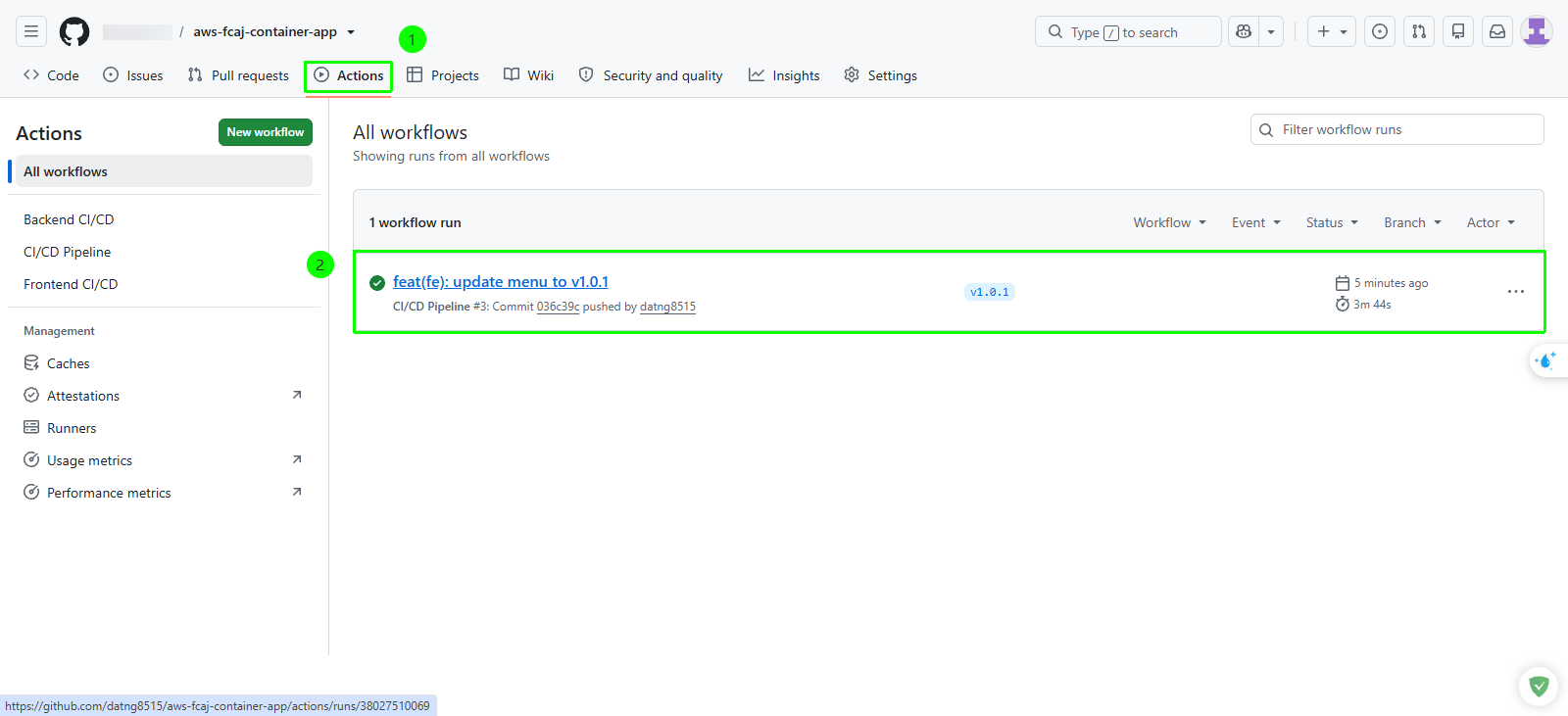
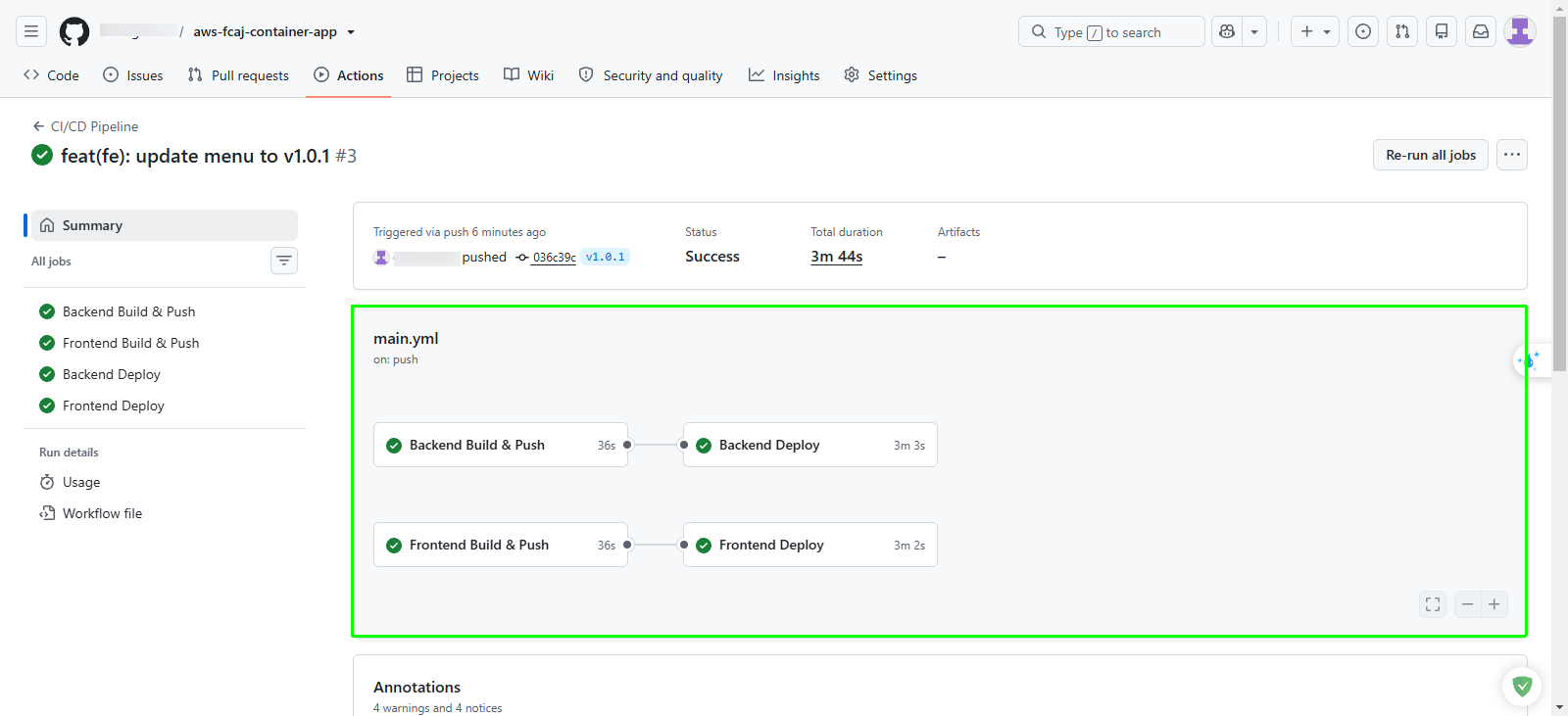
Review the workflow summary graph. The pipeline executes two build jobs in parallel followed by their respective deployment jobs:
- Backend Build & Push -> Backend Deploy
- Frontend Build & Push -> Frontend Deploy
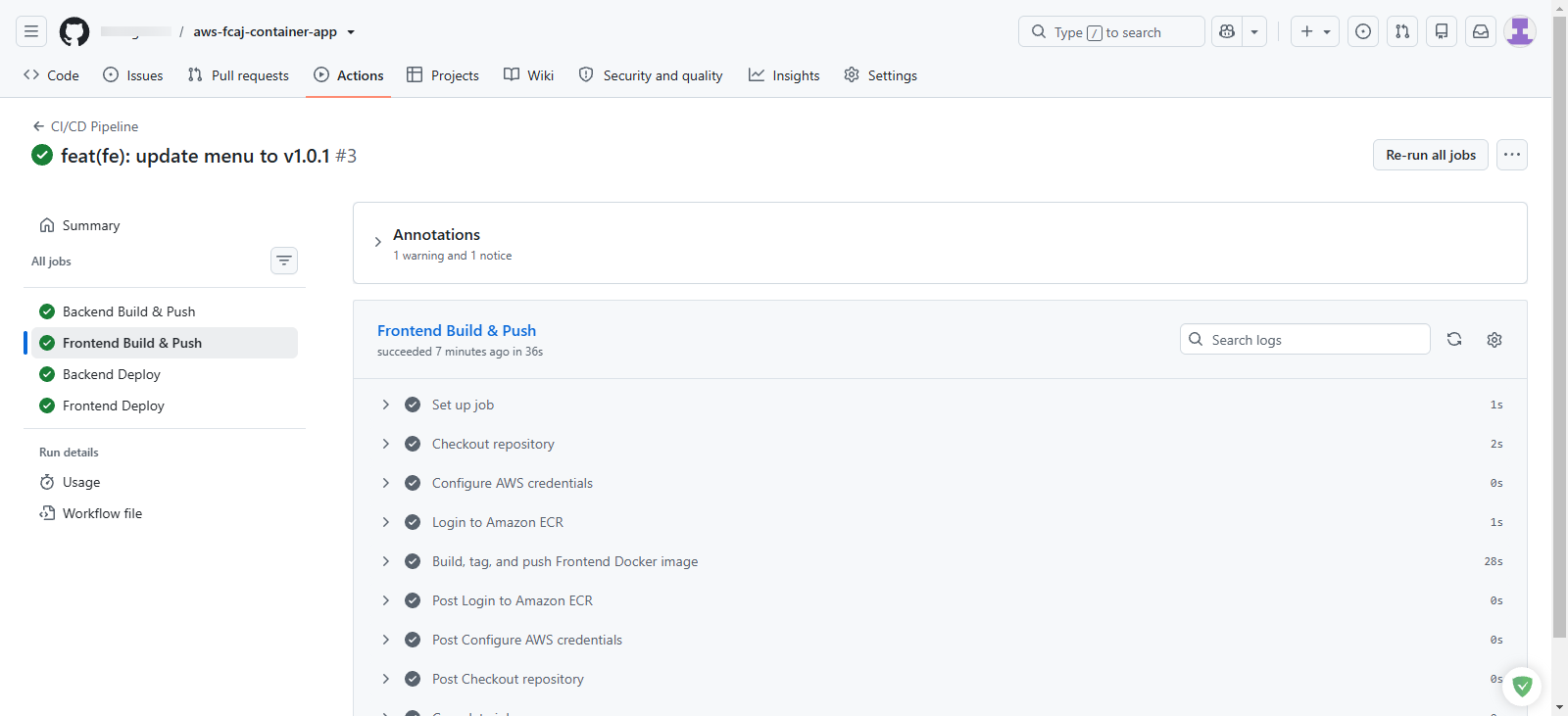
Click into Frontend Build & Push to inspect the container packaging steps:
- Checks out the repository source code.
- Configures AWS credentials using repository secrets.
- Logs into Amazon ECR.
- Builds the frontend Docker image and pushes it to Amazon ECR with the tag
v1.0.1.
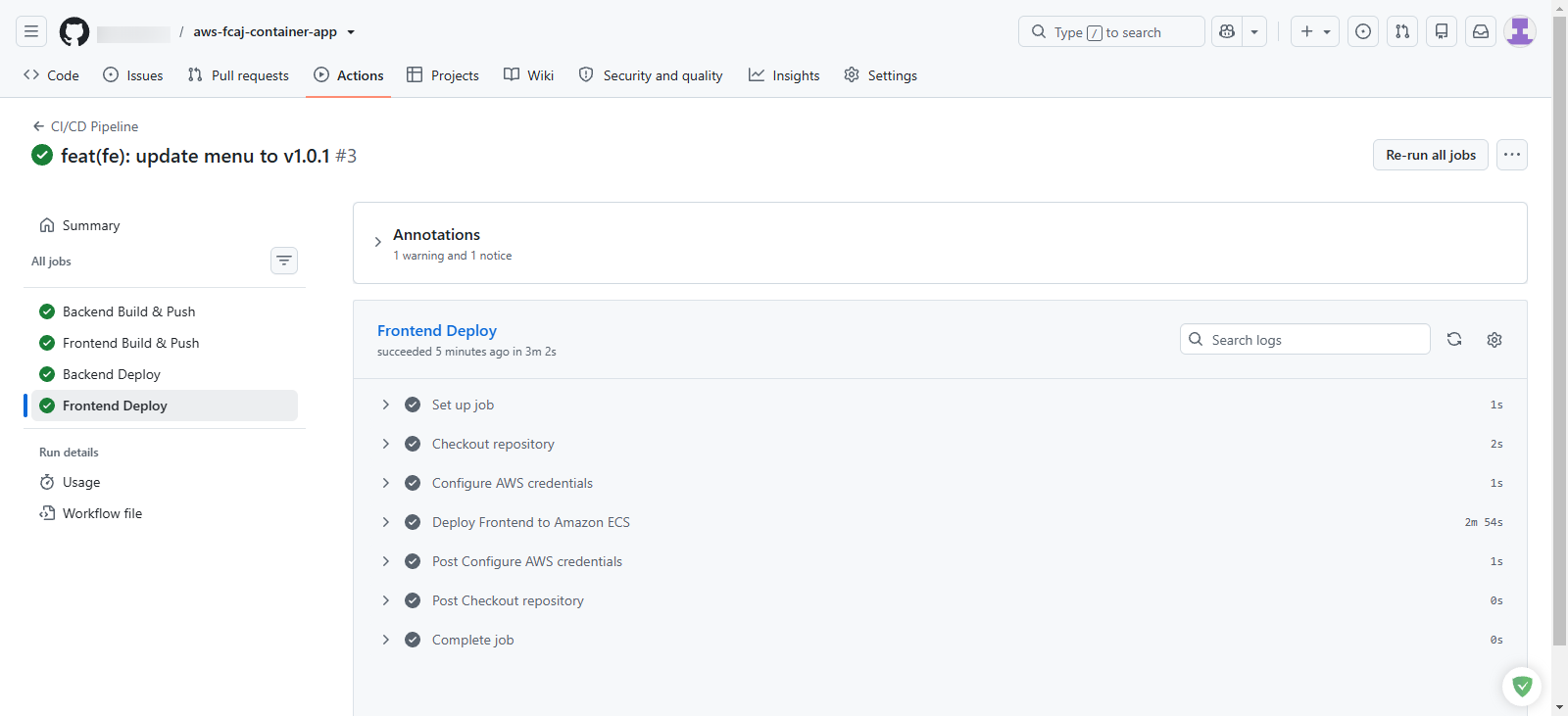
Click into Frontend Deploy to observe the deployment automation:
- Sets up the job environment and checks out the deployment scripts.
- Configures AWS credentials.
- Deploys the new revision to Amazon ECS and initiates the rolling update.
Step 3: Inspect deployment artifacts in the AWS Management Console
Verify that the automated pipeline successfully updated all target cloud resources in AWS.
1. Verify container images in Amazon ECR
Open the Amazon ECR console in your target AWS Region.
In the left navigation menu, click Repositories and select
aws-fcaj-container-app-frontend.Confirm that an image tagged
v1.0.1exists with a recent push timestamp.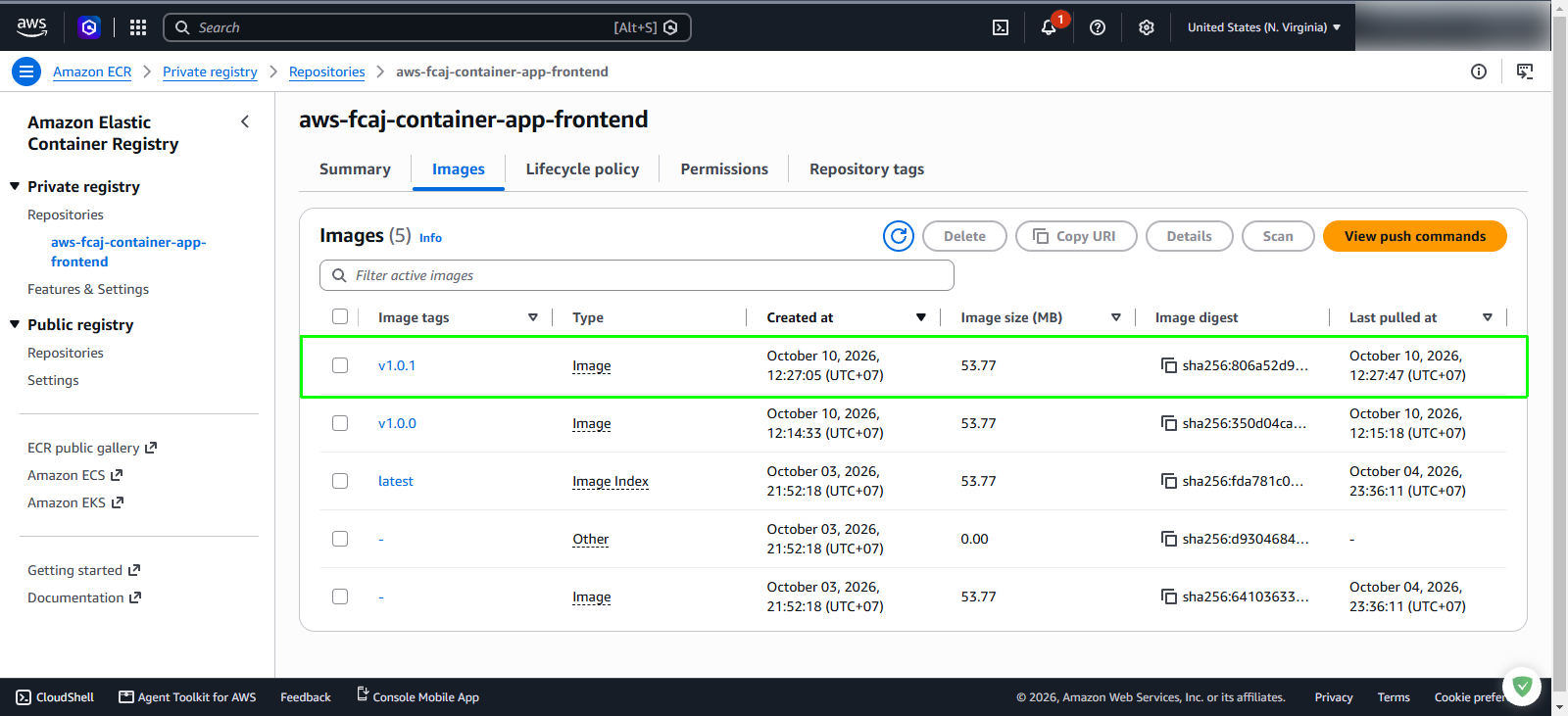
2. Verify task definitions in Amazon ECS
Open the Amazon ECS console.
In the left navigation menu, click Task definitions.
Select
FCAJResbar-task-feand verify that a new active revision has been registered pointing to the frontend container image taggedv1.0.1.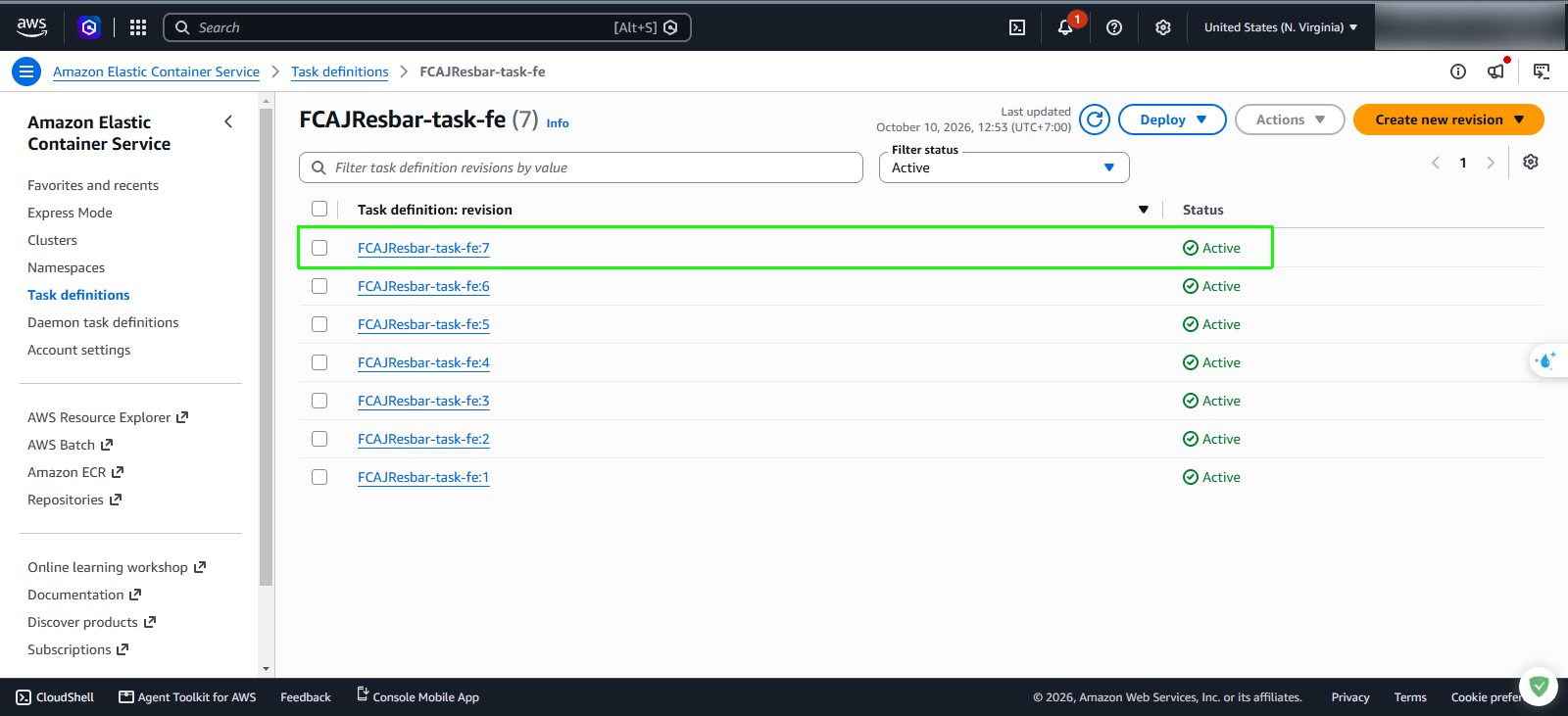
Return to Task definitions and select
FCAJResbar-task-be. Confirm that a new active revision has been registered for the backend task definition.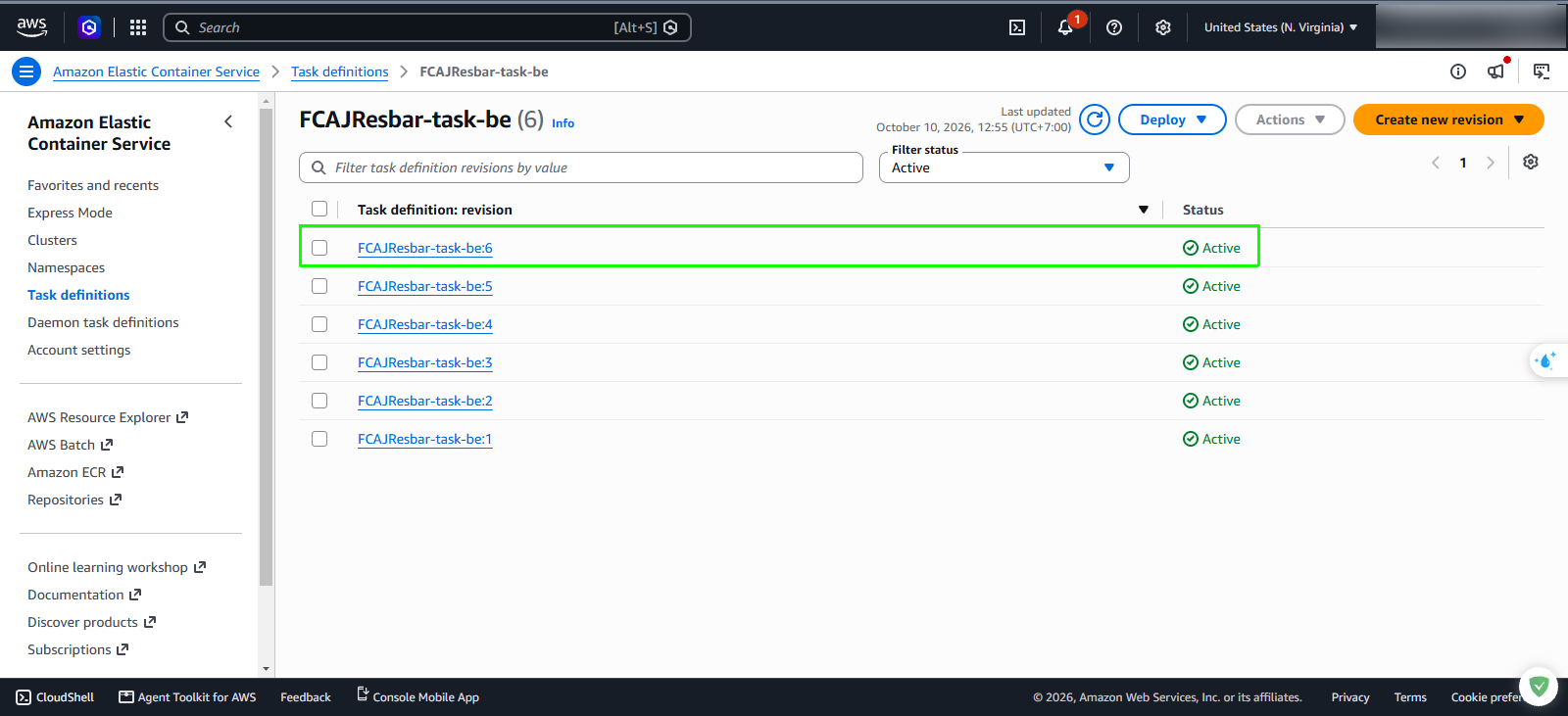
3. Verify Amazon ECS service deployments
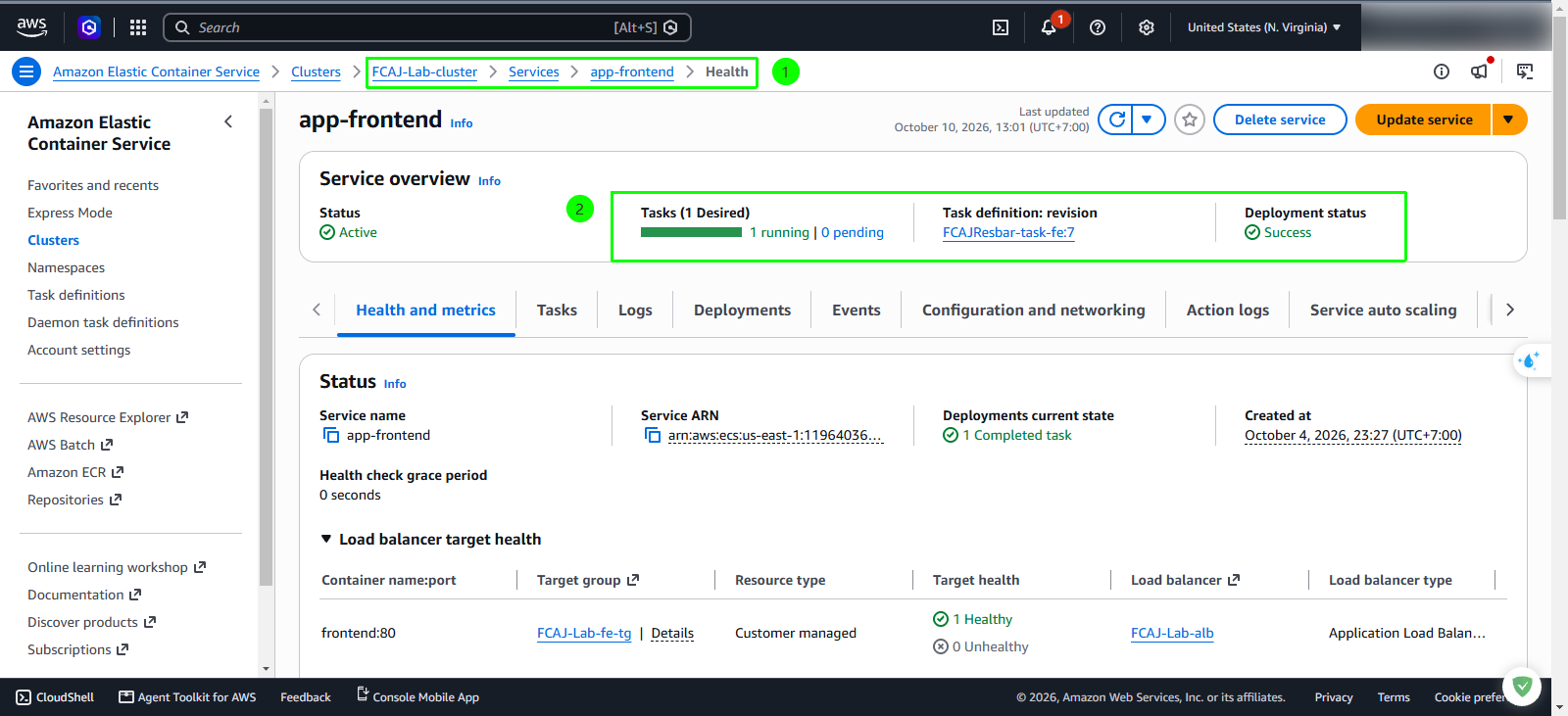
In the Amazon ECS console, navigate to Clusters and select FCAJ-Lab-cluster.
Under the Services tab, select app-frontend.
In the Service overview card, verify ECS service app-frontend has been deployed successfully.
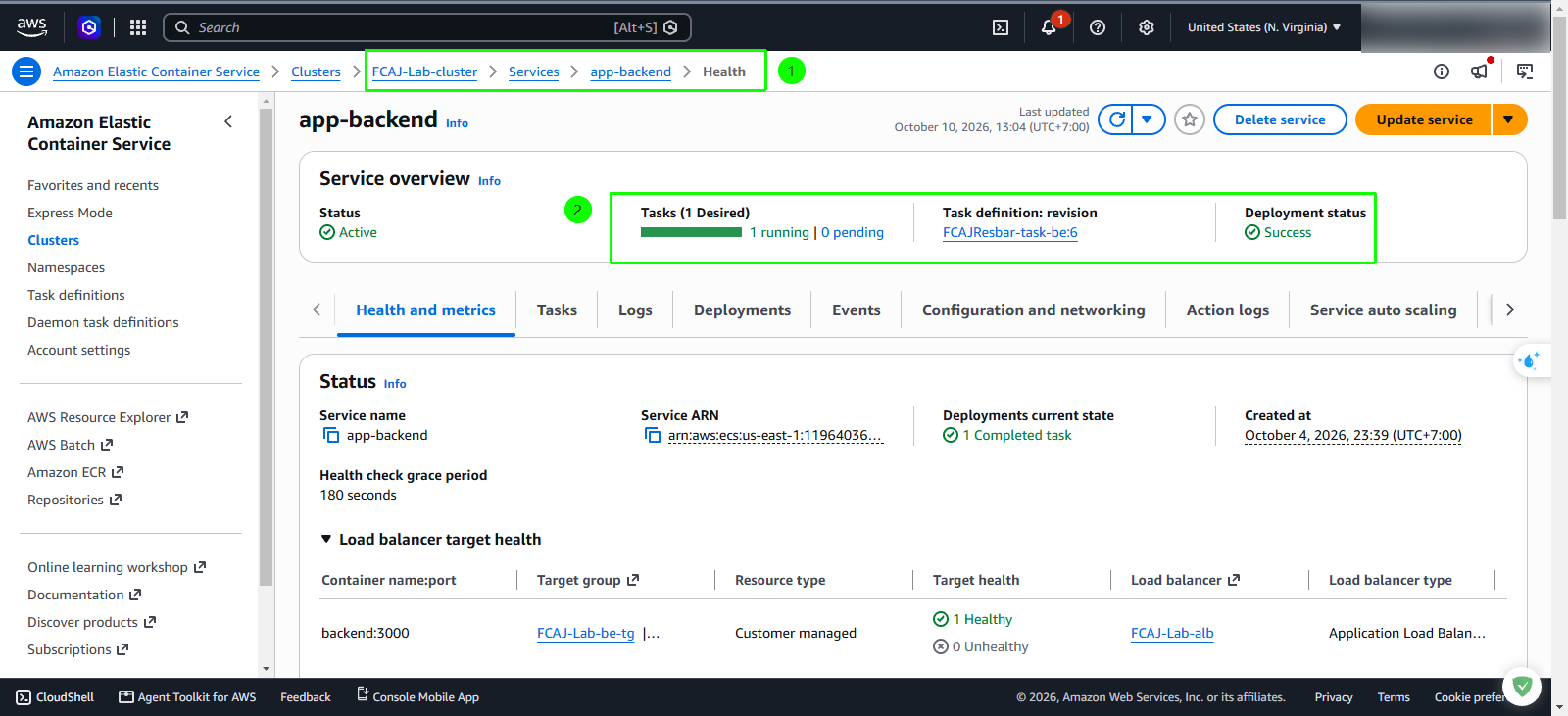
Return to Services and select app-backend.
Verify that ECS service app-backend has been deployed successfully.
Step 4: Verify the application in your browser
In the AWS Management Console, navigate to the Amazon EC2 console.
In the left navigation menu, click Load balancers and select FCAJ-Lab-alb.
In the Details tab, locate and copy the DNS name
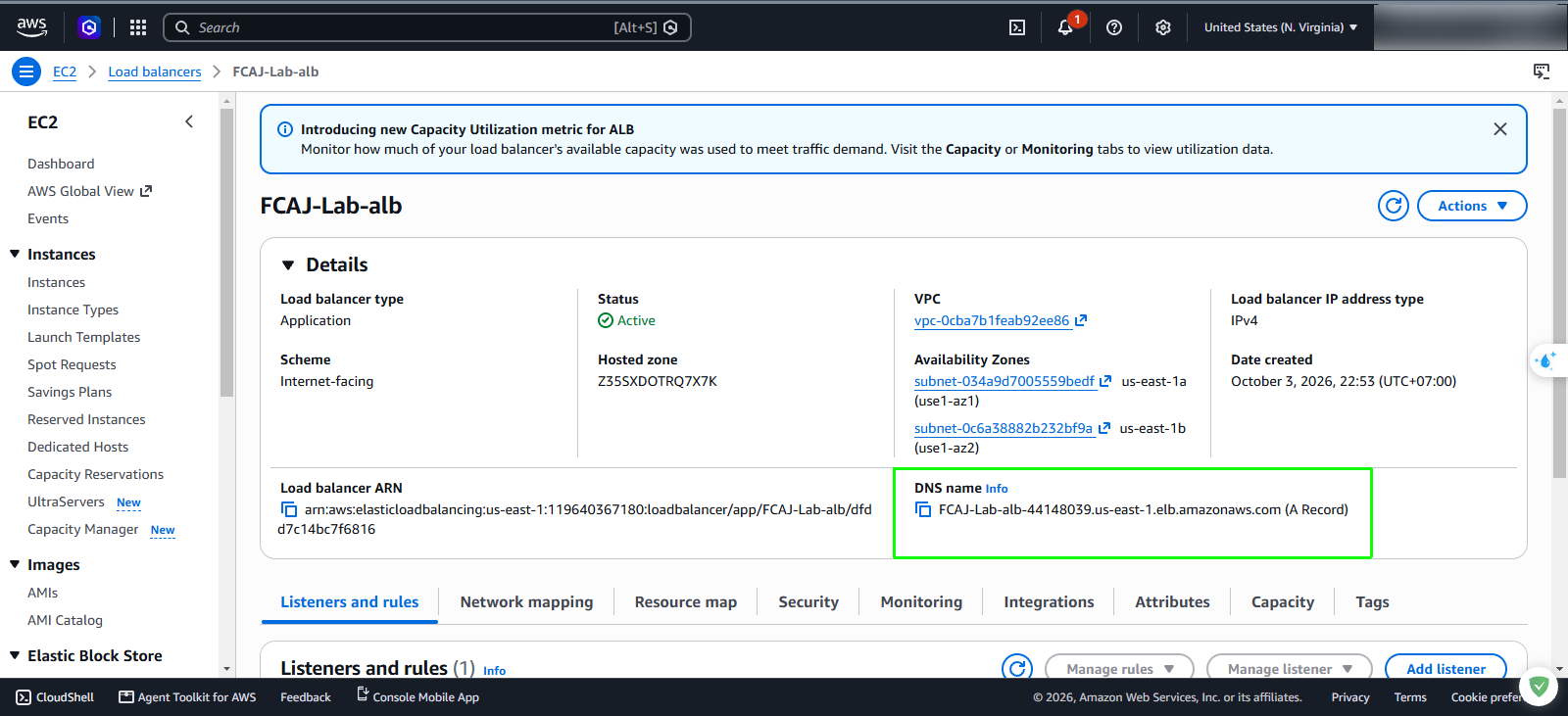
Open a new web browser tab and navigate to DNS name of FCAJ-Lab-alb
Log in to the application.
Inspect the sidebar navigation menu under the user profile photo.
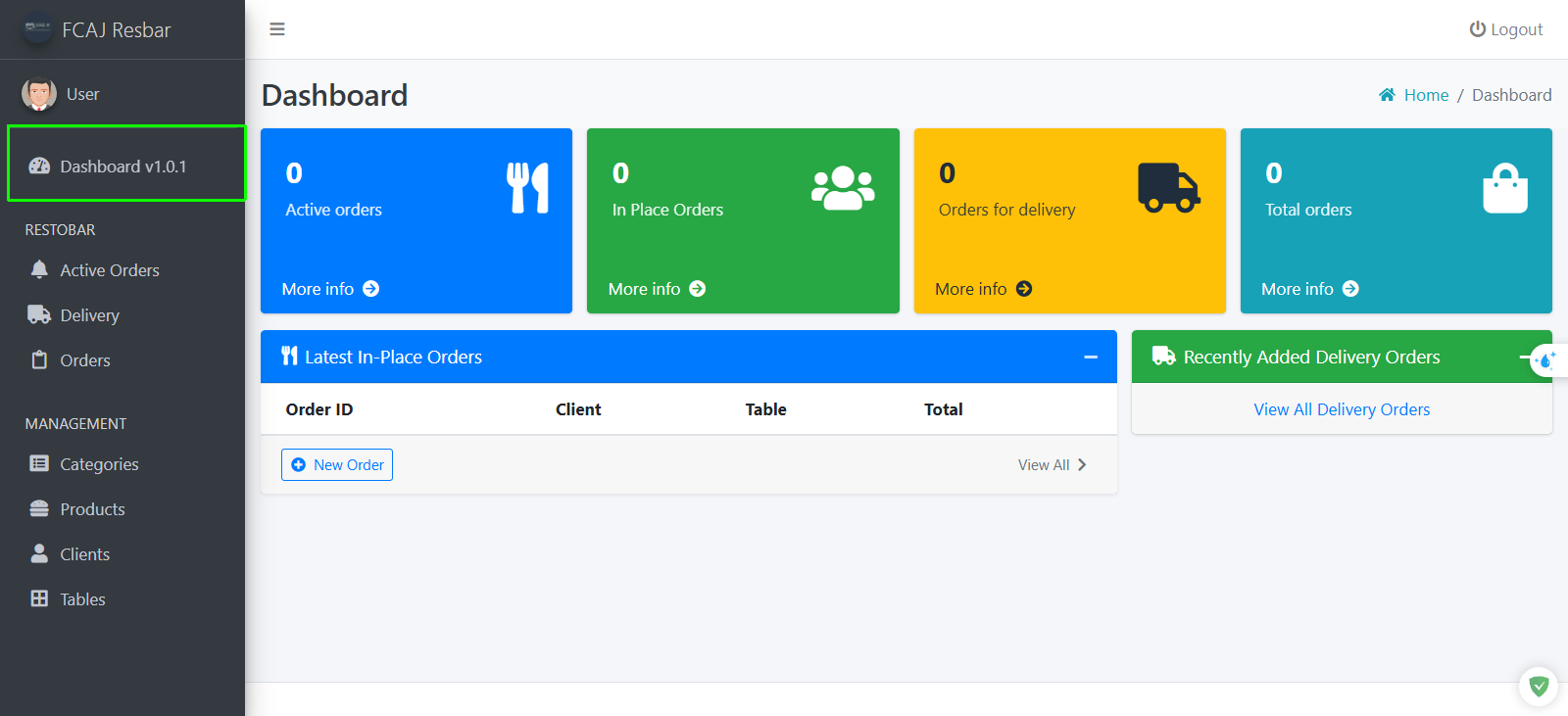
Confirm that the dashboard navigation item displays Dashboard v1.0.1 (reflecting your code update from Section 4.1).