Create Access key and Secret key
In this section, you will generate AWS credentials and configure GitHub Actions repository secrets. These secrets allow your GitHub Actions deployment pipelines to securely authenticate with Amazon ECR, publish container images, register updated Amazon ECS task definitions, and trigger zero-downtime rolling service updates.
Step 1: Create an IAM access key in AWS
To allow an external runner like GitHub Actions to execute deployment commands against your AWS environment, you must provide programmatic access credentials.
Log in to the AWS Management Console.
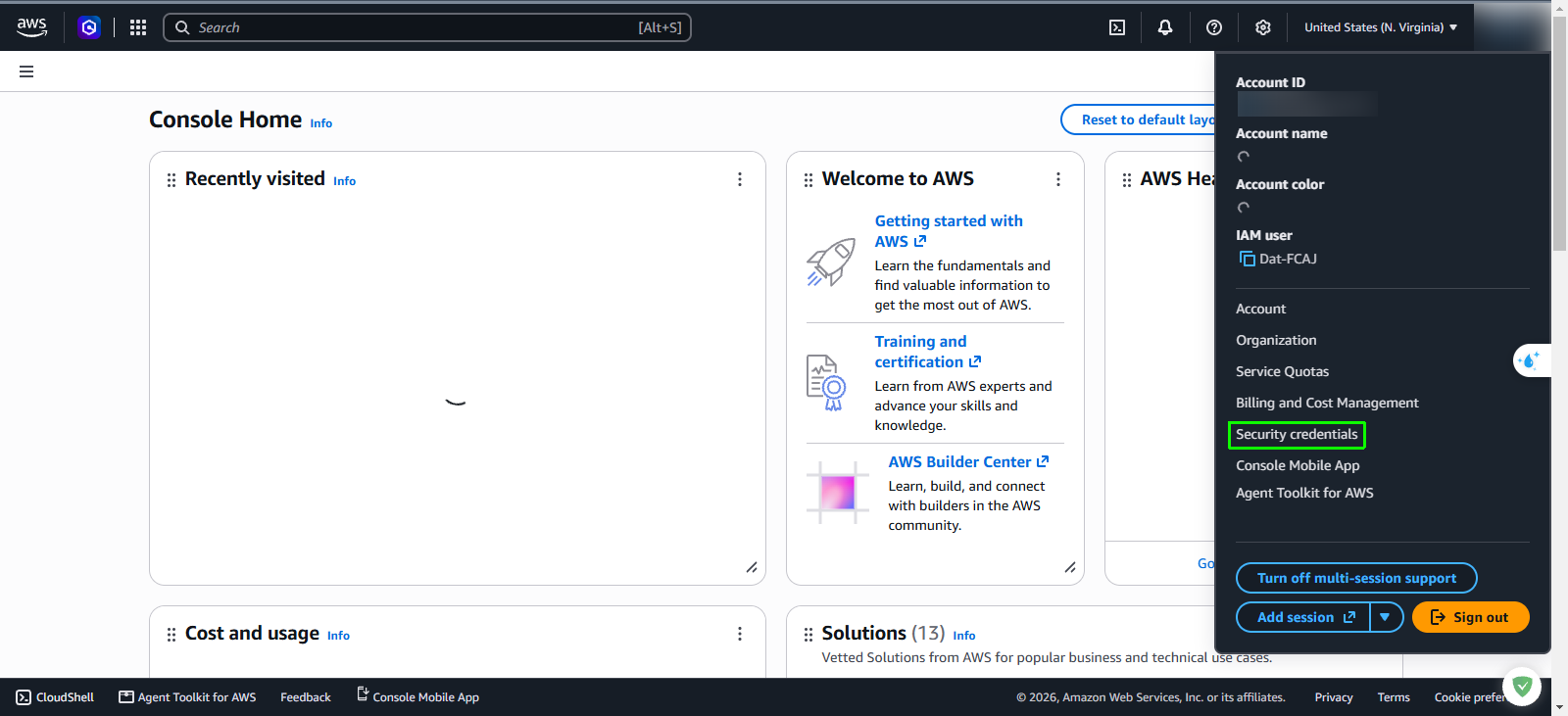
In the top-right navigation bar, click your account name or ID dropdown menu and select Security credentials.
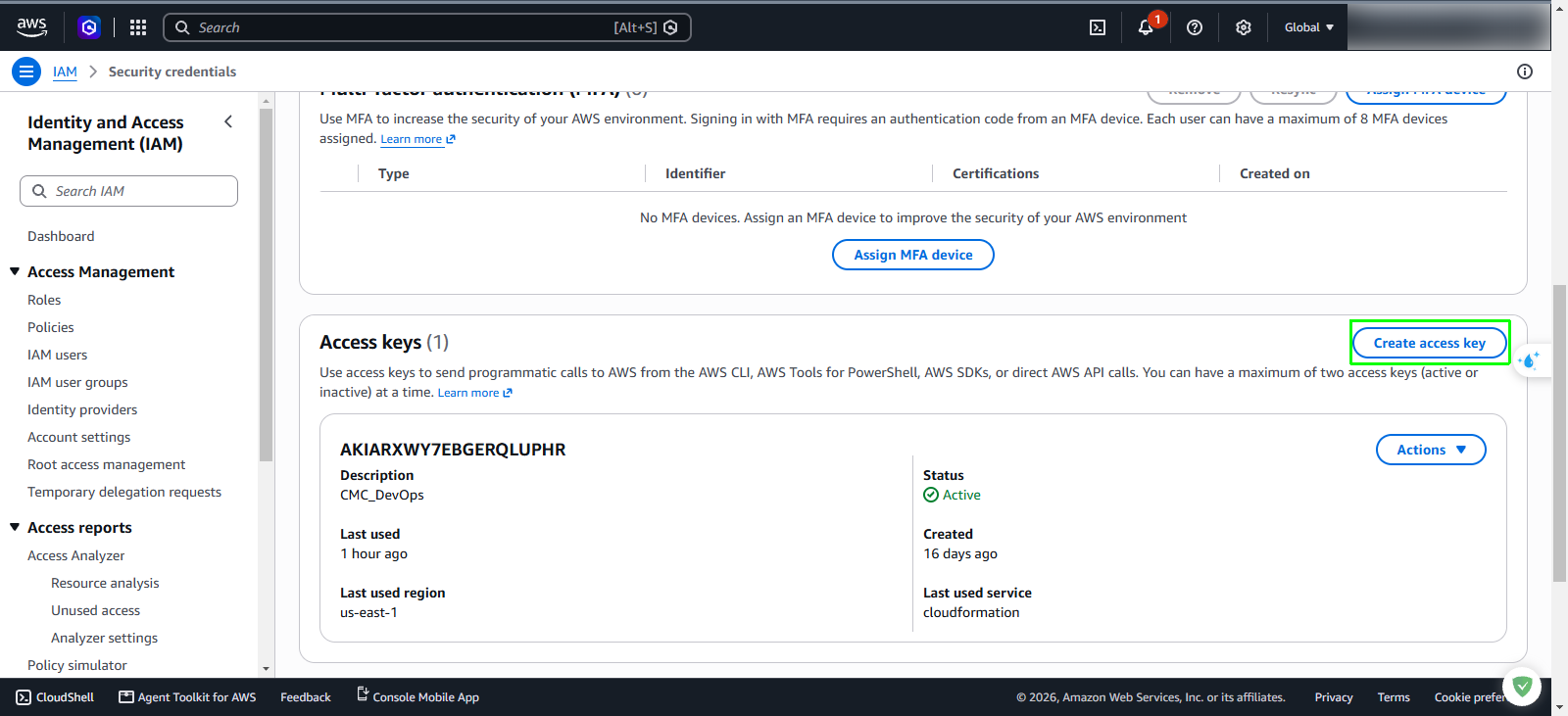
Scroll down to the Access keys section and click Create access key.
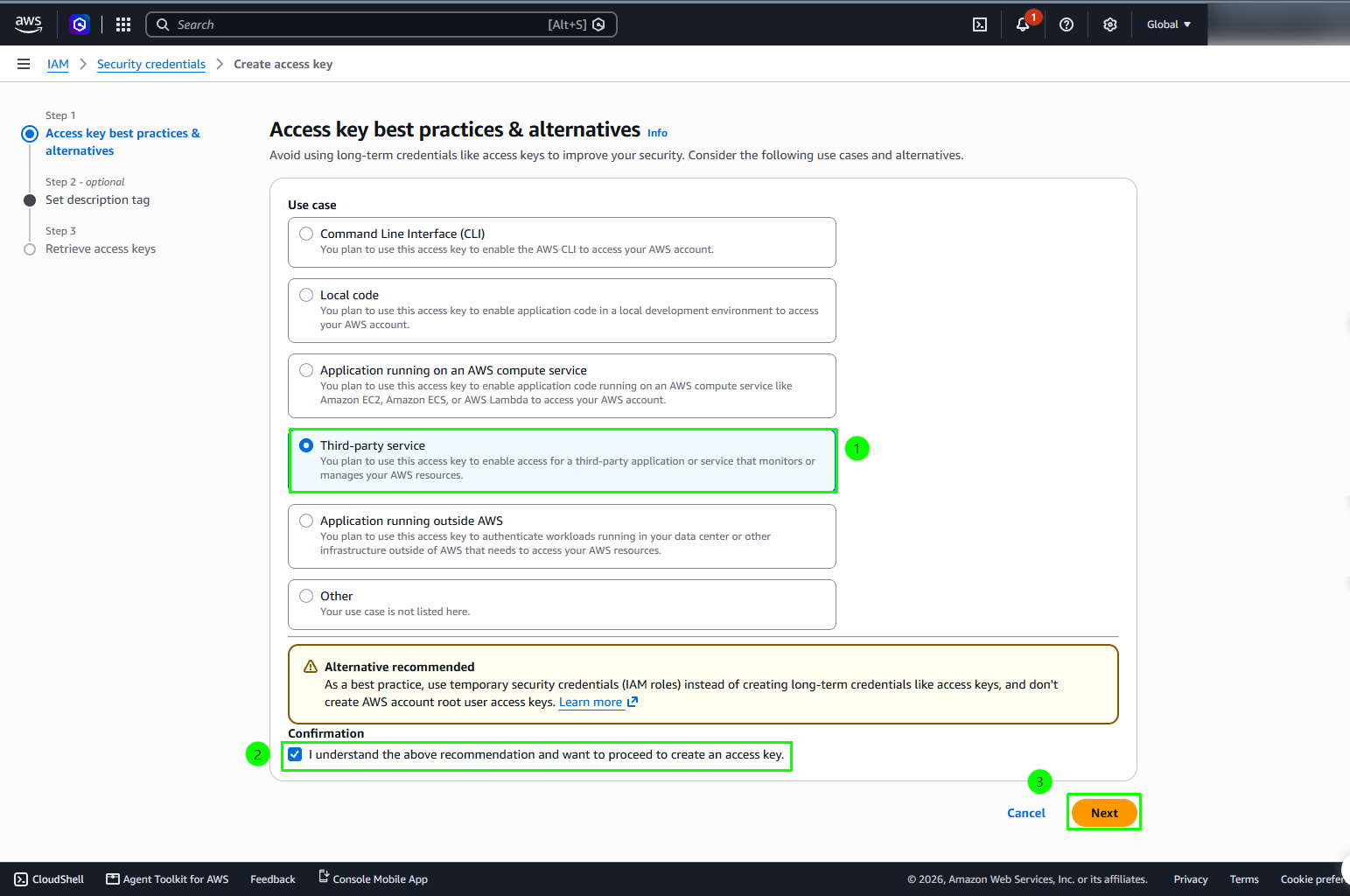
In the Access key best practices & alternatives step, select the Third-party service use case option.
Check the confirmation checkbox acknowledging AWS recommendations, then click Next.
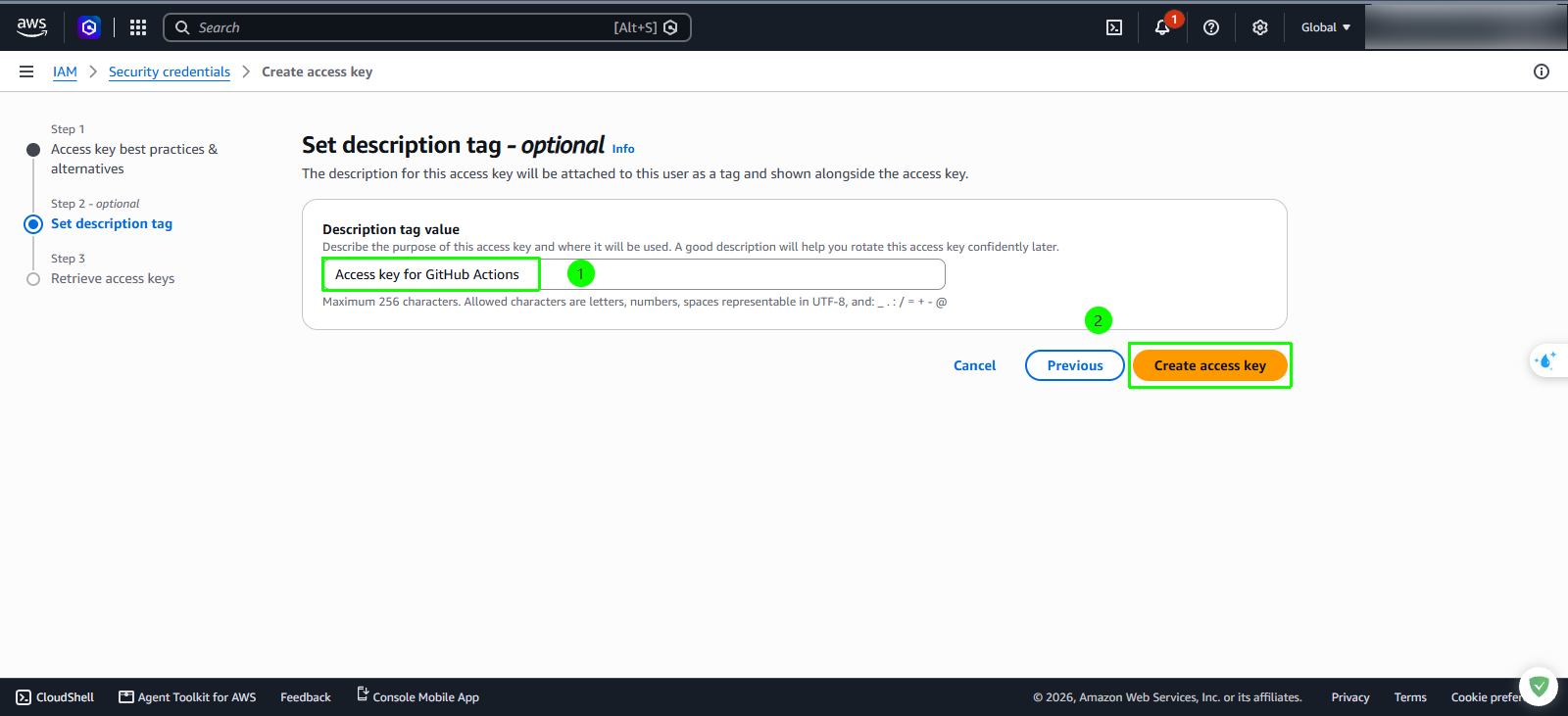
(Optional) In the Description tag value field, enter
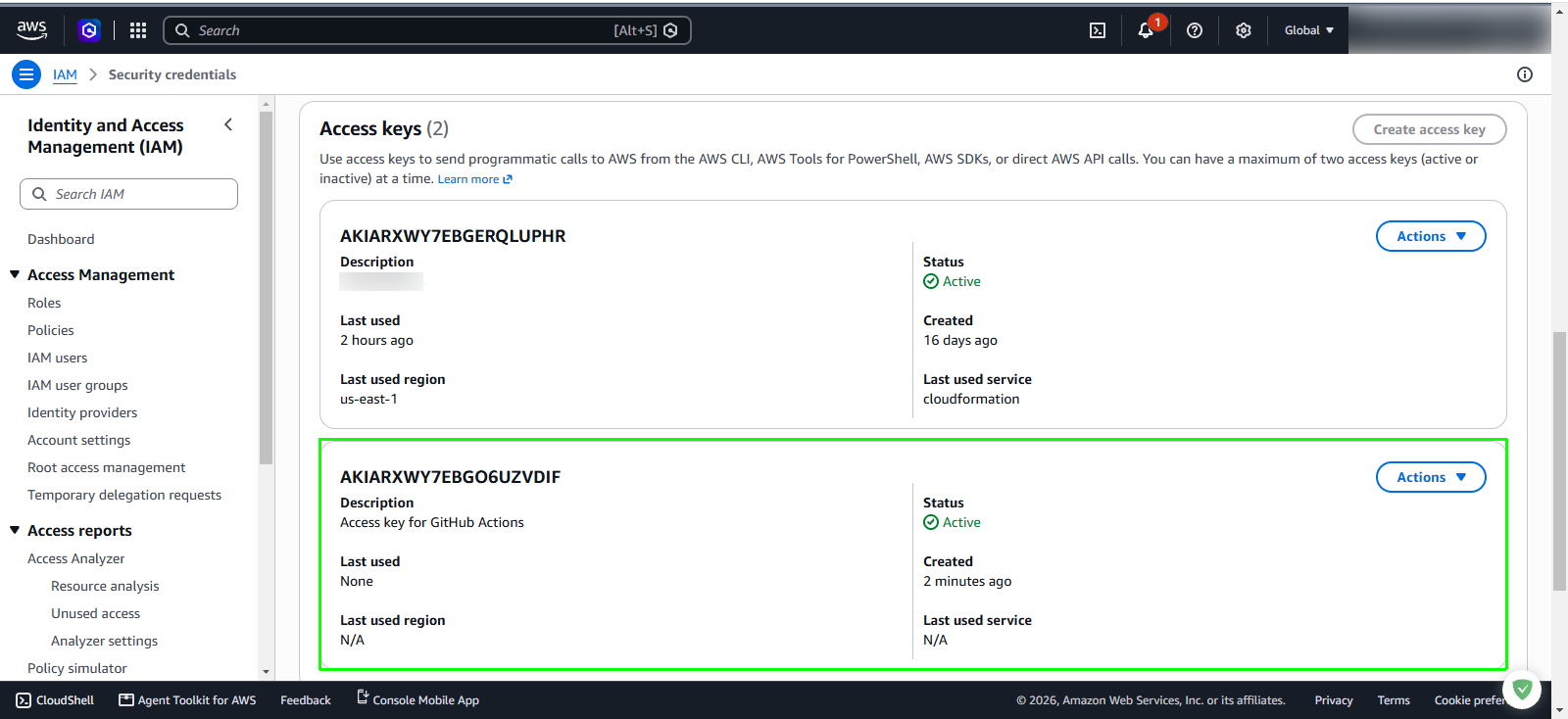
Access key for GitHub Actions.Click Create access key.
In the Retrieve access keys step, your new credential pair is generated:
- Access key
- Secret access key
Click Download .csv file to save a copy locally, or copy both values to a secure location.
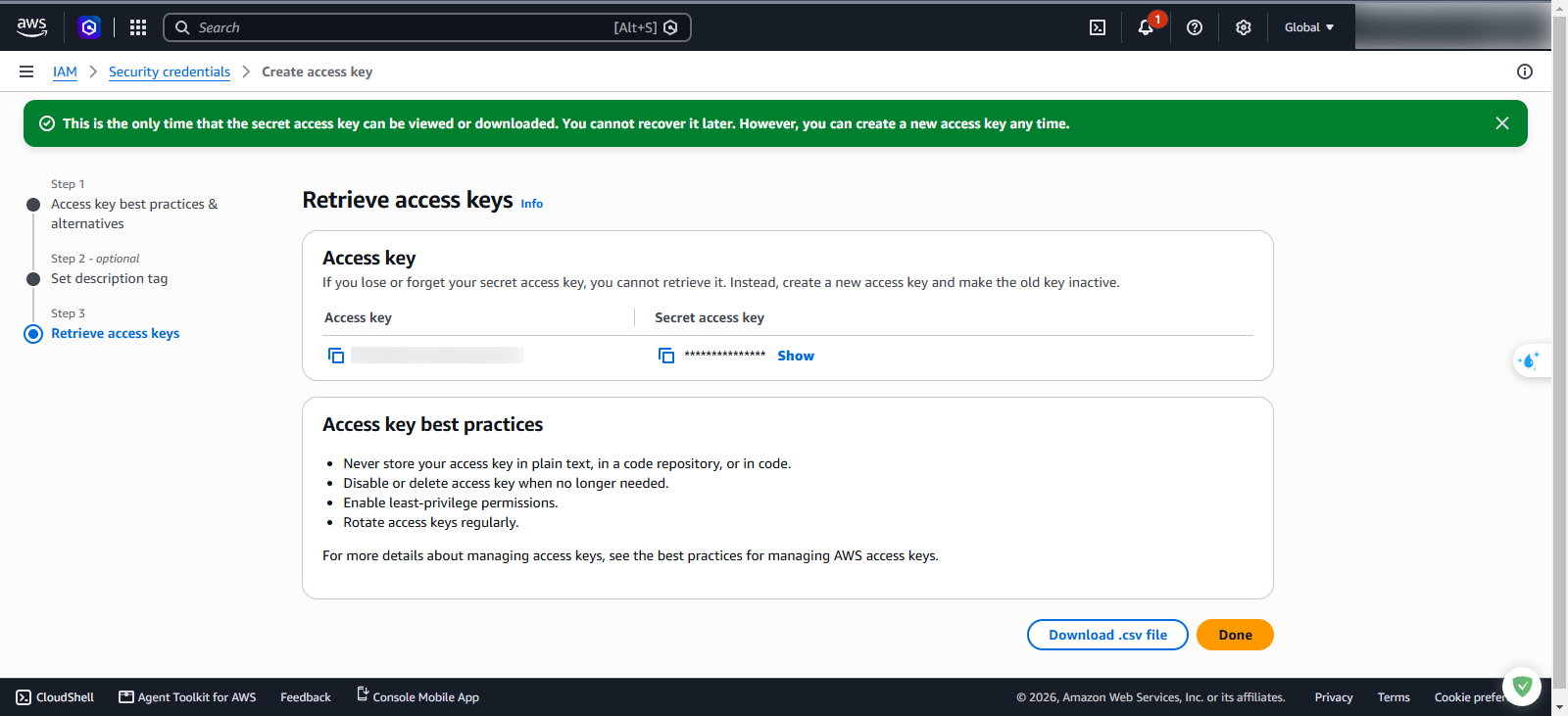
Click Done. Your new access key now appears in the active credentials list.
This is the only time the secret access key can be viewed or downloaded from the AWS console. If you navigate away without saving it, AWS cannot recover the value, and you will need to deactivate the key pair and generate a new one. Never commit access keys to public repositories or unencrypted scripts.
Step 2: Configure repository secrets in GitHub
GitHub Actions uses encrypted repository secrets to inject credentials and infrastructure identifiers into CI/CD workflows at runtime without exposing them in plaintext code.
In your web browser, navigate to your
aws-fcaj-container-apprepository on GitHub.Click the Settings tab in the top repository navigation bar.
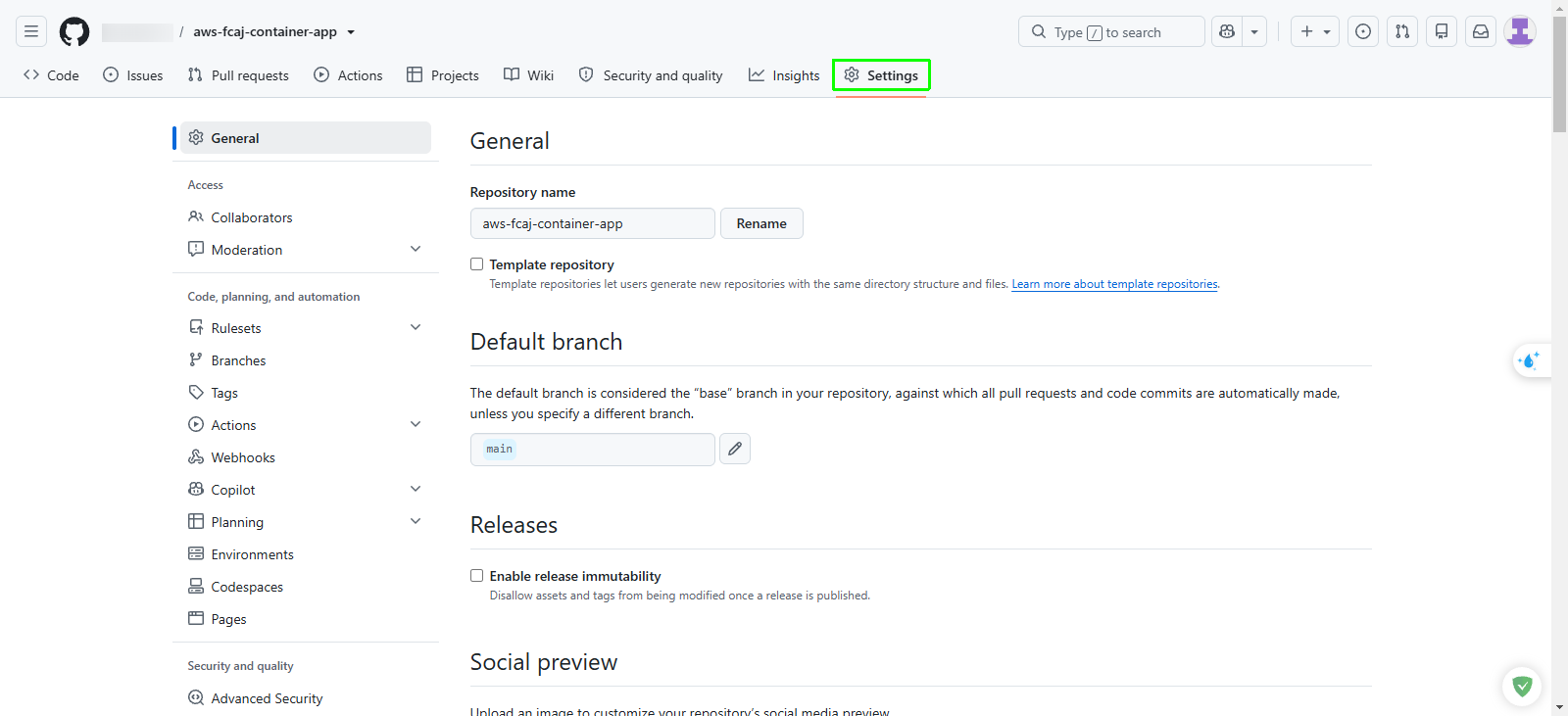
In the left navigation menu, expand Secrets and variables and select Actions.
In the Repository secrets section, click New repository secret.
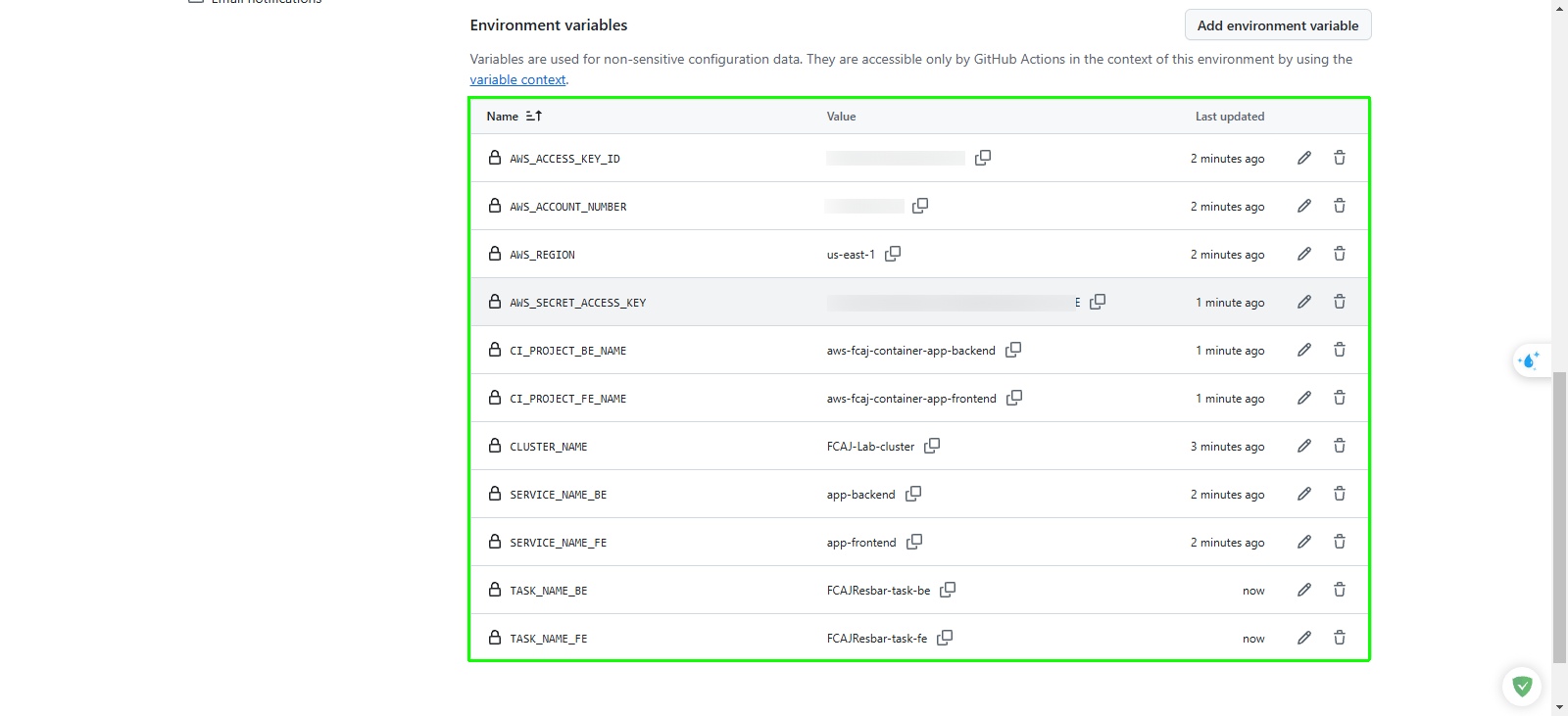
Add each of the following 11 secrets by entering the exact secret name and its corresponding value:
| Secret Name | Description | Example / Target Value |
|---|---|---|
AWS_ACCESS_KEY_ID | IAM programmatic access key ID | AKIA... (from downloaded CSV) |
AWS_SECRET_ACCESS_KEY | IAM programmatic secret access key | wJalr... (from downloaded CSV) |
AWS_ACCOUNT_NUMBER | 12-digit AWS account ID without hyphens | 123456789012 |
AWS_REGION | AWS Region where lab resources reside | us-east-1 (or your active lab region) |
CLUSTER_NAME | Target Amazon ECS cluster name | FCAJ-Lab-cluster |
SERVICE_NAME_FE | Amazon ECS service name for frontend | app-frontend |
SERVICE_NAME_BE | Amazon ECS service name for backend | app-backend |
TASK_NAME_FE | Amazon ECS task definition family for frontend | FCAJResbar-task-fe |
TASK_NAME_BE | Amazon ECS task definition family for backend | FCAJResbar-task-be |
CI_PROJECT_FE_NAME | Amazon ECR repository name for frontend | aws-fcaj-container-app-frontend |
CI_PROJECT_BE_NAME | Amazon ECR repository name for backend | aws-fcaj-container-app-backend |
To quickly retrieve your 12-digit AWS account ID from your EC2 build instance terminal, run:
aws sts get-caller-identity --query "Account" --output text