Create a New Project and Push Code
In this section, you will create a new repository in your personal GitHub account to host the application codebase. You will disconnect your local working copy on the Amazon EC2 build instance from the template, configure authentication using the modern GitHub CLI, and push your customized codebase to the main branch.
Step 1: Create a new repository on GitHub
Log in to your GitHub account.
In the top-right corner, click your profile photo and select Your repositories.
On the repositories page, click the green New button.
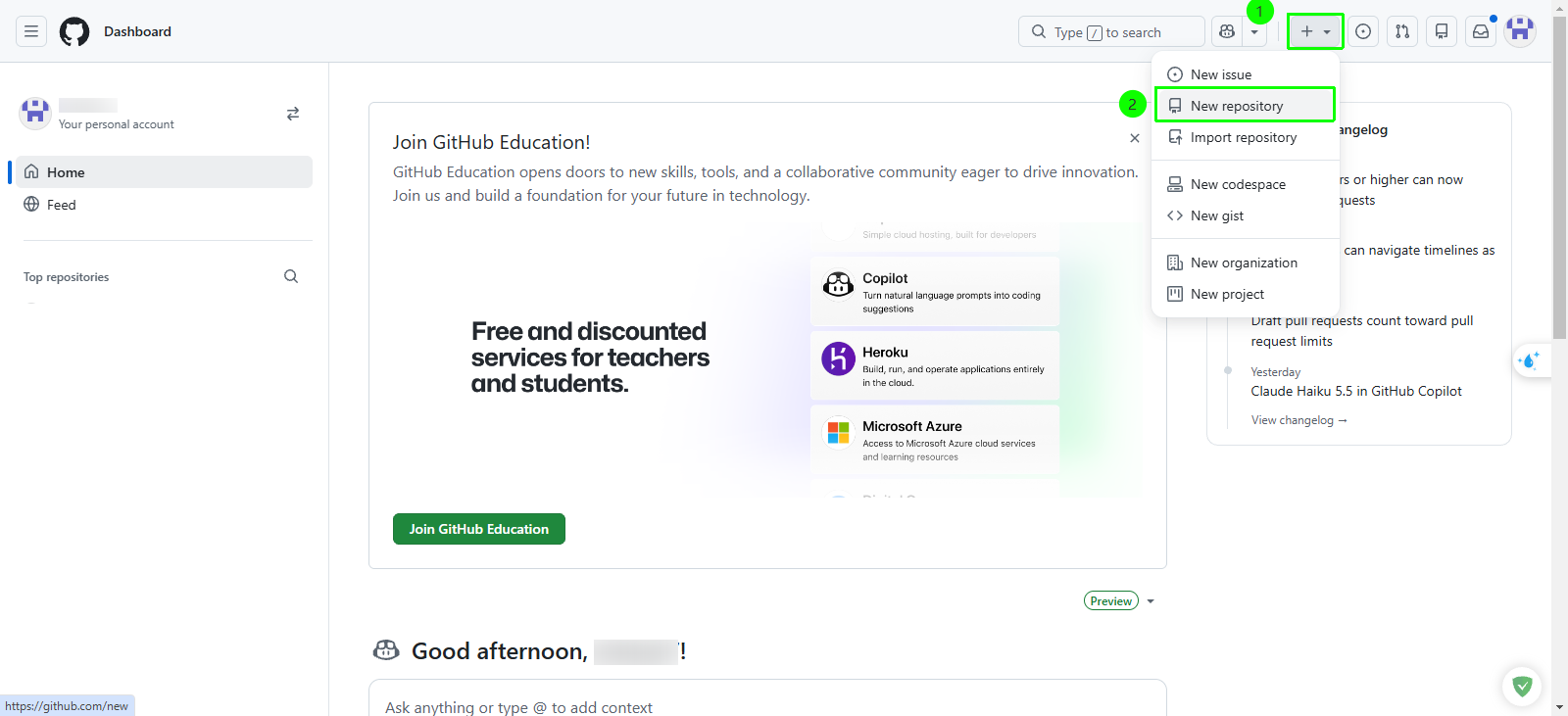
Configure the repository creation form:
- Repository name: Enter
aws-fcaj-container-app - Description (optional): Enter a brief description such as
Containerized web application deployment with Amazon ECS and GitHub Actions - Visibility: Select Public
- Initialize this repository with: Leave all options unchecked (Add a README file, Add .gitignore, and Choose a license), as you will push an existing project from your EC2 build instance.
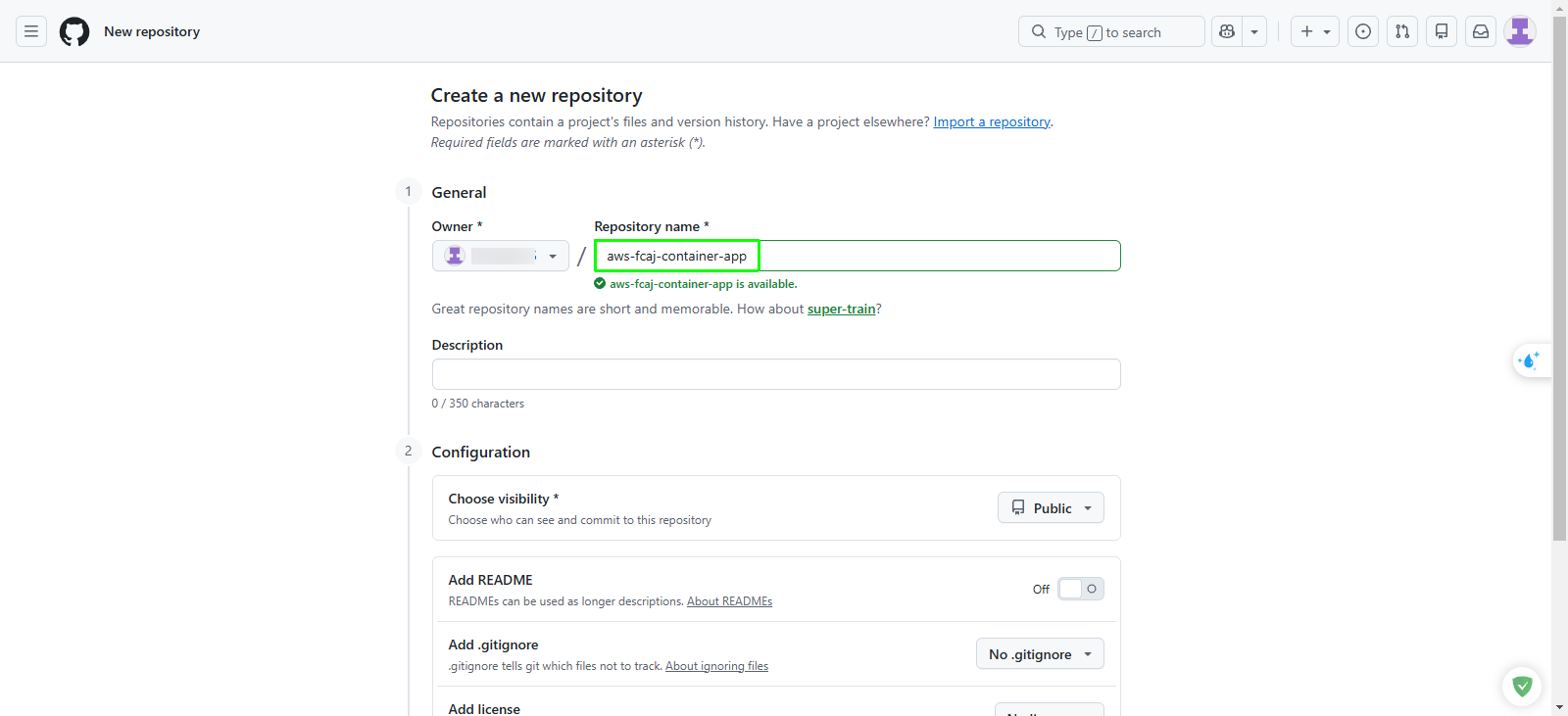
- Repository name: Enter
Click Create repository.
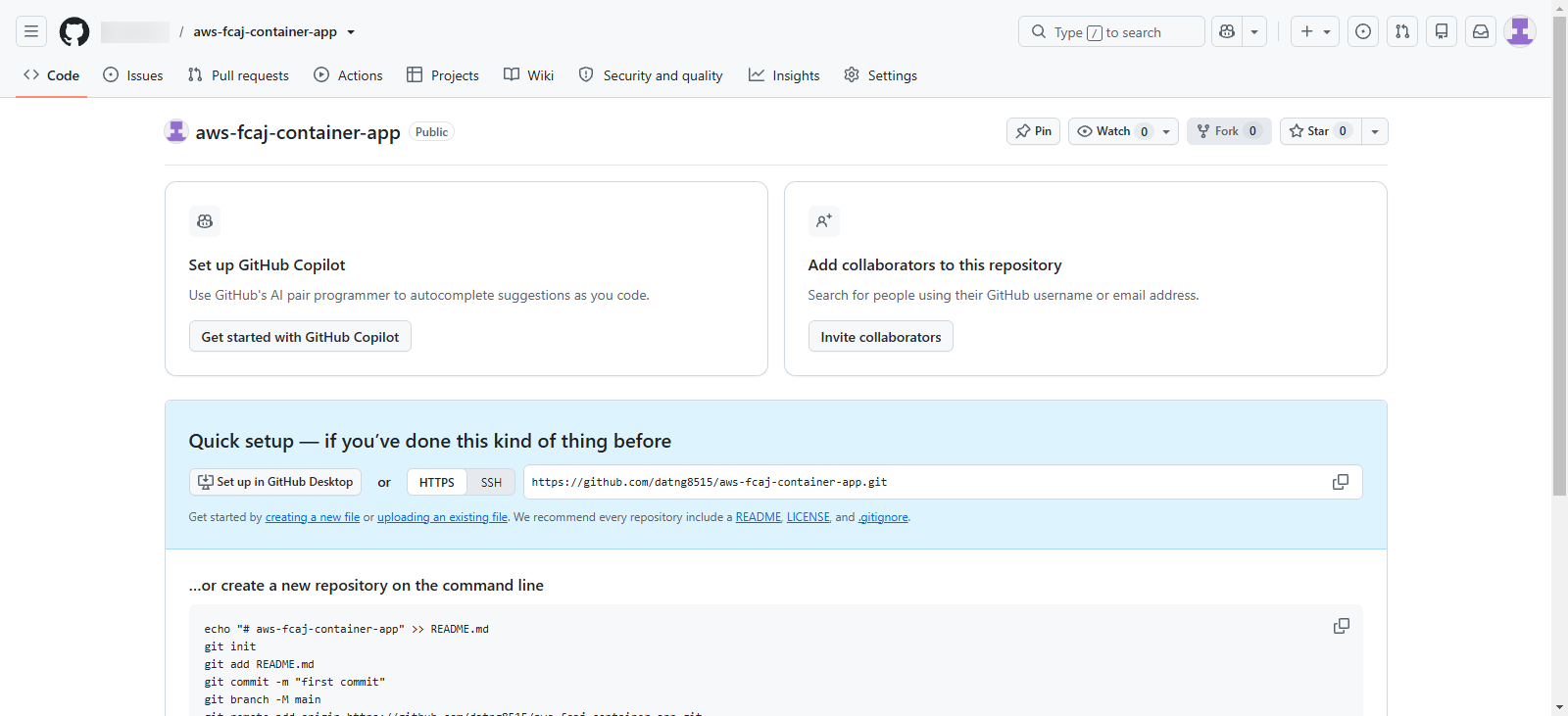
Selecting Public visibility provides unlimited free GitHub Actions runner minutes for standard Linux workflows. If you choose Private, ensure your GitHub account has remaining monthly runner minutes allocated.
Step 2: Detach from upstream Git repository on EC2
The local repository on your EC2 build instance is currently linked to the instructor upstream Git repository. To start a fresh commit history and point origin to your newly created repository, remove the existing Git tracking directory.
Connect to your Amazon EC2 build instance.
Navigate to the project root directory:
cd ~/aws-fcaj-container-appRemove the legacy Git directory:
sudo rm -rf .git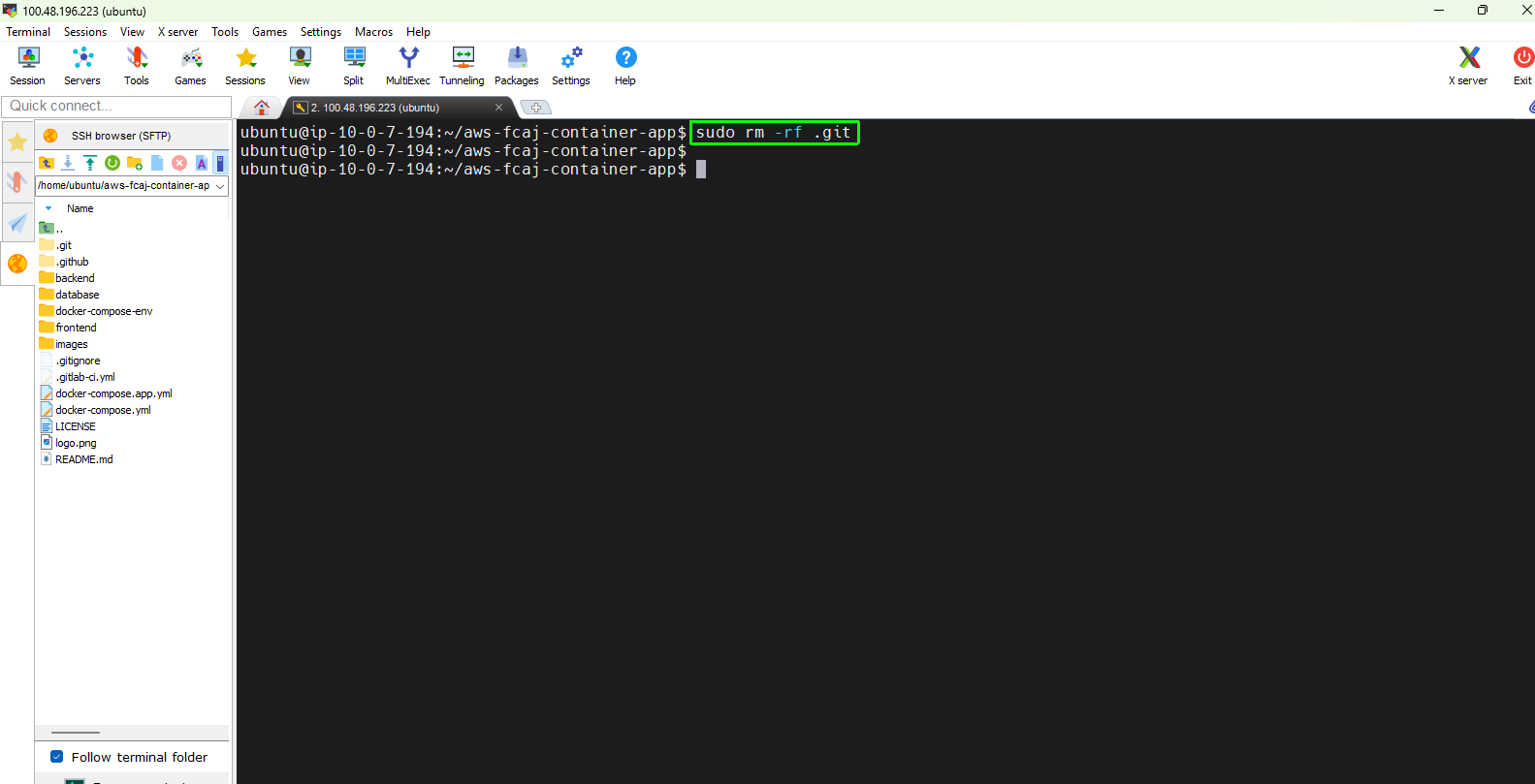
Step 3: Generate a GitHub personal access token
GitHub requires token-based authentication or SSH keys for Git operations over HTTPS; standard account passwords are not accepted. In this step, you generate a personal access token (classic) to authenticate the GitHub CLI.
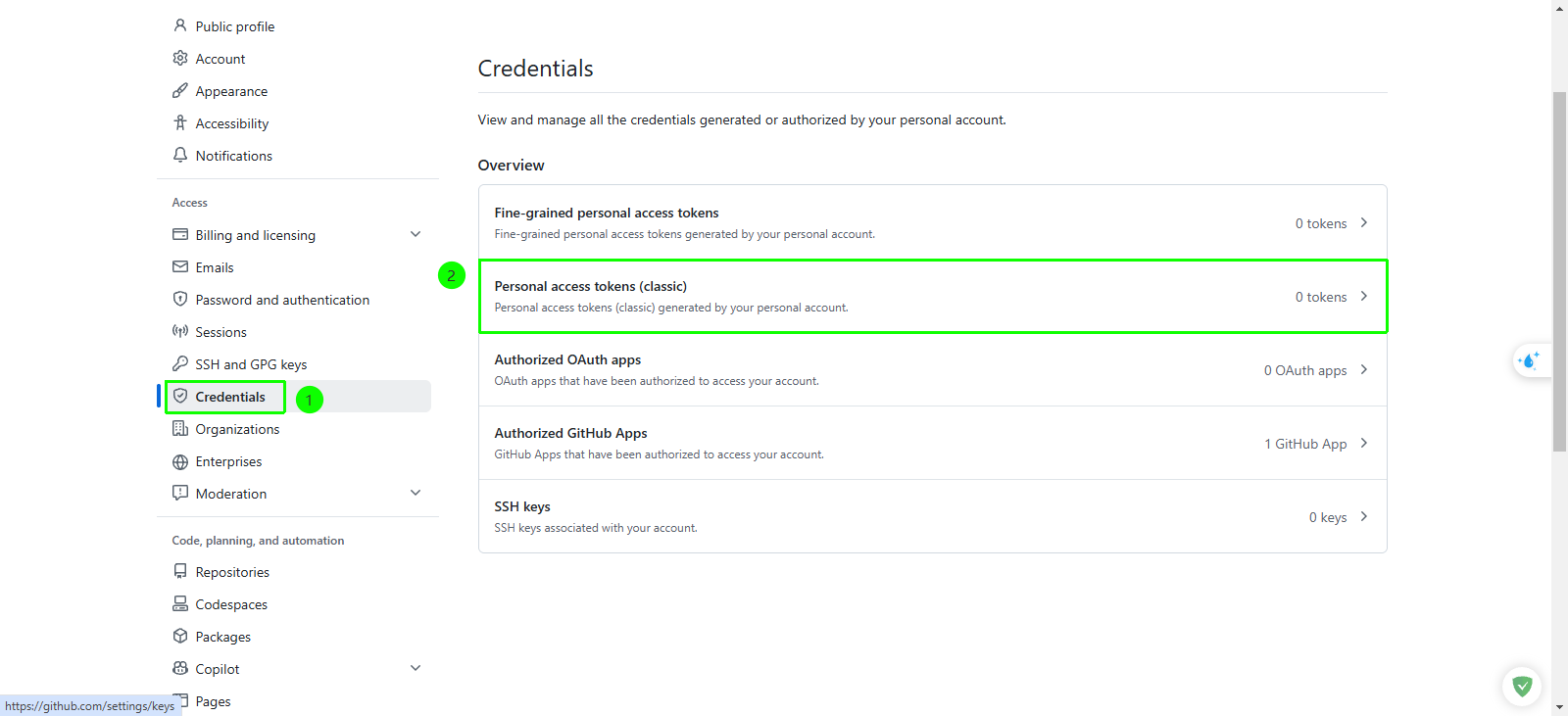
In GitHub, click your profile photo in the top-right corner and select Settings.
- Scroll to the bottom of the left sidebar menu and click Developer settings.
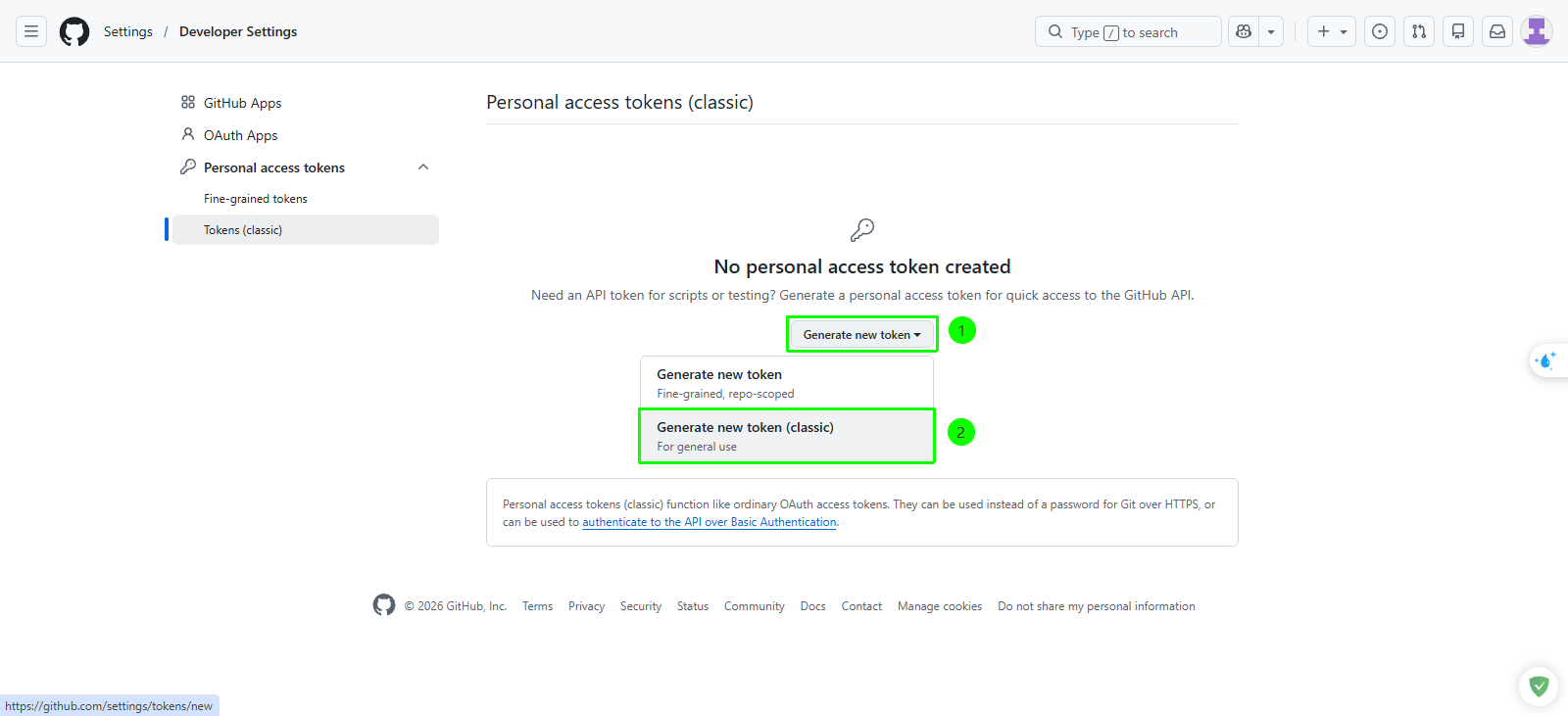
- Expand Personal access tokens and select Tokens (classic).
Click Generate new token, then choose Generate new token (classic).
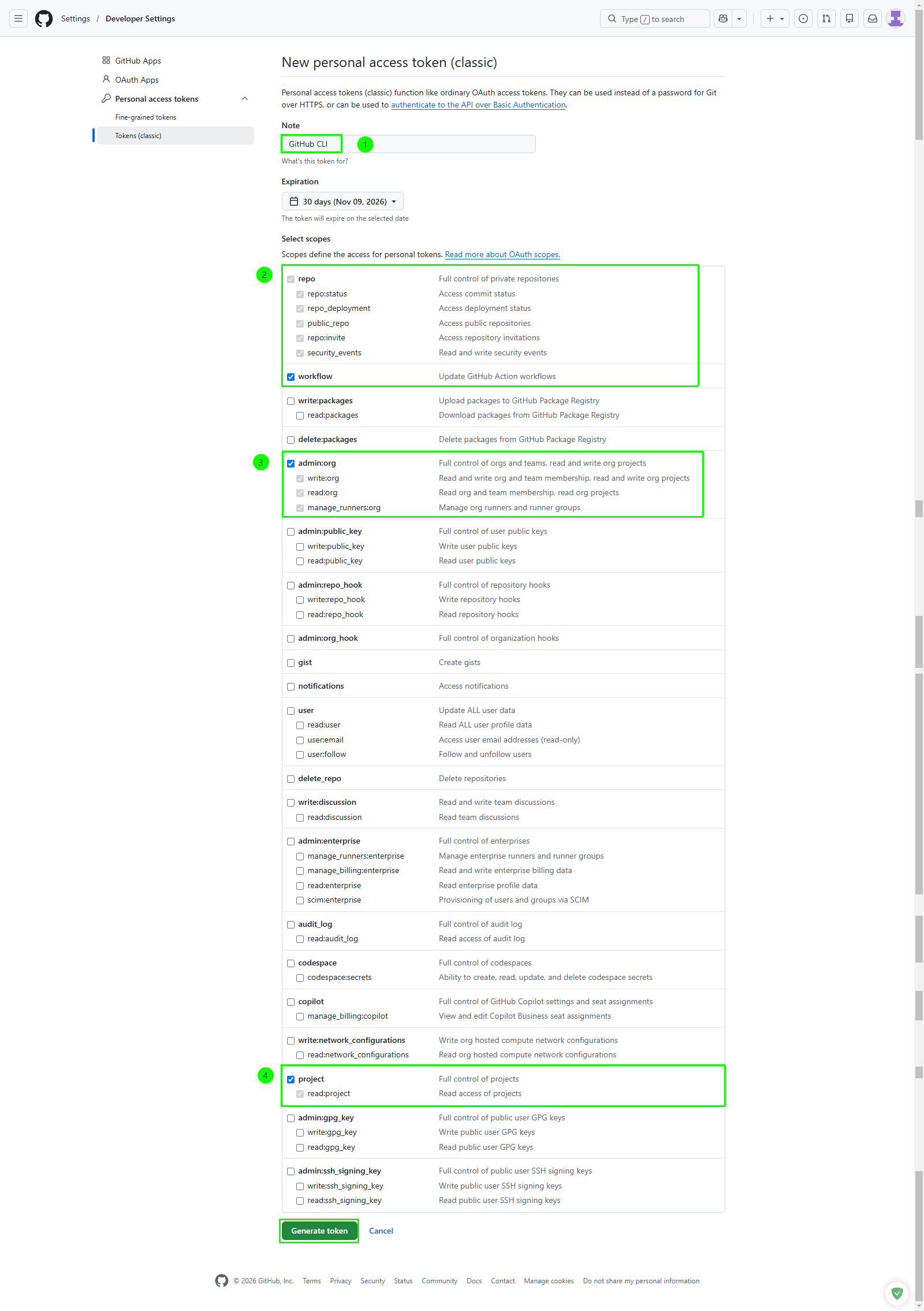
Configure the token parameters:
- Note: Enter
GitHub CLI - Expiration: Select 30 days (or your preferred duration)
- Select scopes: Check the following required permissions:
- repo (Full control of private repositories)
- workflow (Update GitHub Action workflows)
- admin:org (Read and write org and team membership, read and write org projects)
- project (Full control of project boards)
- Scroll to the bottom of the page and click Generate token.
- Note: Enter
Click the copy icon next to the generated token to copy it to your clipboard.
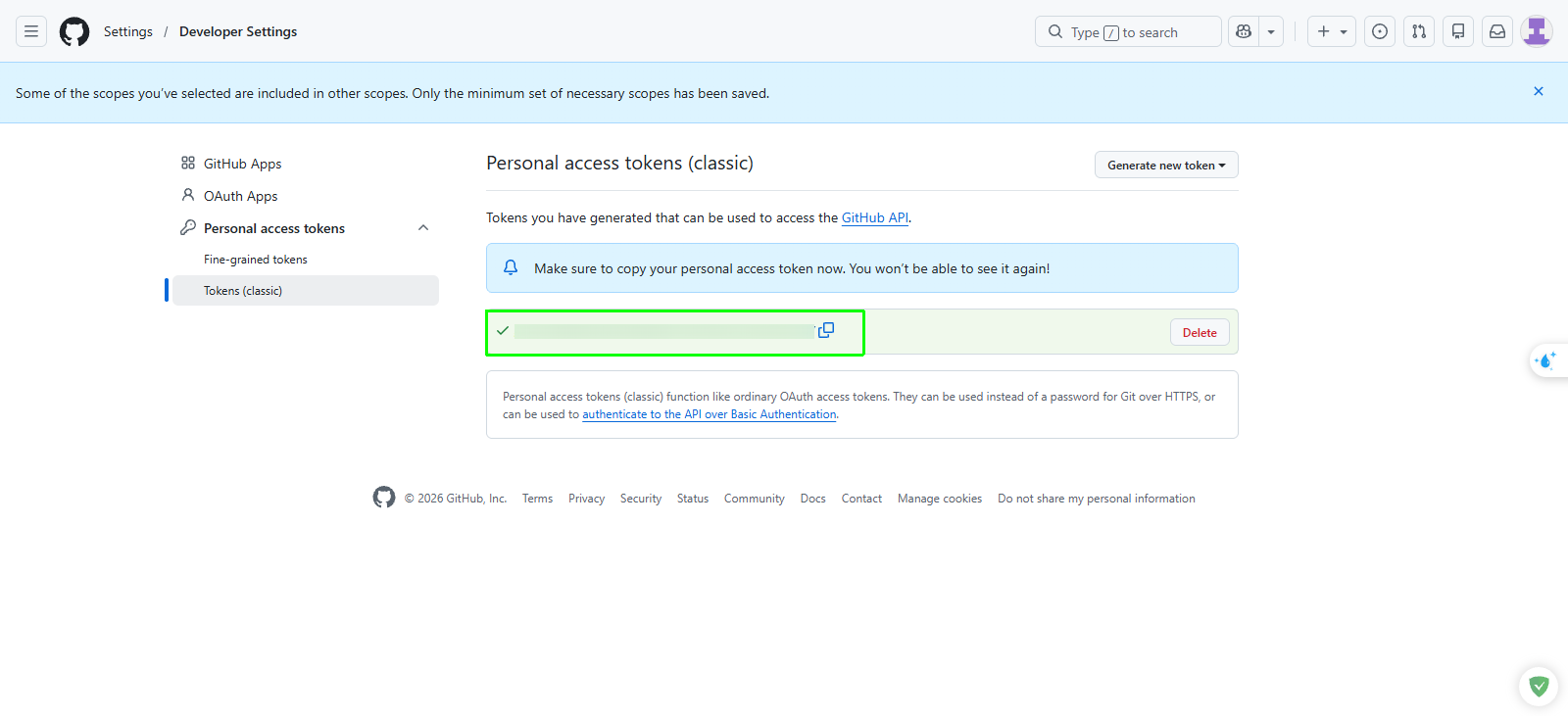
GitHub displays personal access tokens only once upon creation. If you leave or refresh this page without saving the token, you must delete it and generate a new one. Never expose access tokens in public repositories or unencrypted configuration files.
Step 4: Install and authenticate GitHub CLI on EC2
On your Amazon EC2 terminal, install the GitHub CLI package:
sudo apt install gh -yRun the interactive authentication command:
gh auth loginComplete the interactive prompts with the following choices:
- What account do you want to log into?: Select GitHub.com
- What is your preferred protocol for Git operations?: Select HTTPS
- Authenticate Git with your GitHub credentials?: Select Y (Yes)
- How would you like to authenticate GitHub CLI?: Select Paste an authentication token
- Token: Paste the personal access token you generated in Step 3.
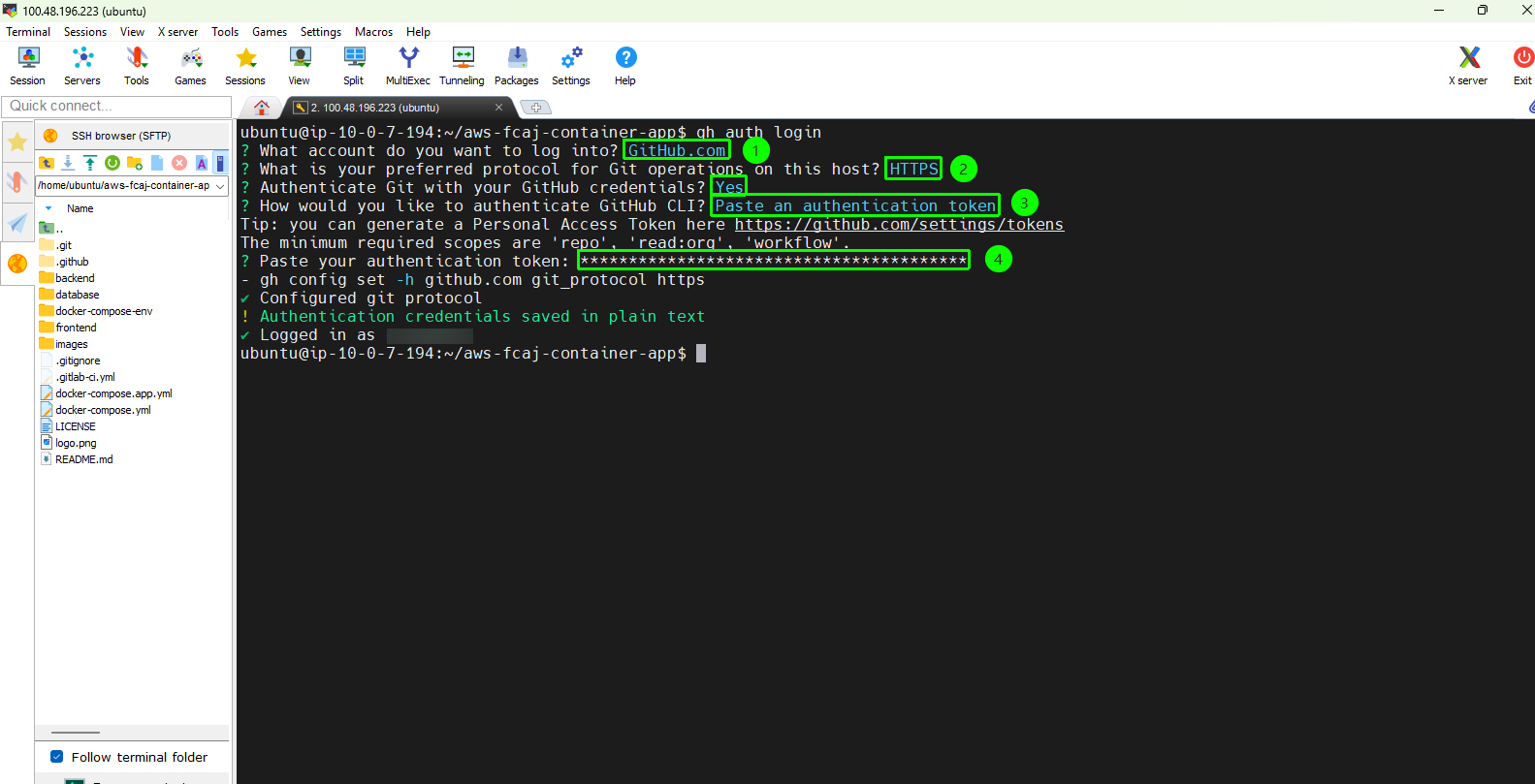
Verification checkpoint
Verify your GitHub CLI authentication status:
gh auth status
Expected terminal output:
github.com
  ✓ Logged in to github.com account <your-username> (keyring)
  - Active account: true
  - Git operations protocol: https
  - Token: ghp_************************************
  - Token scopes: 'admin:org', 'project', 'repo', 'workflow'
Step 5: Initialize Git and push source code to GitHub
Initialize a fresh Git repository, stage all files, set the default branch name to main, link your remote GitHub repository, and push the codebase.
Ensure you are in the application root directory:
cd ~/aws-fcaj-container-appExecute the Git setup and push sequence:
git init
git add .
git commit -m "Initial commit for containerized app"
git branch -M main
git remote add origin https://github.com/<your-username>/aws-fcaj-container-app.git
git push -u origin main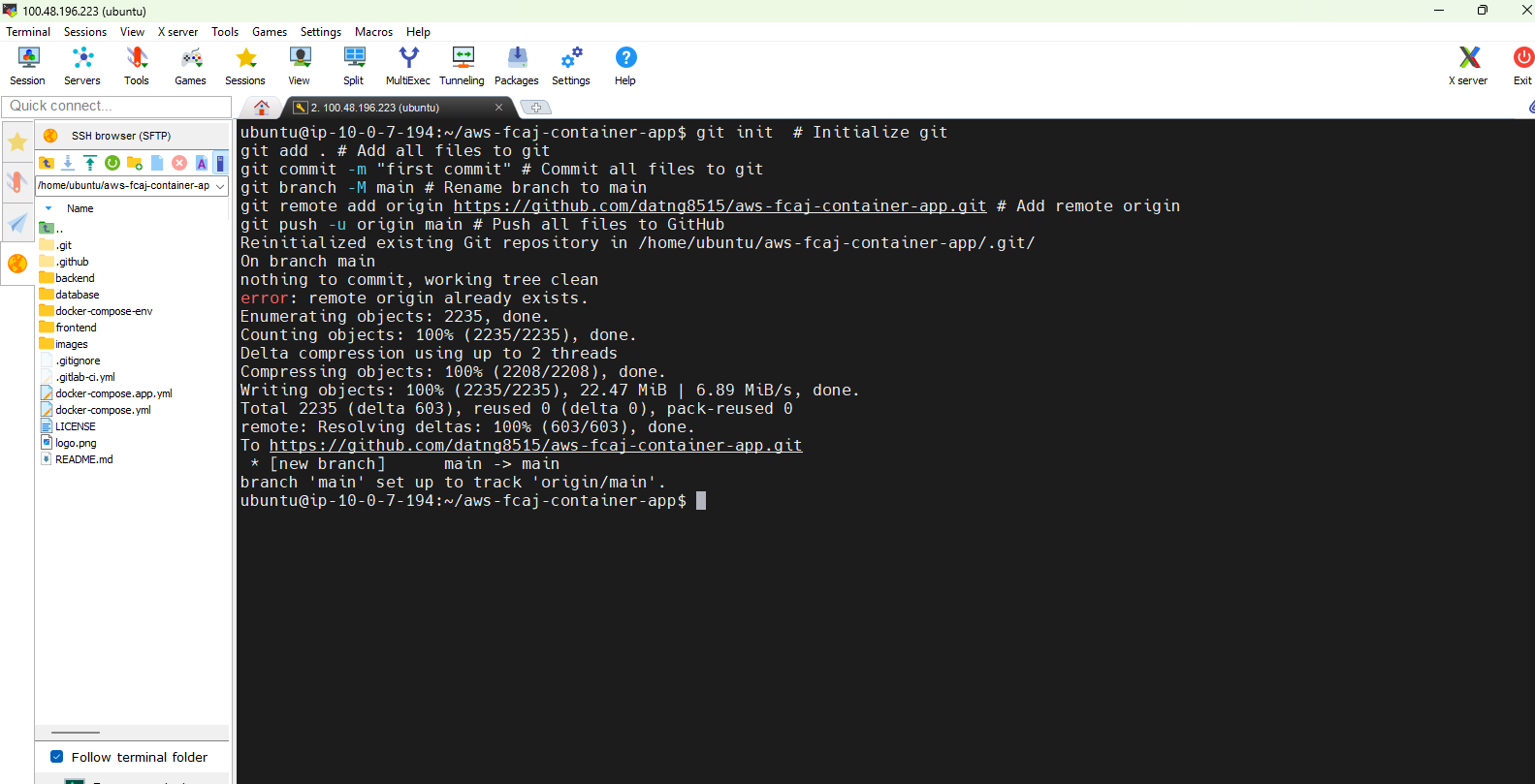
Check your remote tracking configuration and local tree status:
git remote -v
git status
Expected terminal output:
origin  https://github.com/<your-username>/aws-fcaj-container-app.git (fetch)
origin  https://github.com/<your-username>/aws-fcaj-container-app.git (push)
On branch main
Your branch is up to date with 'origin/main'.
nothing to commit, working tree clean