Check results
Verification workflow overview
Automated continuous deployment is complete only after validating that every component in the deployment chain reflects the new release:
- Amazon ECR: Confirms that newly built container images tagged v1.0.0 exist in the registry.
- Amazon ECS Task Definitions: Confirms that a new revision was registered with container definitions pointing to the v1.0.0 image URI.
- Amazon ECS Service Deployments: Confirms that the ECS scheduler successfully drained legacy tasks and promoted tasks running the new revision to steady state.
- Application Load Balancer: Confirms that end users receive the updated frontend interface displaying Dashboard v1.0.0.
Step 1: Verify Container Images in Amazon ECR
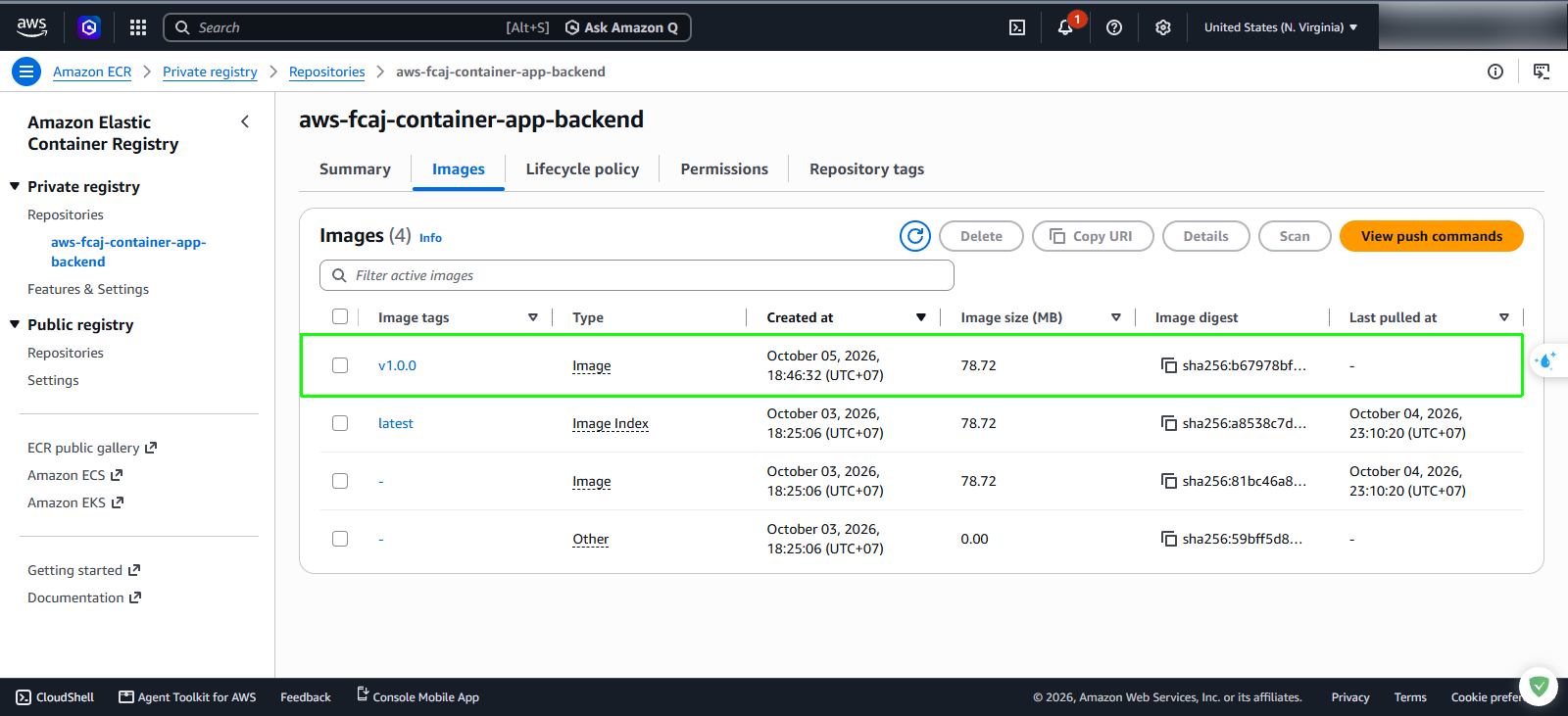
Open the AWS Management Console and navigate to Amazon ECR → Repositories.
Select your backend repository.
- Verify that an image with tag v1.0.0 is present.
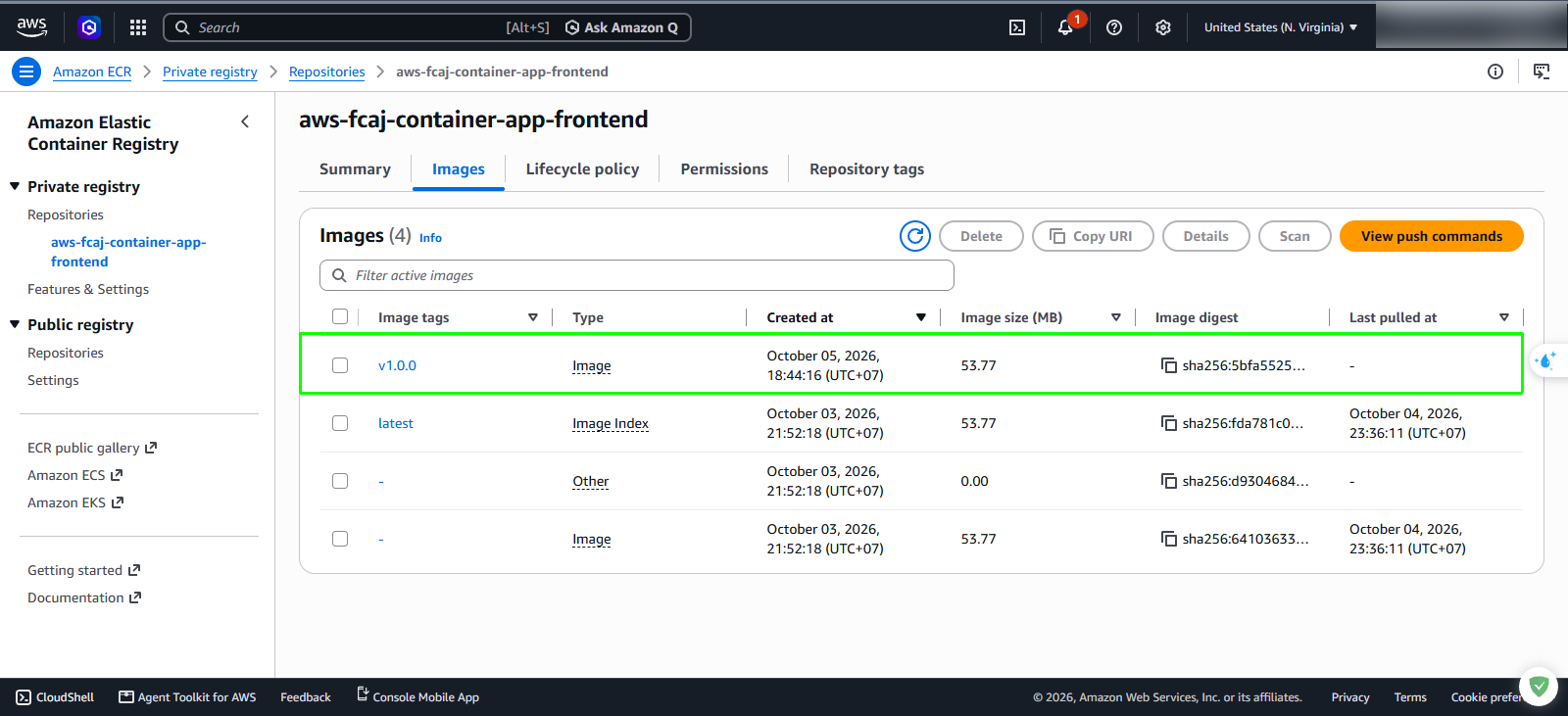
Return to Repositories and select your frontend repository:
- Confirm that the frontend image with tag v1.0.0 is successfully stored.
Step 2: Verify ECS Task Definition revisions
The deploy-frontend.sh and deploy-backend.sh scripts programmatically fetch the active task definition, inject the new image tag v1.0.0, and register a new revision with the Amazon ECS API.
In the AWS Management Console, navigate to Amazon ECS → Task definitions.
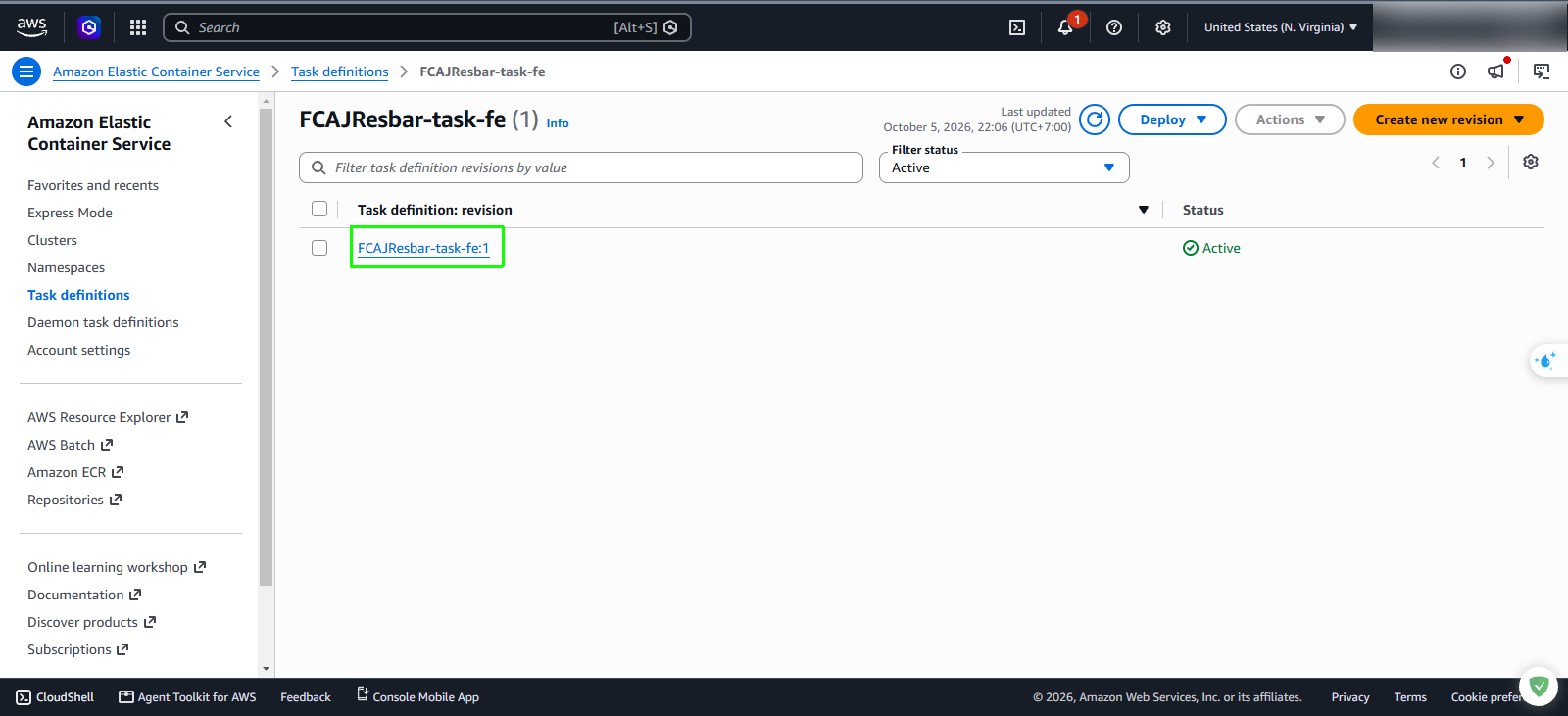
Select the frontend task definition family:
- Verify that the revision number has incremented.
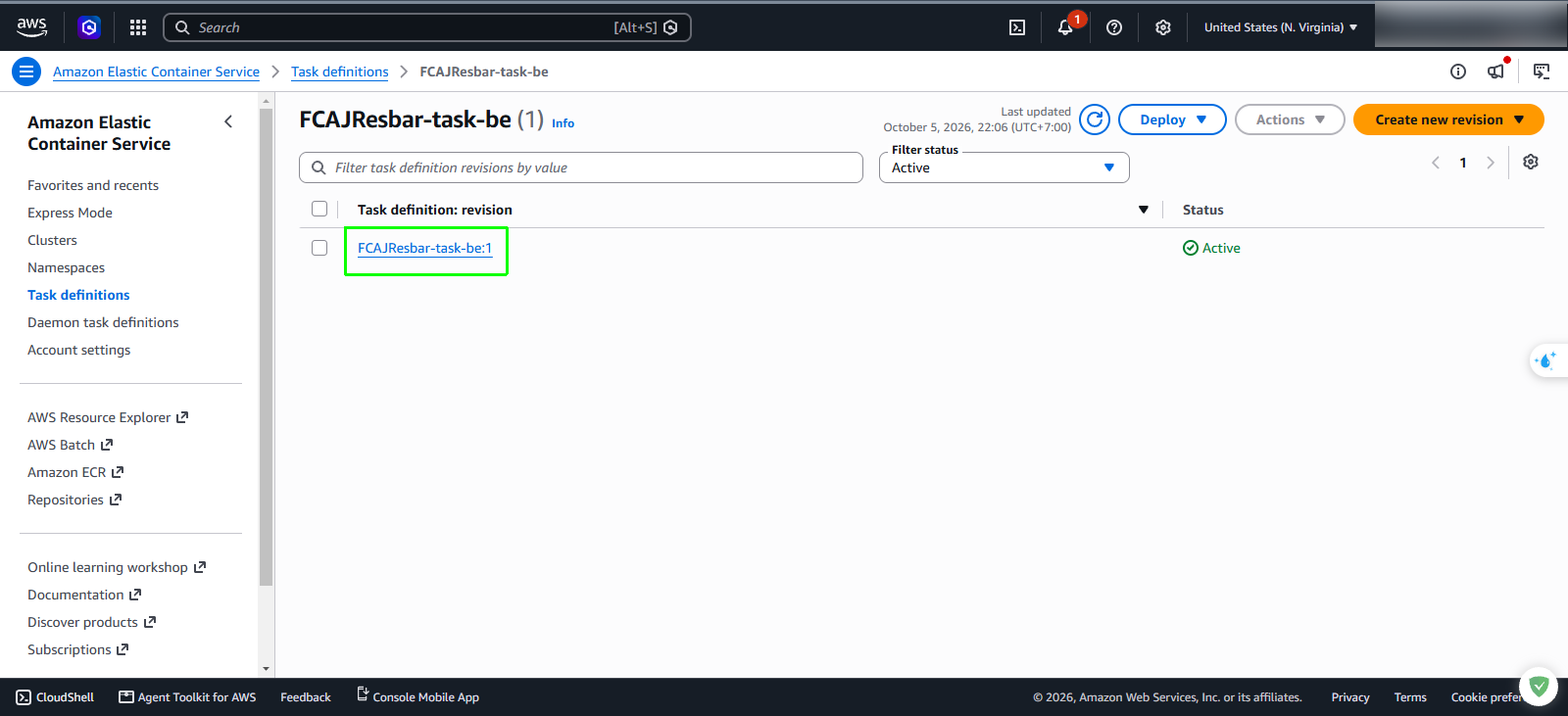
Return to Task definitions and select the backend task definition family:
- Verify that the latest revision is registered.
Step 3: Verify ECS service rolling deployments
Navigate to Amazon ECS → Clusters and select your cluster.
Return to the Services tab and select the backend service:
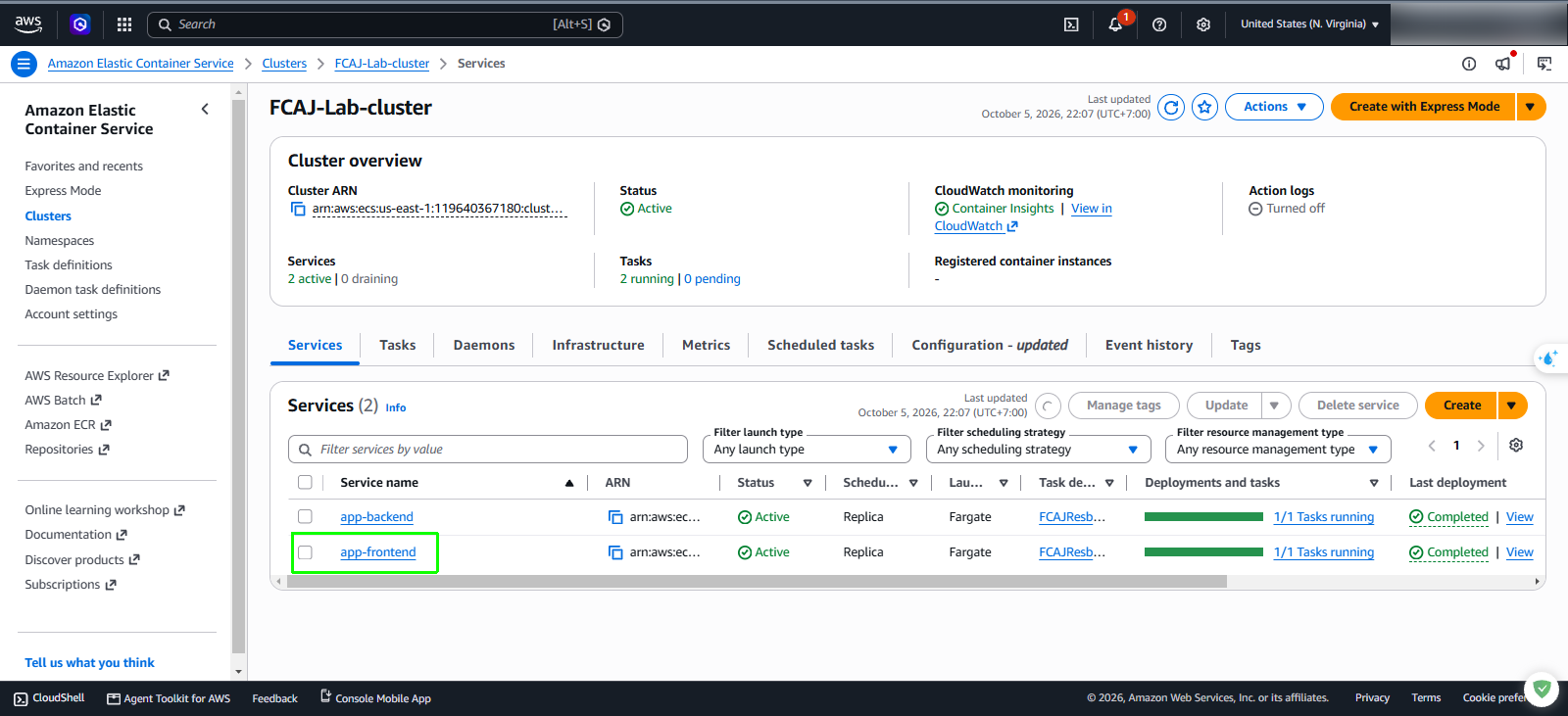
Confirm that the new tasks are running and healthy.
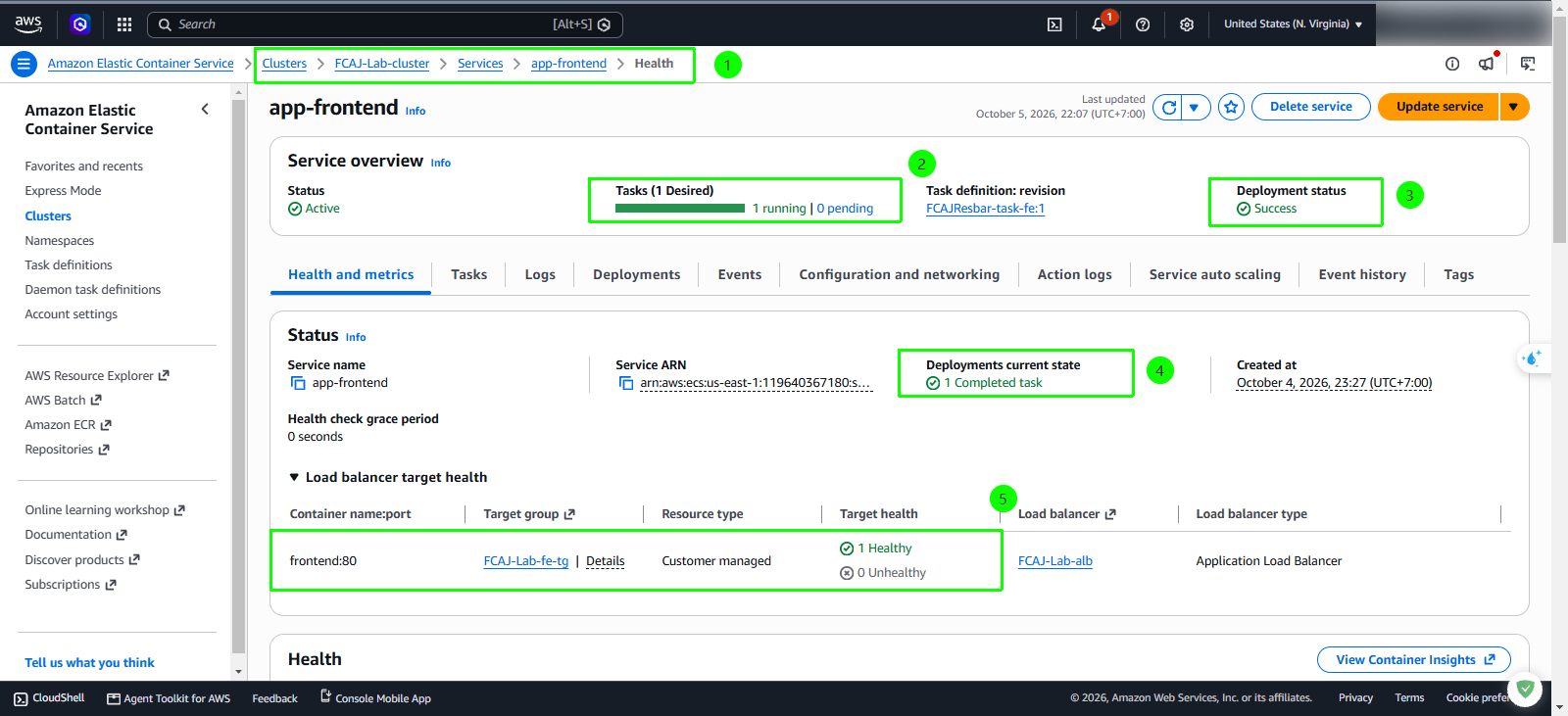
Step 4: Verify application via Application Load Balancer
To retrieve the public DNS hostname of your Application Load Balancer:
- Navigate to EC2 → Load Balancers and select your application load balancer.
- Copy the DNS name from the Details pane.
Alternatively, retrieve the DNS name from the terminal:
aws elbv2 describe-load-balancers \
  --query "LoadBalancers[*].DNSName" \
  --output text
Perform a command-line HTTP health check:
curl -I http://<ALB-DNS-NAME>Expected terminal output:
HTTP/1.1 200 OK
Content-Type: text/html; charset=UTF-8
Connection: keep-alive
Open a web browser and navigate to the Application Load Balancer URL:
http://<ALB-DNS-NAME>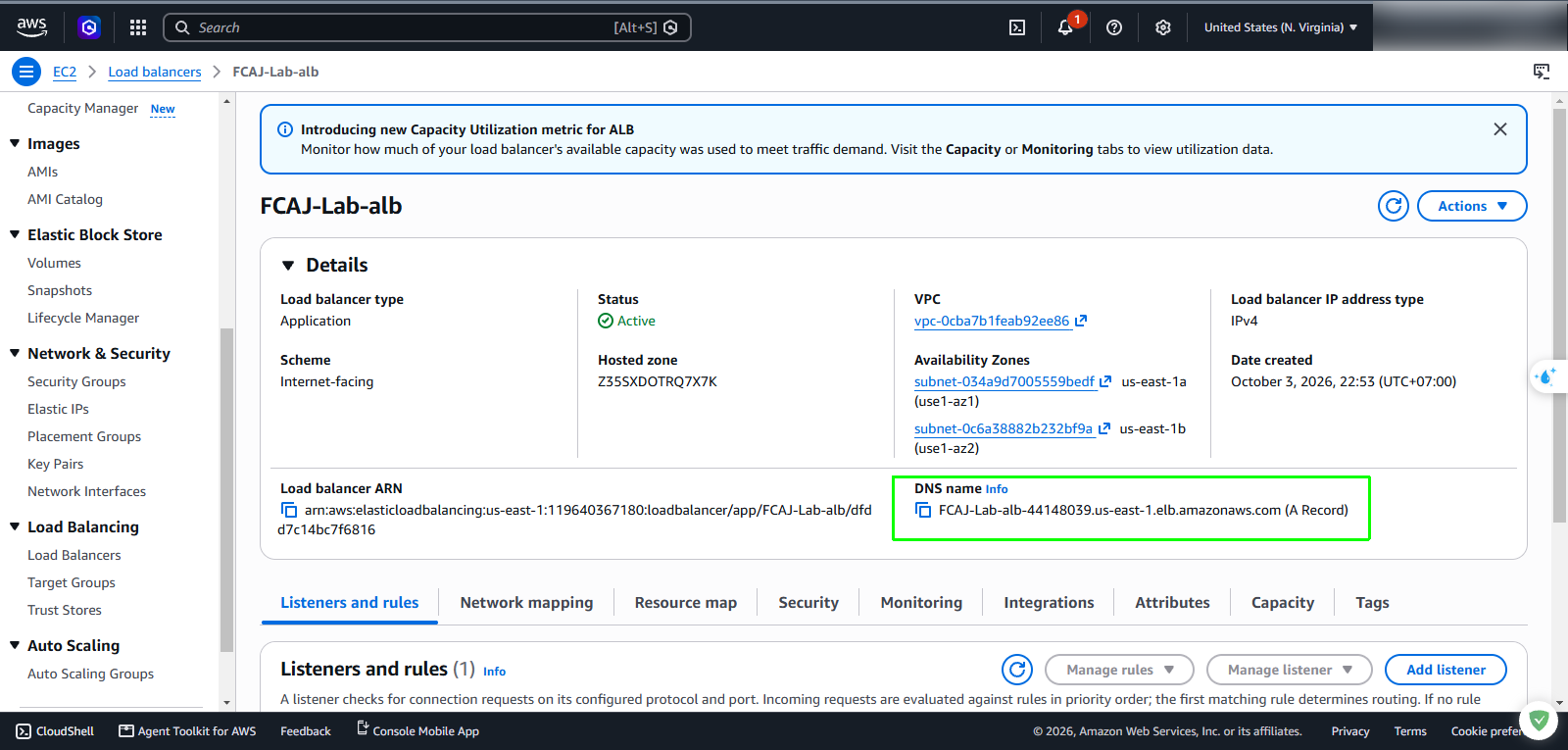
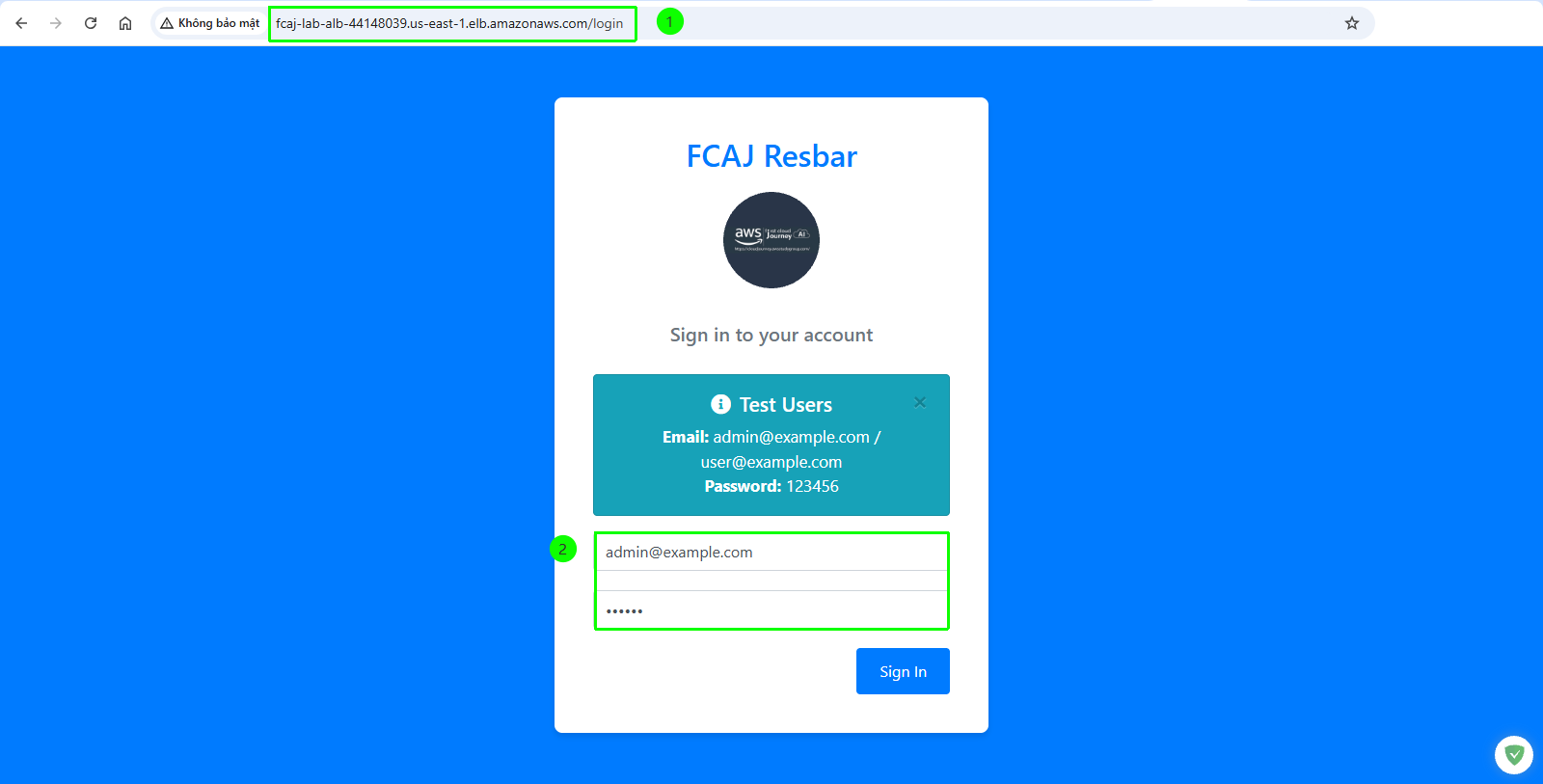
Verify that the dashboard reflects the new release change introduced in module 3.1:
- The title heading must display Dashboard v1.0.0.
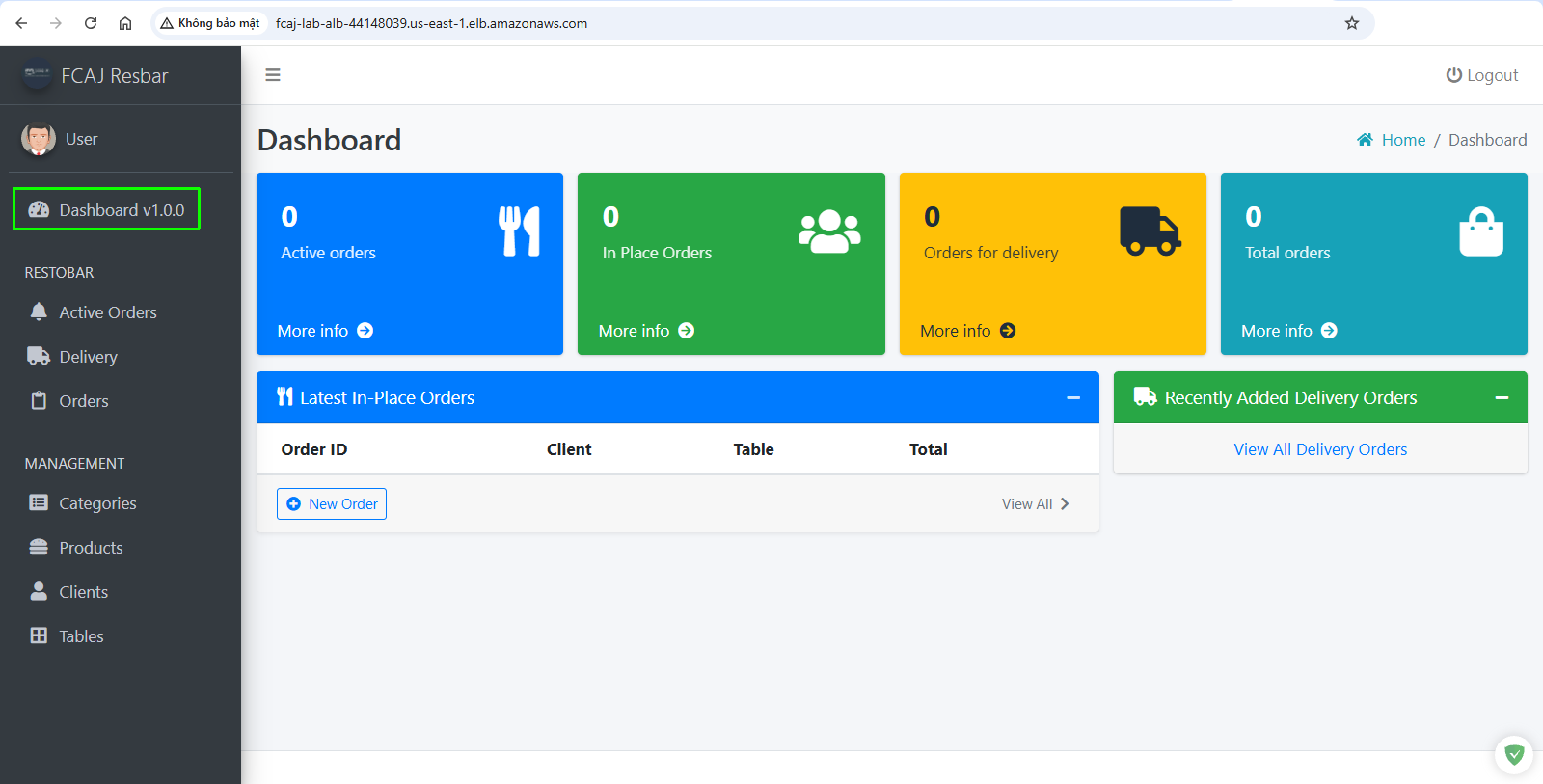
If your browser continues to display Dashboard instead of Dashboard v1.0.0, your browser may be caching static JavaScript assets. Perform a hard refresh using Ctrl + F5 (Windows/Linux) or CMD + Shift + R (macOS), or verify in an Incognito / Private window.