Add variables and run pipeline
In this section, you will configure project-level CI/CD environment variables in GitLab and trigger an automated release pipeline by publishing a Git tag. These variables supply infrastructure identifiers and AWS credentials to our pipeline jobs without hardcoding secrets into the source code repository.
CI/CD variable architecture
GitLab CI/CD uses environment variables to pass configuration parameters and credentials to runner execution shells. In containerized deployments targeting Amazon ECS:
- Infrastructure Parameters: Cluster names, service names, and ECR repository identifiers dynamically direct the deployment scripts to target the correct AWS resources.
- Variable Protection Scope: By default, GitLab restricts Protected variables to pipelines executed on protected branches or protected tags. If your release tag is not protected, leaving variables marked as protected will prevent them from loading into the runner shell, resulting in missing variable errors.
- Variable Masking: Sensitive values (such as secret keys) must be masked to prevent accidental leakage in console execution logs.
Step 1: Configure CI/CD variables in GitLab
In your forked GitLab repository, navigate to the left sidebar menu:
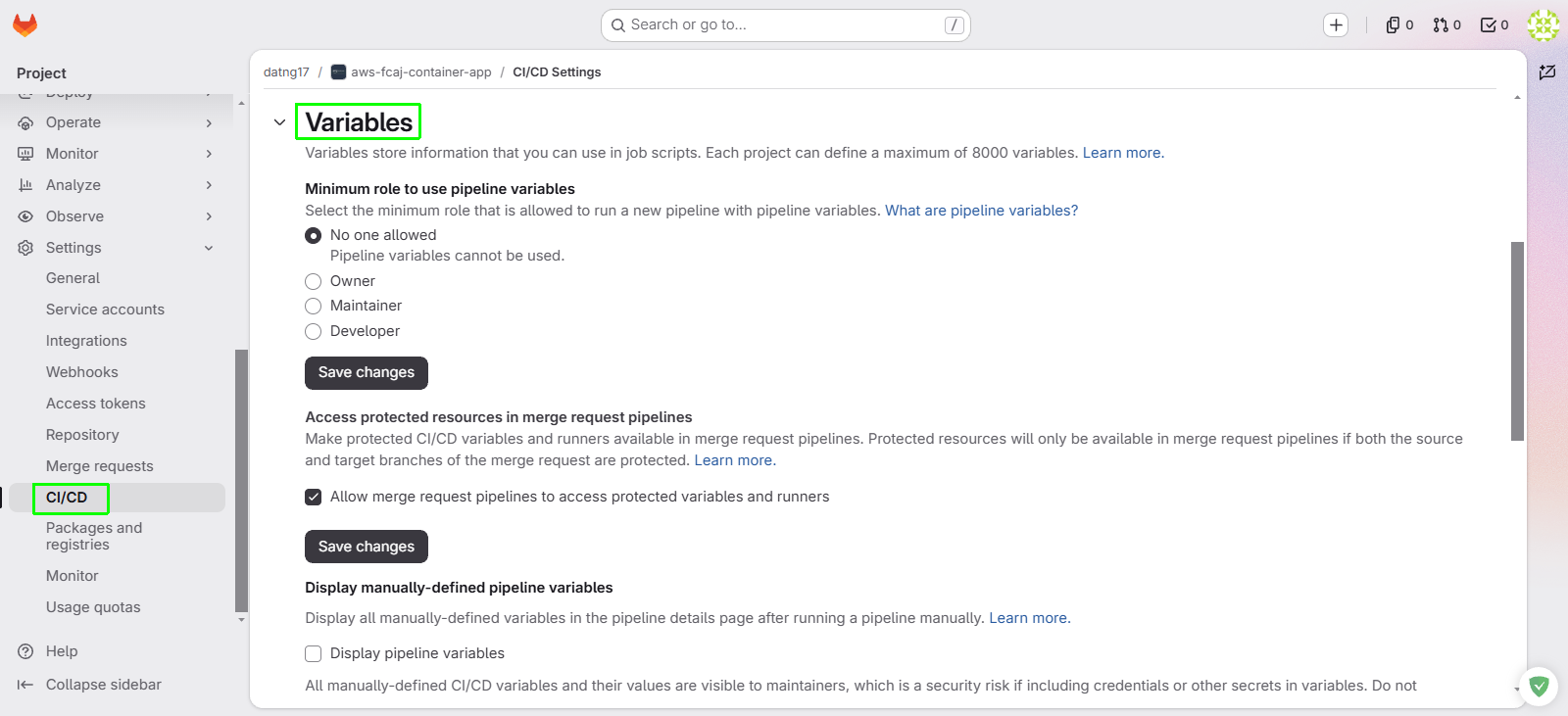
- Select Settings → CI/CD.
- Locate the Variables section and click Expand.
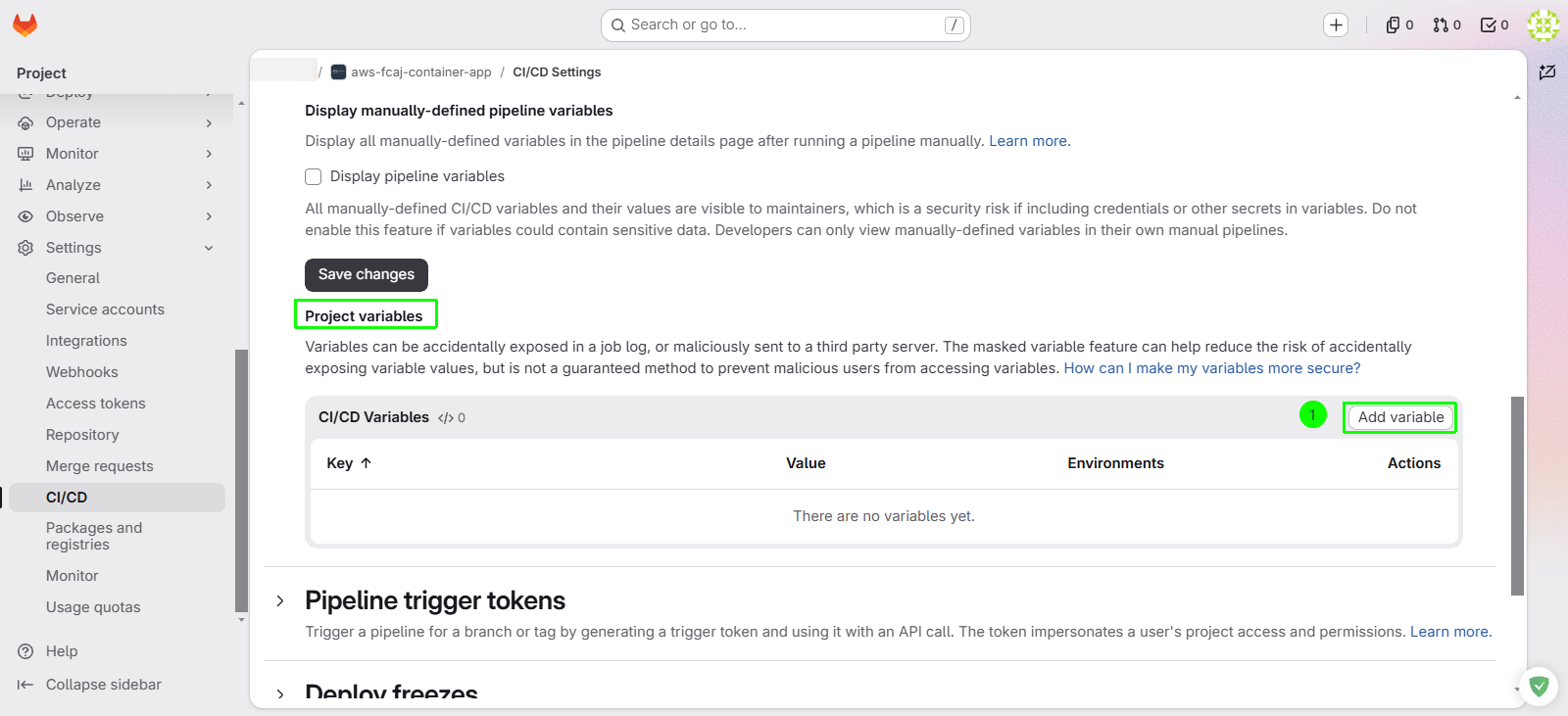
Click the Add variable button to create each required environment variable.
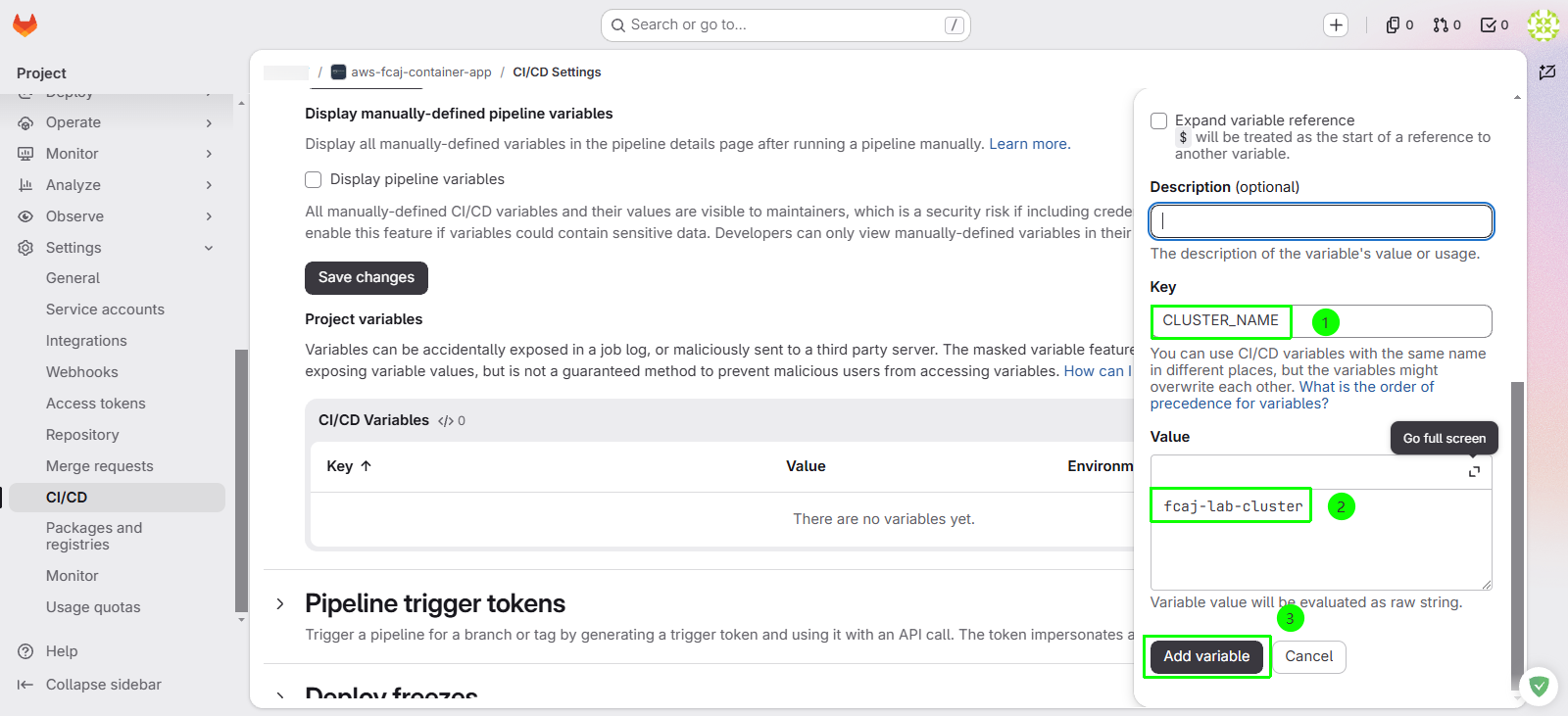
For each variable in the table below, configure the Key, Value, and security flags:
- Uncheck Protect variable (allows the variable to be injected into tag-triggered pipelines).
- Check Mask variable for sensitive credentials (e.g.,
AWS_SECRET_ACCESS_KEY).
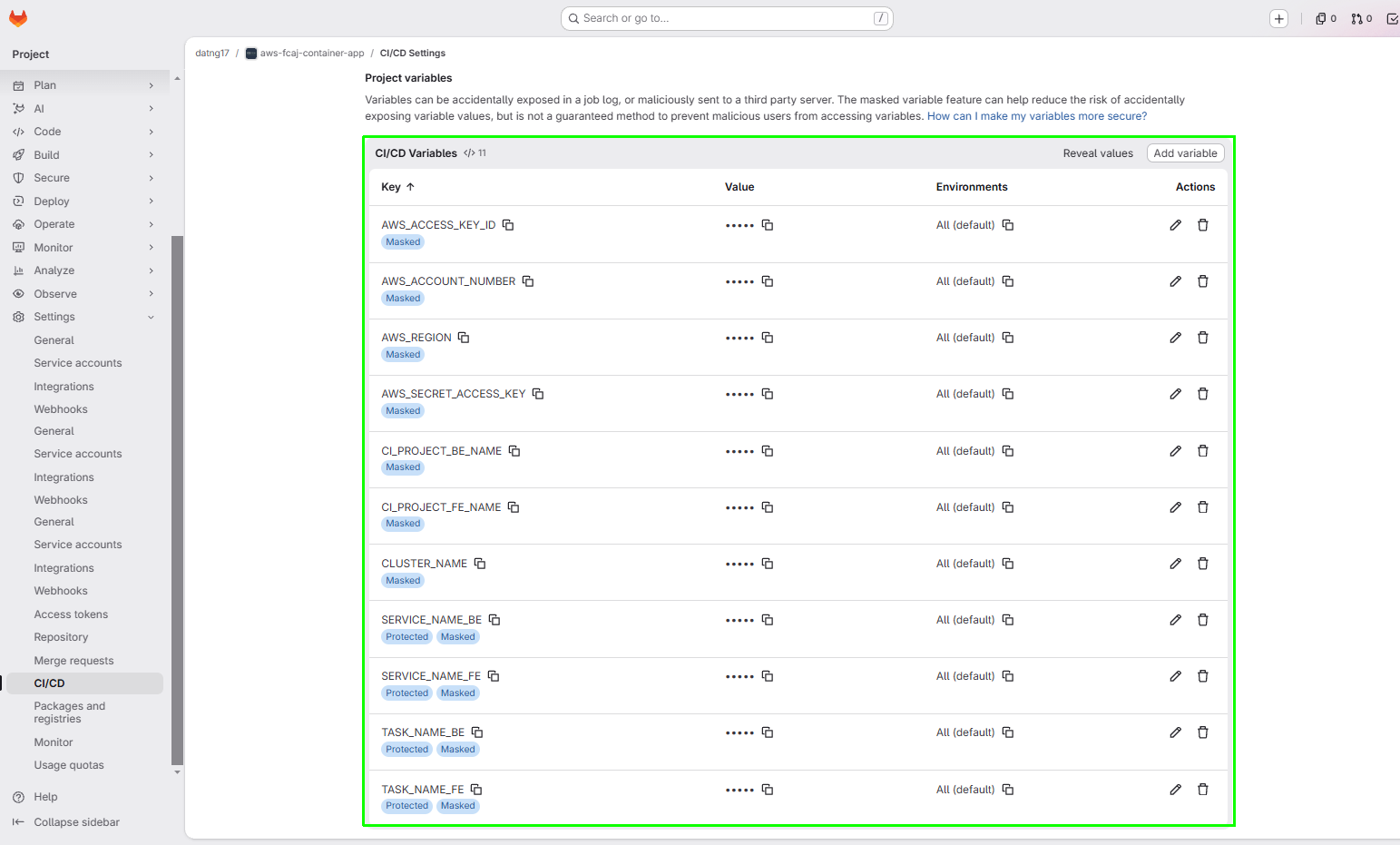
Project CI/CD variables reference table
| Variable Key | Description | Example / Recommended Value | Protected | Masked |
|---|---|---|---|---|
CLUSTER_NAME | Amazon ECS cluster name hosting frontend and backend | fcaj-lab-cluster | No | No |
SERVICE_NAME_FE | ECS Service name for the frontend application | app-frontend | No | No |
SERVICE_NAME_BE | ECS Service name for the backend | app-backend | No | No |
AWS_REGION | AWS Region where resources are deployed | us-east-1 | No | No |
AWS_ACCOUNT_NUMBER | 12-digit AWS Account ID | YOUR_AWS_ACCOUNT_NUMBER | No | No |
AWS_ACCESS_KEY_ID | IAM Access Key ID for CLI authentication | YOUR_AWS_ACCESS_KEY_ID | No | Yes |
AWS_SECRET_ACCESS_KEY | IAM Secret Access Key for CLI authentication | YOUR_AWS_SECRET_ACCESS_KEY | No | Yes |
CI_PROJECT_BE_NAME | Amazon ECR repository name for the backend image | aws-fcaj-container-app-backend | No | No |
CI_PROJECT_FE_NAME | Amazon ECR repository name for the frontend image | aws-fcaj-container-app-frontend | No | No |
TASK_NAME_FE | Amazon ECS Task Definition family name for frontend | FCAJResbar-task-fe | No | No |
TASK_NAME_BE | Amazon ECS Task Definition family name for backend | FCAJResbar-task-be | No | No |
Ensure that Protect variable is UNCHECKED for all variables unless your Git tags are explicitly configured as protected tags under Settings → Repository → Protected tags. If this checkbox remains checked on an unprotected tag, the runner shell will receive empty strings, causing deploy-backend.sh to fail with: [-] Error: Environment variable CLUSTER_NAME is required but not set.
Step 2: Create a Git release tag to trigger the pipeline
Our .gitlab-ci.yml pipeline uses conditional rules that automatically trigger build and deployment workflows whenever a Git release tag is pushed.
In the left navigation menu of your GitLab project:
- Select Code → Tags.
- Click the New tag button.
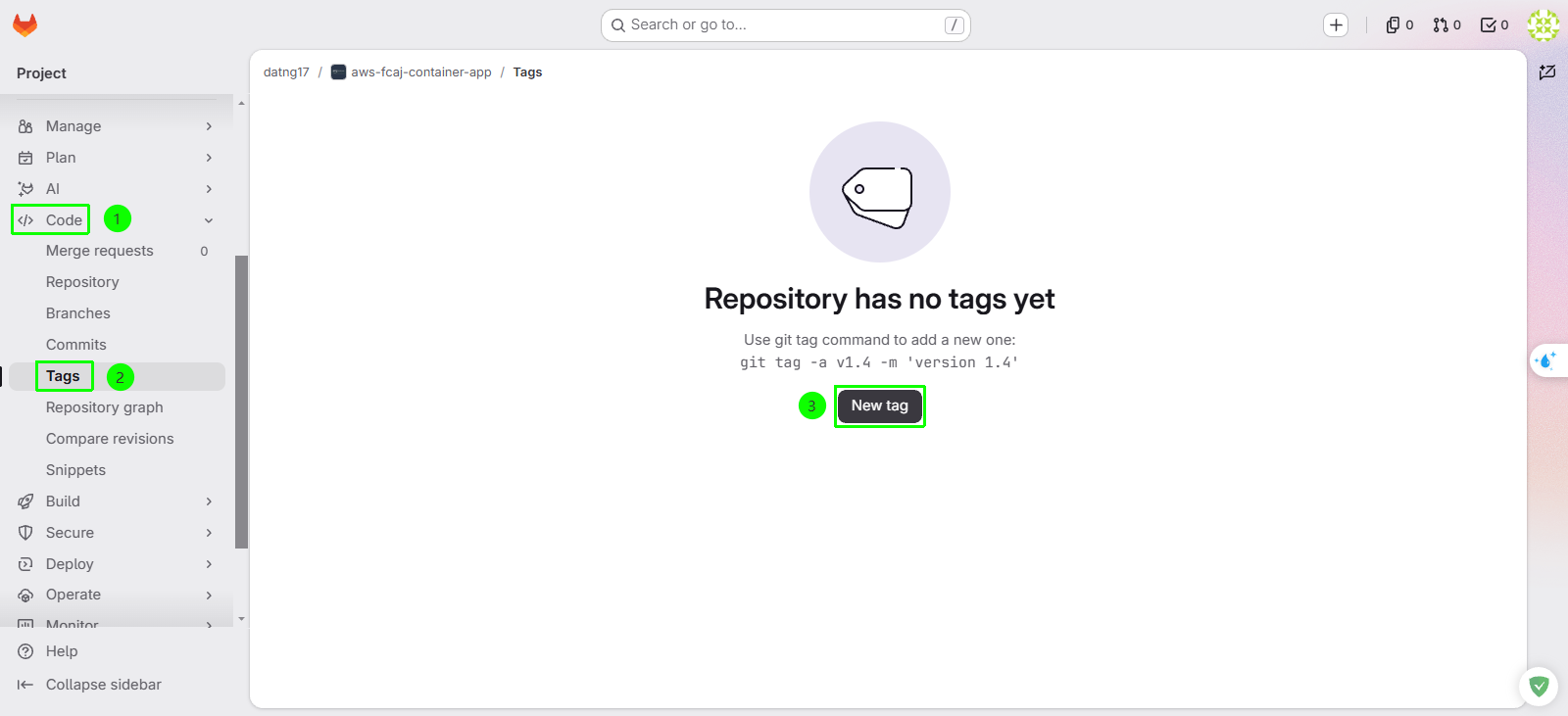
Fill in the release tag parameters:
- Tag name: v1.0.0
- Create from: main
Click Create tag to publish the release point.
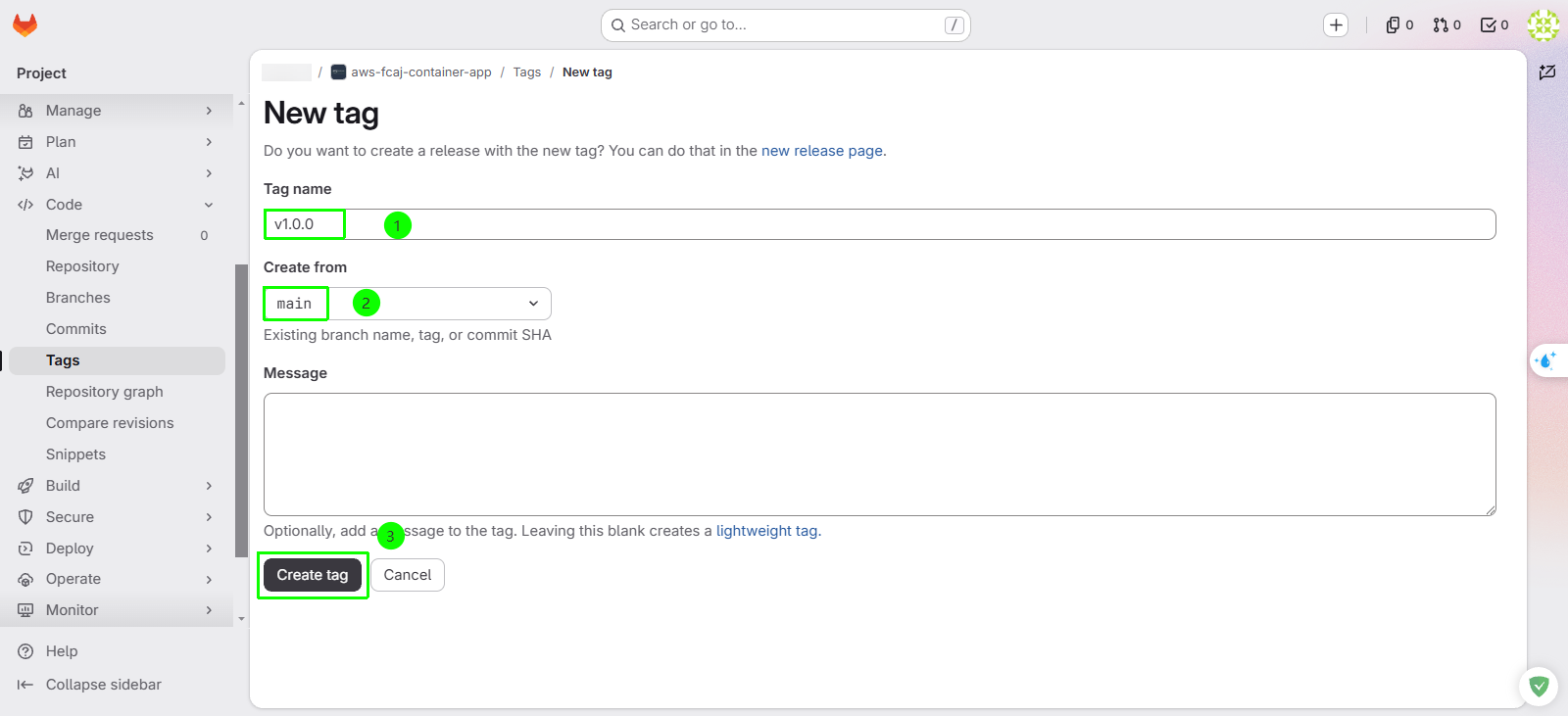
Using semantic versioning (such as v1.0.0, v1.0.1, v1.0.2) provides traceable release lineages. In this pipeline, the Git tag name ($CI_COMMIT_TAG) is directly used to tag container images pushed to Amazon ECR.
Verify Tag creation
Verify that the tag exists in your repository:
| Verification Item | Target Value | Validation Procedure |
|---|---|---|
| Tag Identifier | v1.0.0 | In GitLab UI, navigate to Code → Tags and confirm v1.0.0 is listed |
| Commit Reference | Latest commit on main | Confirm the tag points to your commit: feat(frontend): update dashboard title to v1.0.0 |
Step 3: Monitor CI/CD pipeline execution
Once the tag is published, GitLab automatically generates a pipeline consisting of three stages: build, push, and deploy.
In the left sidebar menu, navigate to Build → Pipelines.
Locate the pipeline triggered for tag v1.0.0.
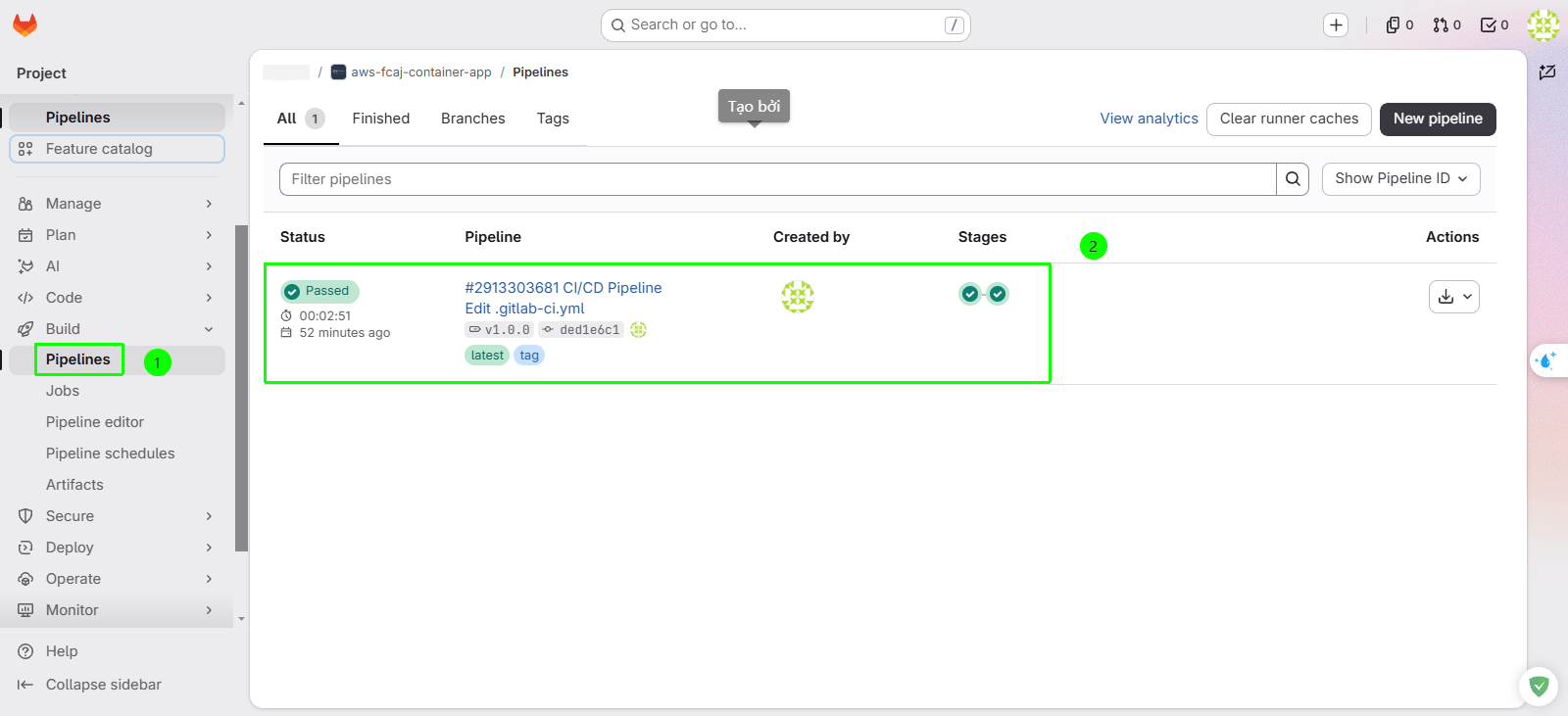
Click on the pipeline status badge to inspect the execution graph.
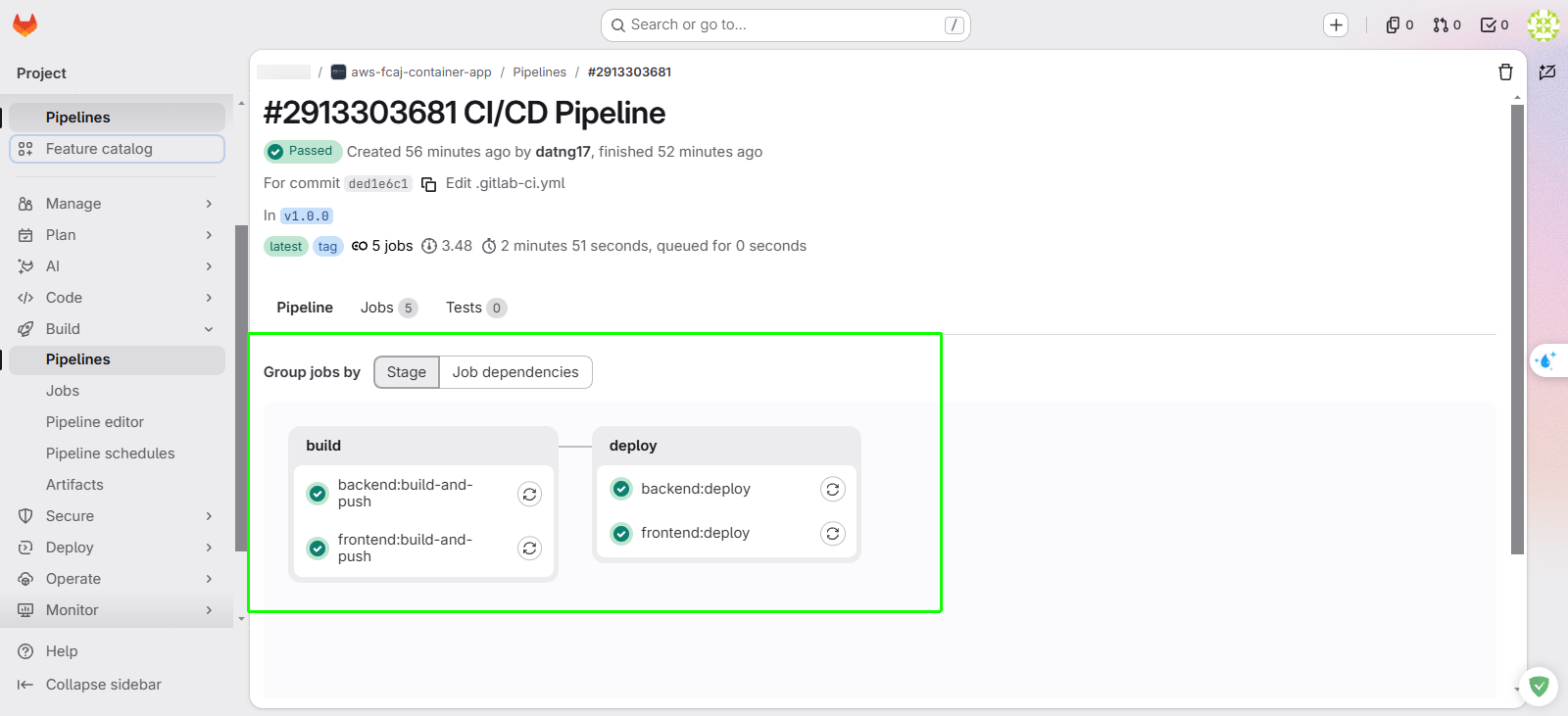
Select the Job dependencies tab and enable Show dependencies to visualize the pipeline:
- build stage: Builds the Docker container images for both frontend and backend microservices in parallel.
- push stage: Tags the built images with $CI_COMMIT_TAG (v1.0.0) and pushes them to Amazon ECR.
- deploy stage: Executes the deployment scripts (deploy-frontend.sh and deploy-backend.sh), registers updated ECS Task Definitions, and triggers rolling ECS service updates.
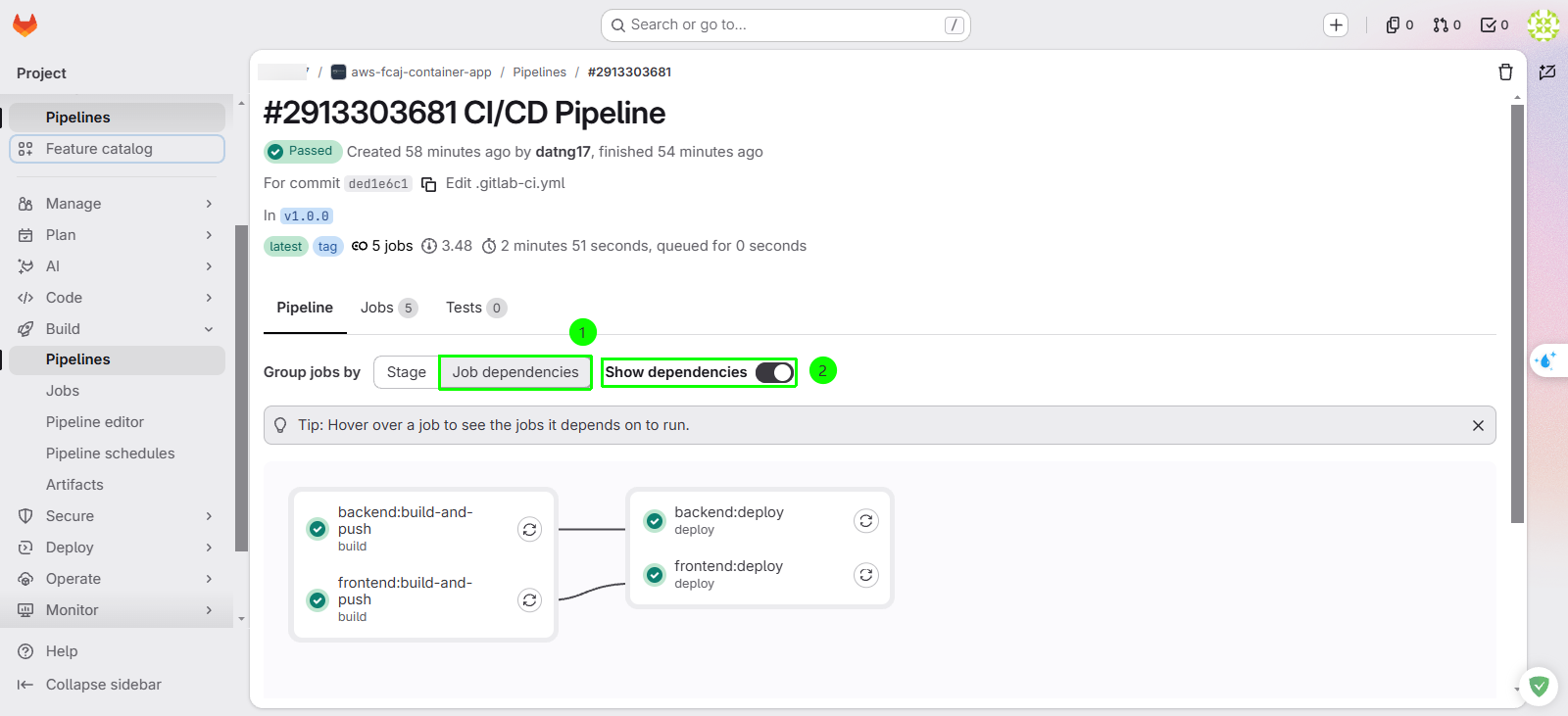
Click on the deploy:backend job to view its live execution log.
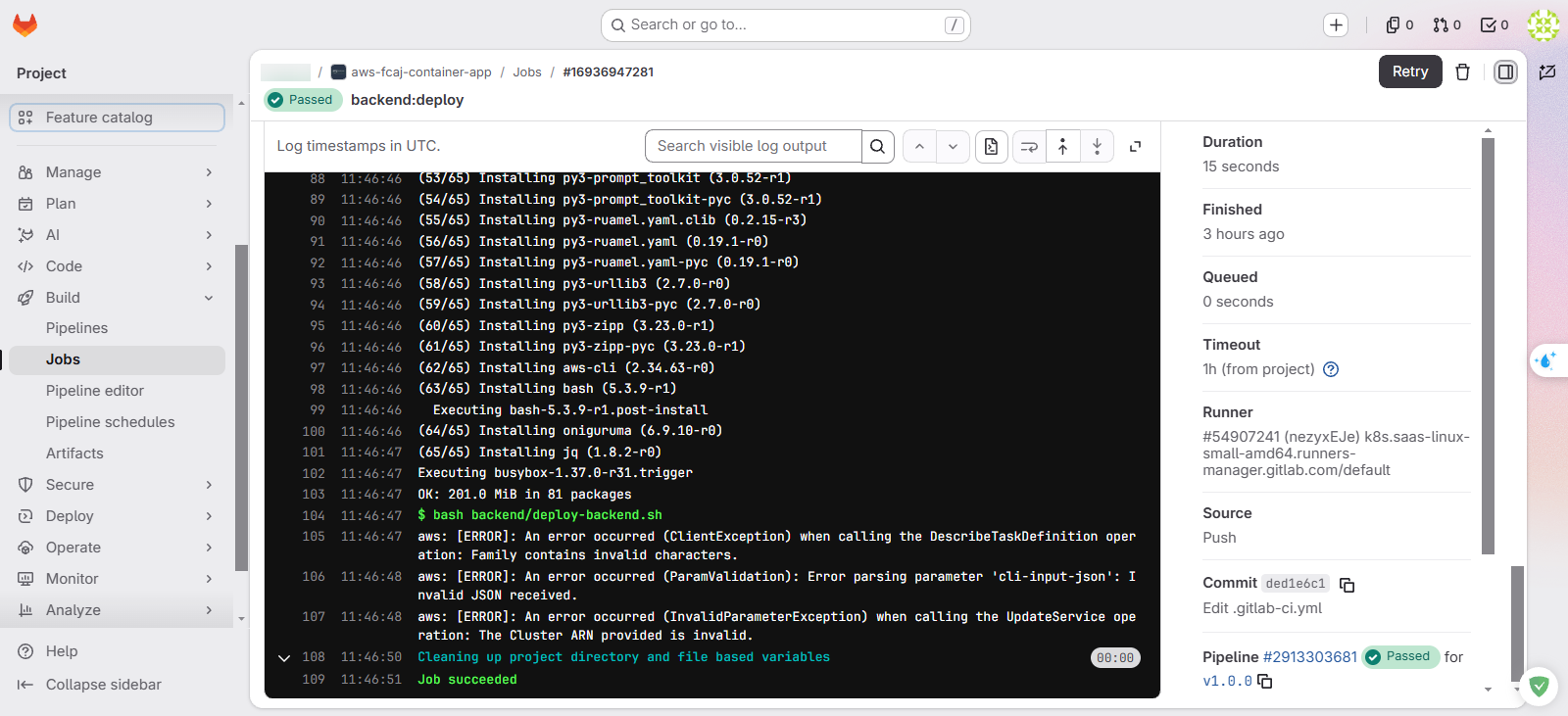
The job execution output details:
- Logging in to Amazon ECR via the AWS CLI v2.
- Executing deploy-backend.sh with the injected environment variables.
- Generating a new Task Definition revision containing the updated container image URI.
- Initiating the ECS service update and polling until the service reaches steady state.
A solid green on all jobs indicates end-to-end success. If any job fails, click the red failure badge to inspect the stdout/stderr trace. Common root causes include incorrect variable spellings, missing permissions on CustomRWECRRole, or offline GitLab Runners.